Overview
Install the Notifly JavaScript SDK on your site.1. Build a popup template
Web and in-app popups use templates. To create a web popup template, open Message Templates > Web Popup Templates in the Notifly console.2. Set the audience
Set up a user group to choose who sees the popup. See Set up a user group.3. Set when to show the popup
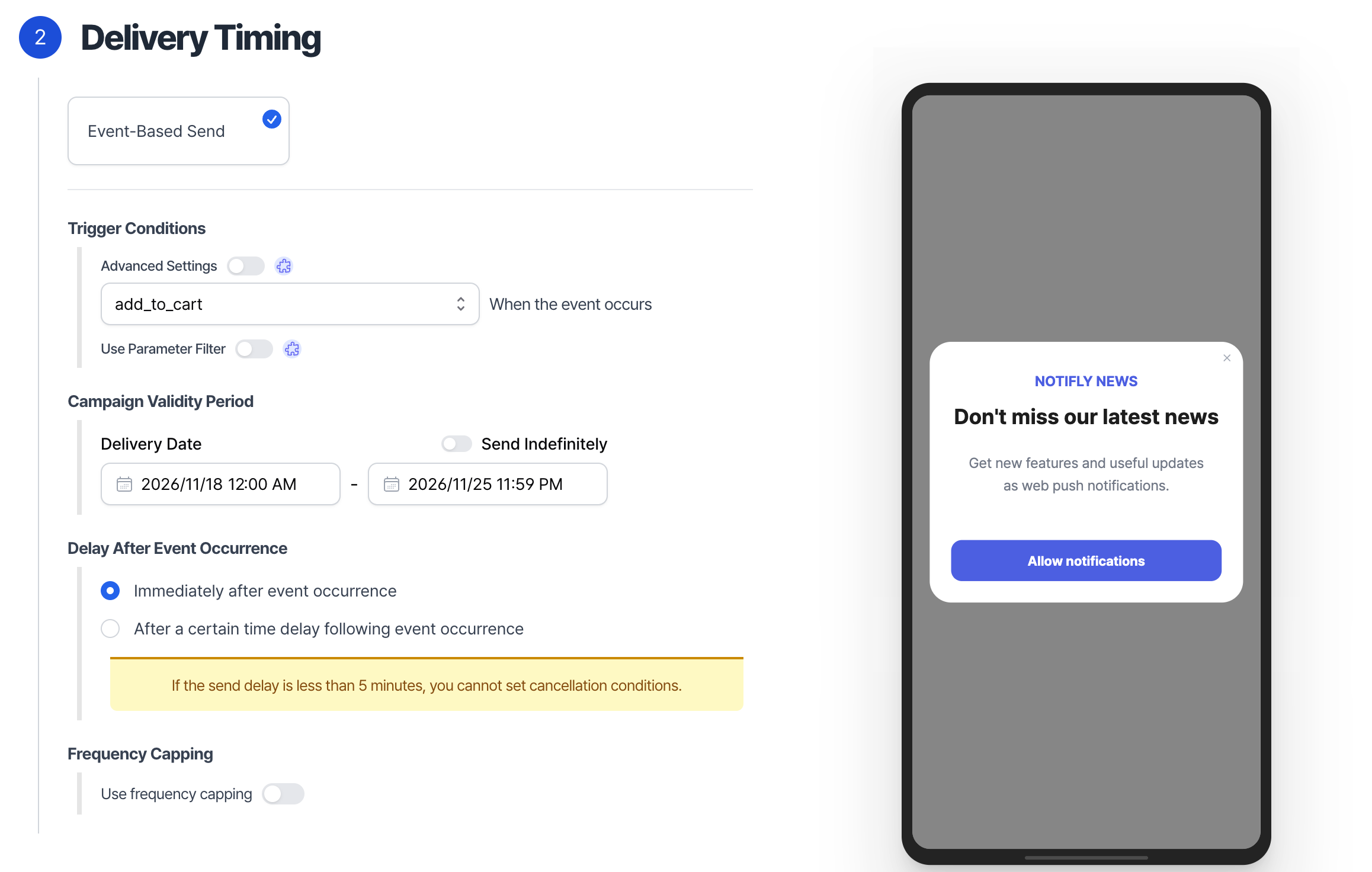
For a web popup campaign, choose Event-Based Send and select the event that should display the popup.Example 1. Show a popup when an add_to_cart event occurs
To display the popup immediately after add_to_cart, select add_to_cart as the event and use the timing shown below.
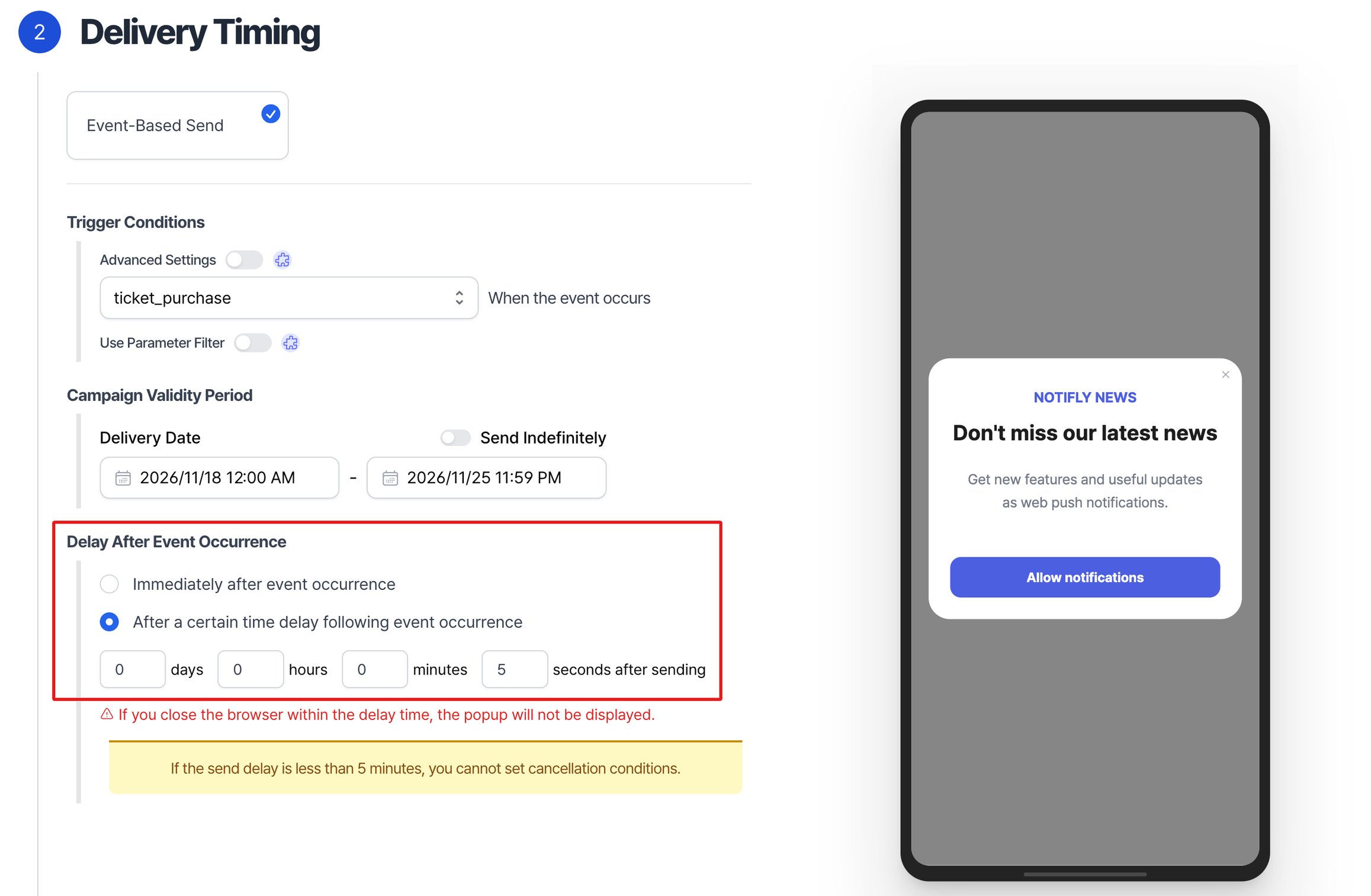
Example 2. Show a popup five seconds after a ticket_purchase event
Set ticket_purchase as the event and set a five-second delay.
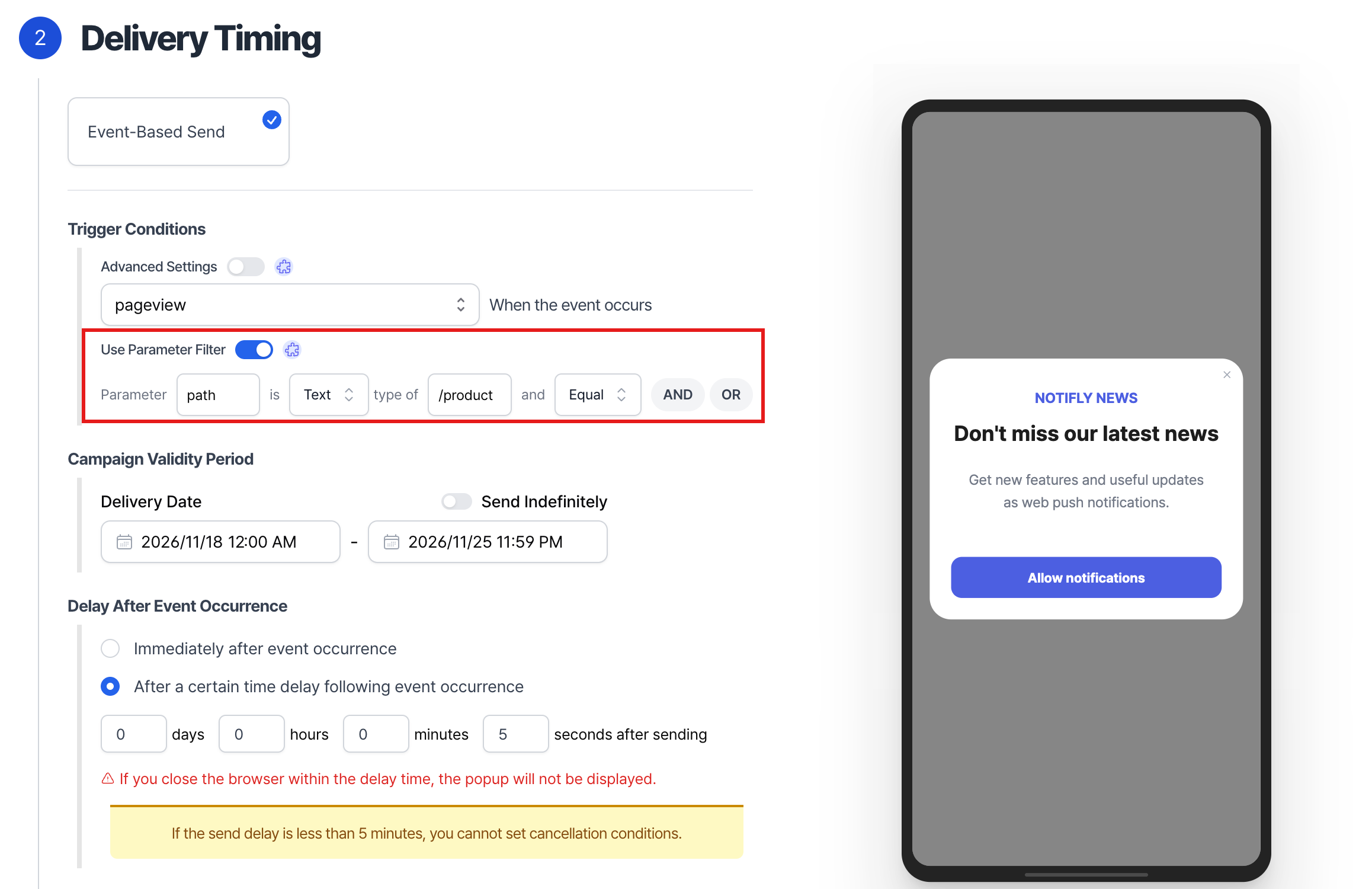
Example 3. Show a popup five seconds after a pageview event when path equals /product
Set pageview as the event and set a five-second delay. Add a condition so the popup appears only when path is /product.
4. Select a template and create the campaign
- In Message and Action, click Select Template. Choose the web popup template you saved, then click Select.
- Click Final Confirmation and review the campaign settings. Then click Create Campaign.
5. Reload a popup campaign for testing
The SDK loads web popup campaigns when it initializes. To avoid extra network requests, it attempts to initialize only once per session. A session lasts 30 minutes by default. If you create a campaign during an active session, reinitialize the SDK before testing in the same browser.1. Use Incognito mode
Close the browser window completely and reopen it in Incognito mode. The SDK initializes again and loads the campaign.2. Change the user ID with setUserId
Call setUserId with a different user ID to reinitialize the SDK.
3. Delete the session record from IndexedDB
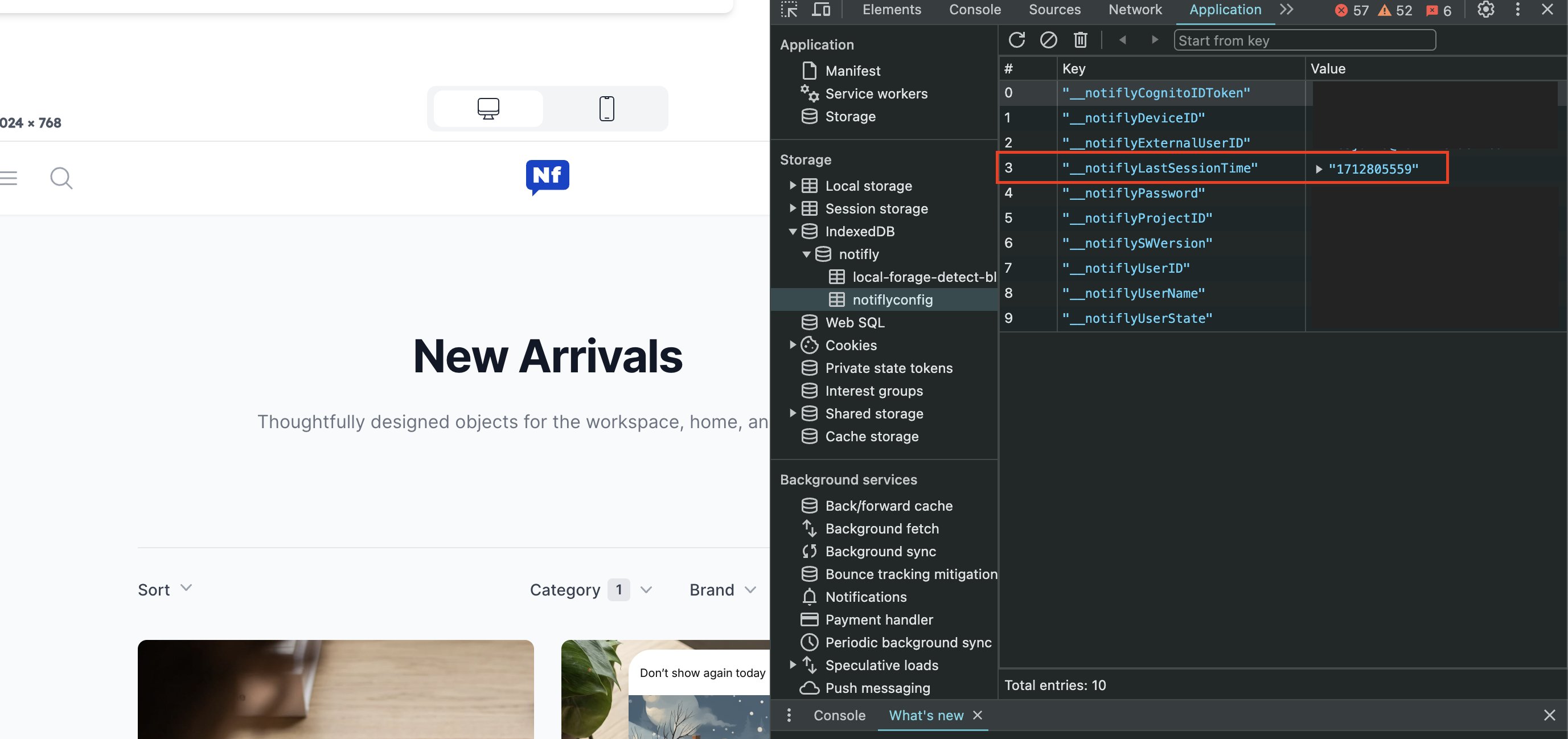
- Open the Application tab in browser developer tools.
- In the sidebar, open Storage > IndexedDB > notifly > notiflyconfig.
- Select
__notiflyLastSessionTime, then click the delete button in the upper right to remove that row. - Reload the page to reinitialize the SDK and load the campaign.