
Basic journey statistics
Notifly provides statistics for the whole user journey and for each node. Journey statistics count sessions that entered, exited early, or completed the journey. Basic node statistics count sessions that entered or exited at that node.Journey performance statistics
When you create a user journey, you can configure up to four conversion events. Notifly reports conversions for the whole journey and for branch and message nodes.Sessions
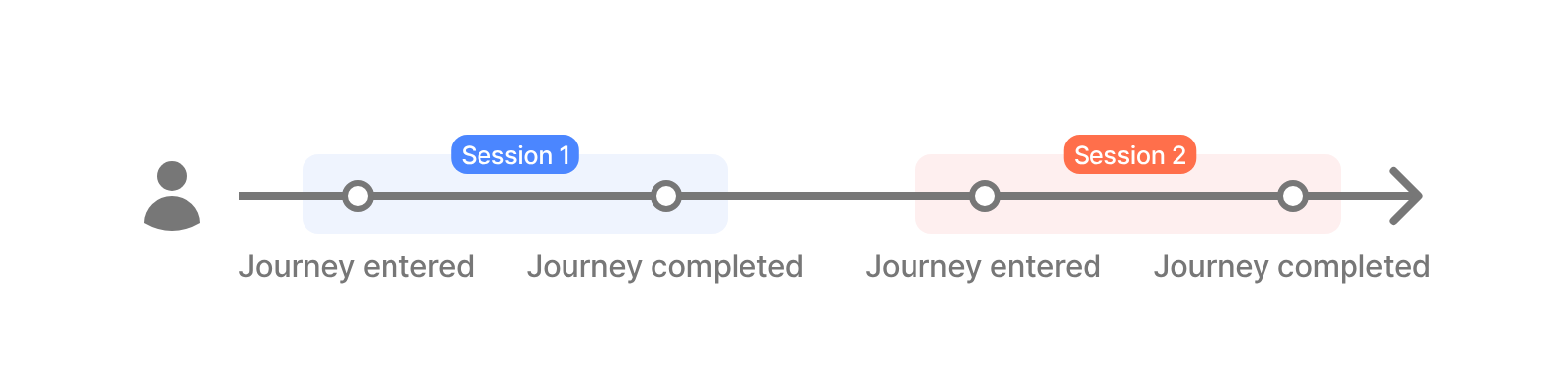
When a conversion counts
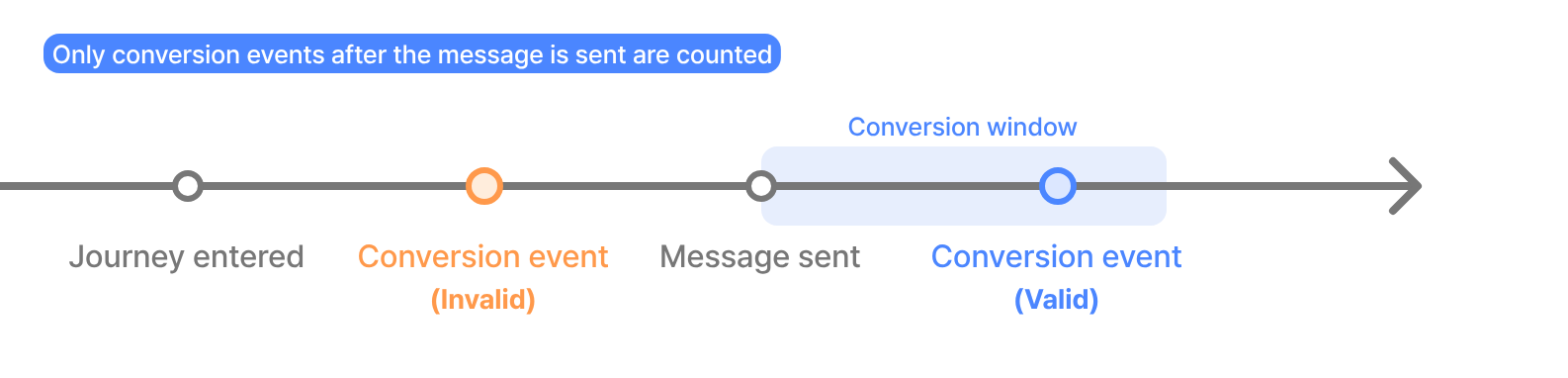
- A conversion event counts when it occurs within the attribution window after an eligible send, popup display, or click. Which event starts the window depends on the conversion type.
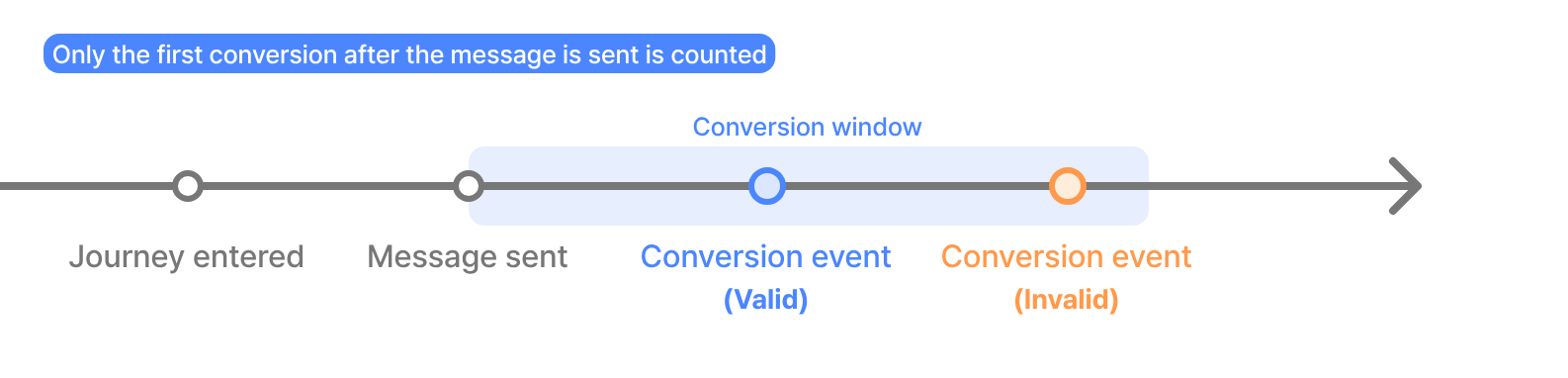
- In the overall journey statistics, each conversion metric counts the first eligible event per session. If the same event qualifies three times for one metric, that metric counts it once.
Conversion types
- Total Conversion. The attribution window starts when Notifly records a successful send or a popup display. Notifly counts an eligible conversion event within that window regardless of whether the user clicks the message.
-
Direct Conversion. The attribution window starts when Notifly records a click for the journey message. Notifly counts an eligible conversion event within that window.
The click must be tied to the message node in the journey. Notifly cannot track clicks on ordinary links in Kakao BizMessage, text messages, or LINE messages, so those clicks do not count toward direct conversions. Campaign tracking links are measured in campaign reports.
View statistics
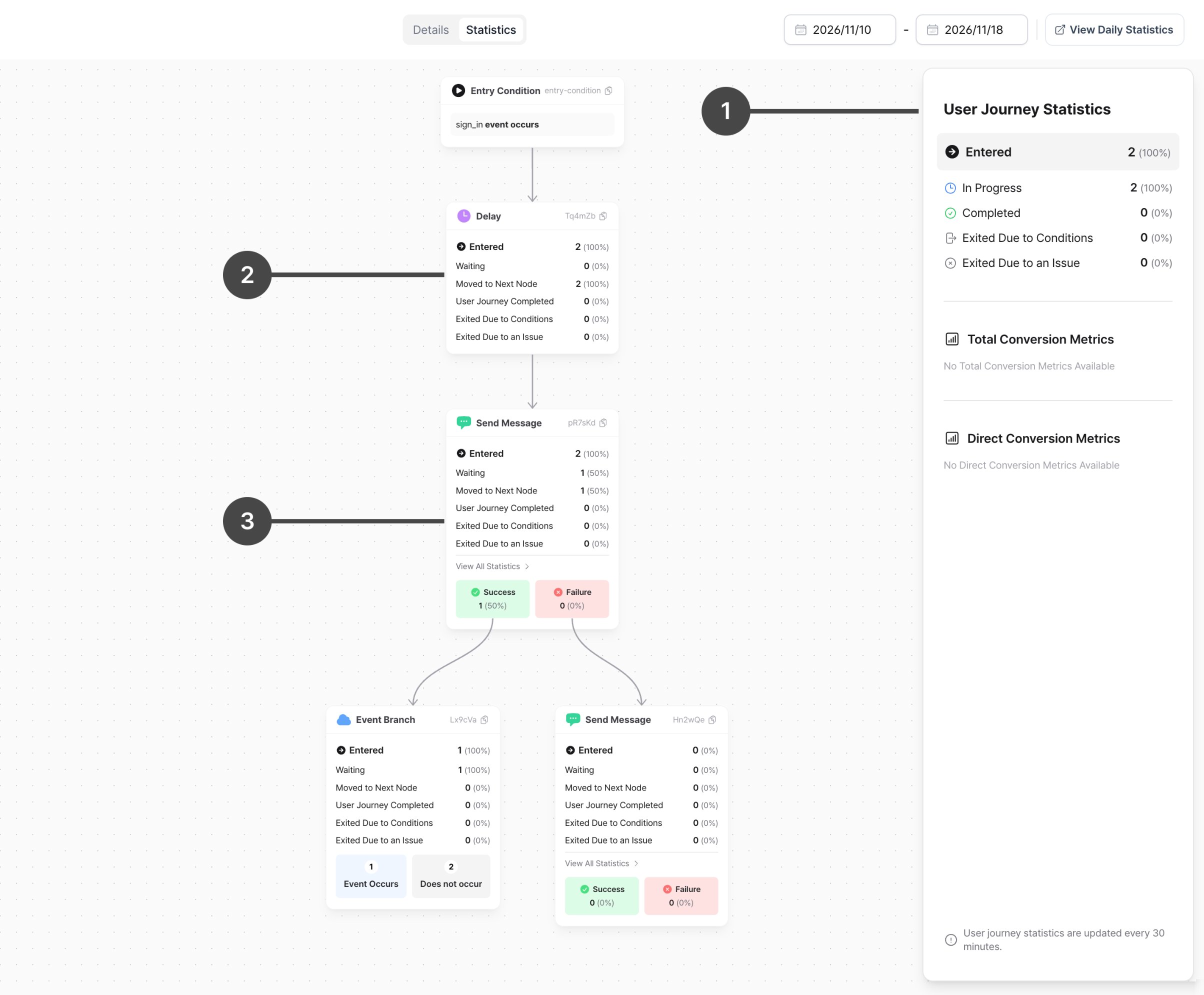
1. Overall journey statistics
See how many sessions entered, completed, or exited the journey, along with the total number of conversions.2. Node statistics
See how many sessions entered, completed, or exited at each node in the journey.3. Message node statistics
Message nodes show basic node statistics, send volume, and counts for each send result.Interpret overall journey metrics
The console shows the latest available values.- Entered counts sessions created when users met the entry conditions and entered the journey.
- In Progress counts sessions that have started and are still running. The console shows this metric only for the default date range.
- Completed counts sessions that reached the last node and ended successfully.
- Exited Due to Conditions counts sessions that left the journey after meeting an exit condition, if one is set.
- Exited Due to an Issue counts sessions that left because a send or another step could not proceed.
- Total Conversion Metrics shows total conversions across the whole journey. Each metric counts up to one conversion per session.
- Direct Conversion Metrics shows direct conversions across the whole journey. Each metric counts up to one conversion per session.
Interpret node metrics
Review how many sessions reached each node, how many are waiting, and how many exited. For nodes that report conversions, check the conversion counts as well.Basic node statistics
Message node statistics
Message nodes report send and delivery outcomes, plus conversions. Each node counts the first eligible conversion event within the attribution window for the message sent or shown by that node. Direct conversions use the window that starts at the recorded click. The node’s conversion counts are independent of the journey’s overall counts.Random branch node statistics
A random branch node reports conversions separately for each branch. Each metric counts up to one eligible conversion per session in that branch.Download a user list as a CSV file
User journey CSV exports cover data from January 9, 2026 at 00:00 KST (January 8, 2026 at 15:00 UTC) onward. Set the start of the statistics range to that time or later.
Supported nodes
- Message node. Export a user list for a specific send result or conversion metric.
- Random branch node. Export the user list with each user’s assigned group.
Download the file
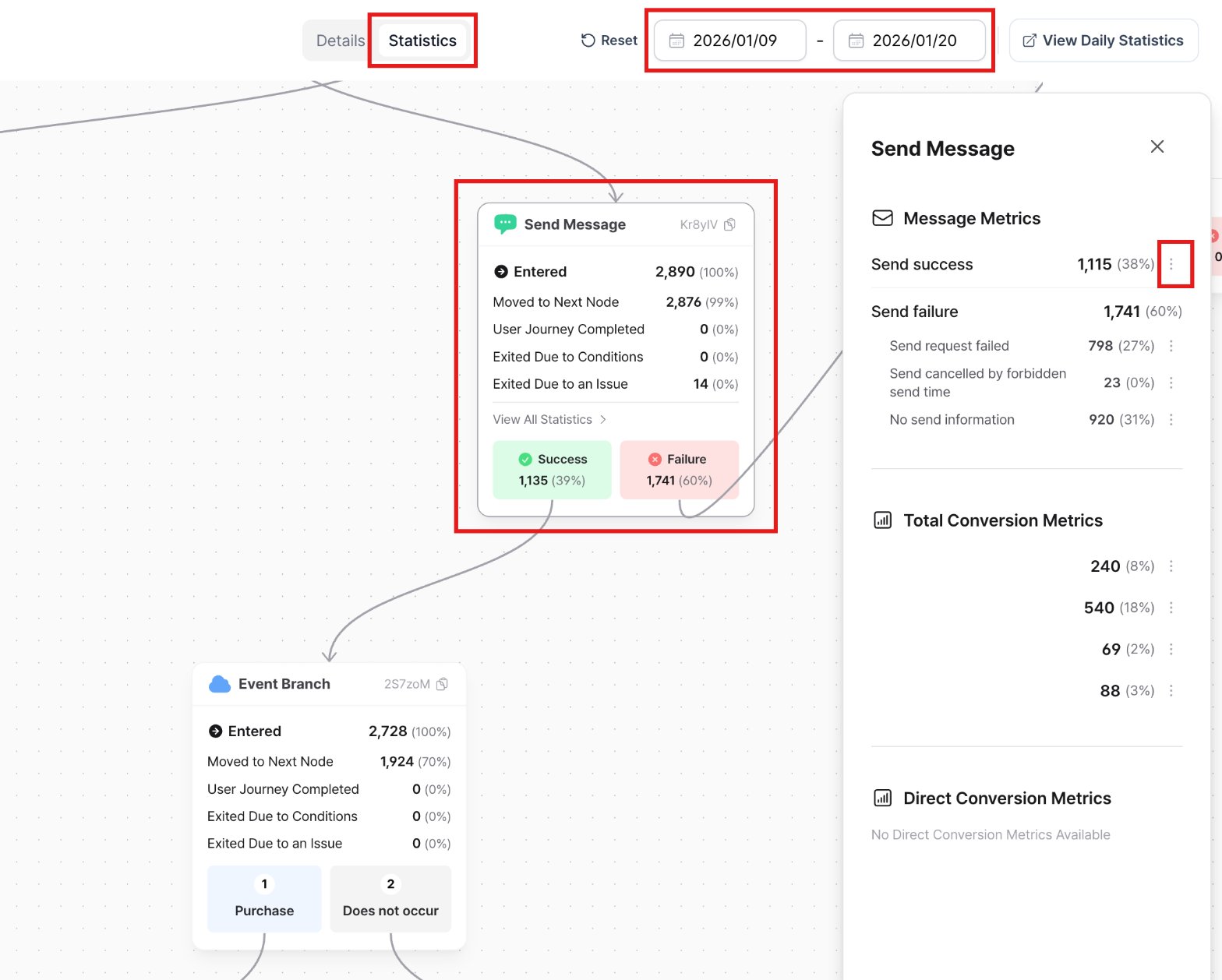
- Select Statistics at the top of the page.
- Set the date range at the top right.
- Select the node whose data you want to export. Its details open on the right.
- Open the three-dot menu (⋮) next to the metric and choose the option to export the user list as a CSV file.
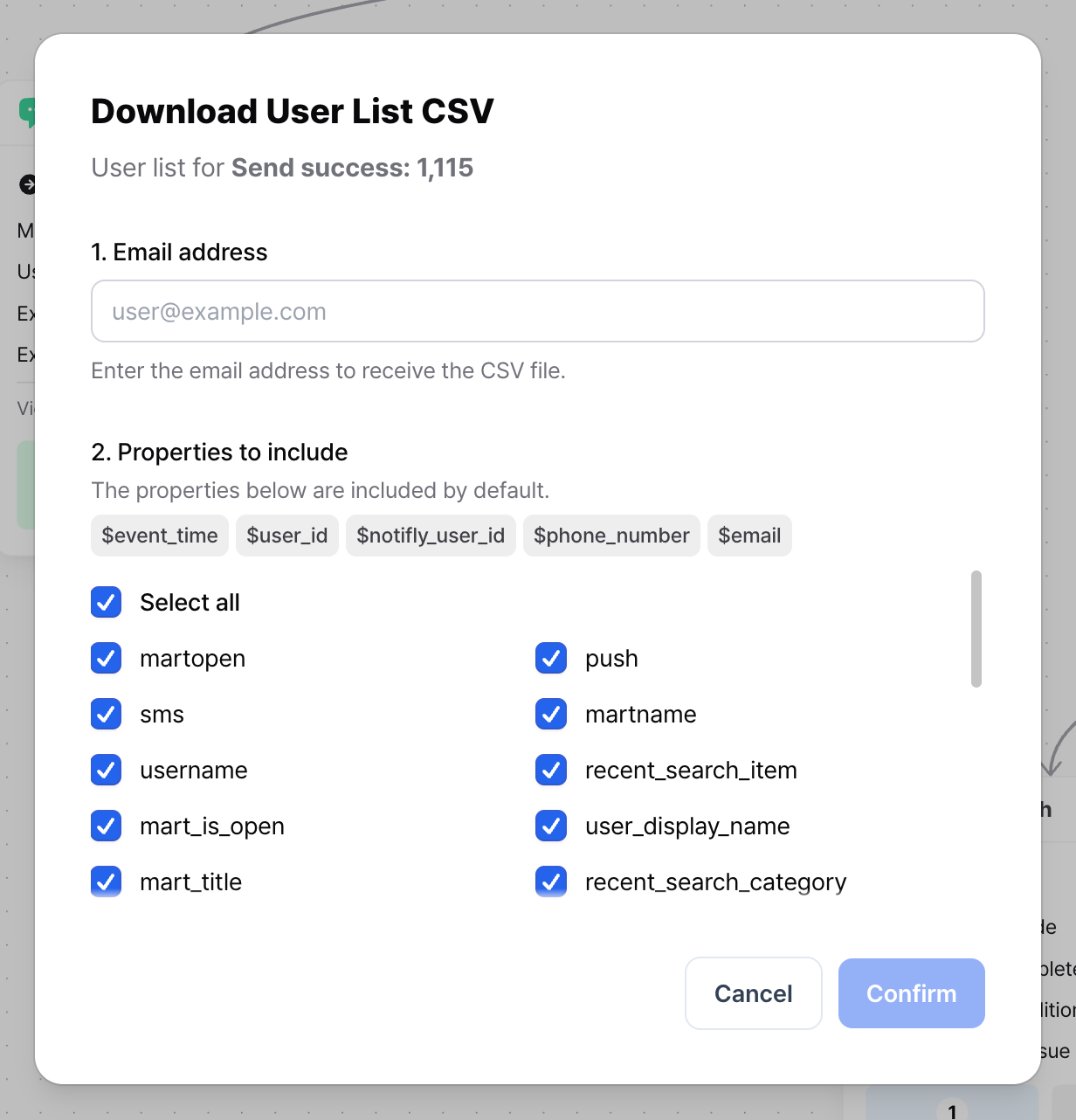
- Enter the email address that should receive the download link. Choose the custom user properties to include, then confirm the request.
- Open the download link in the email to save the CSV.