
Naming rules for user property and event parameter keys
Custom user property keys and event parameter keys must match the regular expression^[A-Za-z][A-Za-z0-9_]*$.
- Start with an uppercase or lowercase ASCII letter (
A–Zora–z). - After the first character, use only ASCII letters, digits (
0–9), or underscores (_). - Use only the ASCII characters listed above. Spaces, accented letters, periods (
.), dollar signs ($), and carets (^) are invalid.
delivery_address and productId2 are valid.
Notifly stores data even if its keys do not follow these rules, but some features may not support those keys. For example, a user property with a period in its key, such as delivery.address, has the following limitations.
- It does not appear in campaign condition searches.
- It does not appear in the user list or on user detail pages.
- It is excluded when you export the full user list to CSV.
- It does not appear in Property management, so you cannot configure encryption for it.
Register a property
- In the Notifly console, select the product and environment you want to configure.
- Open User Management > User List and click Property management.
- Click Add property.
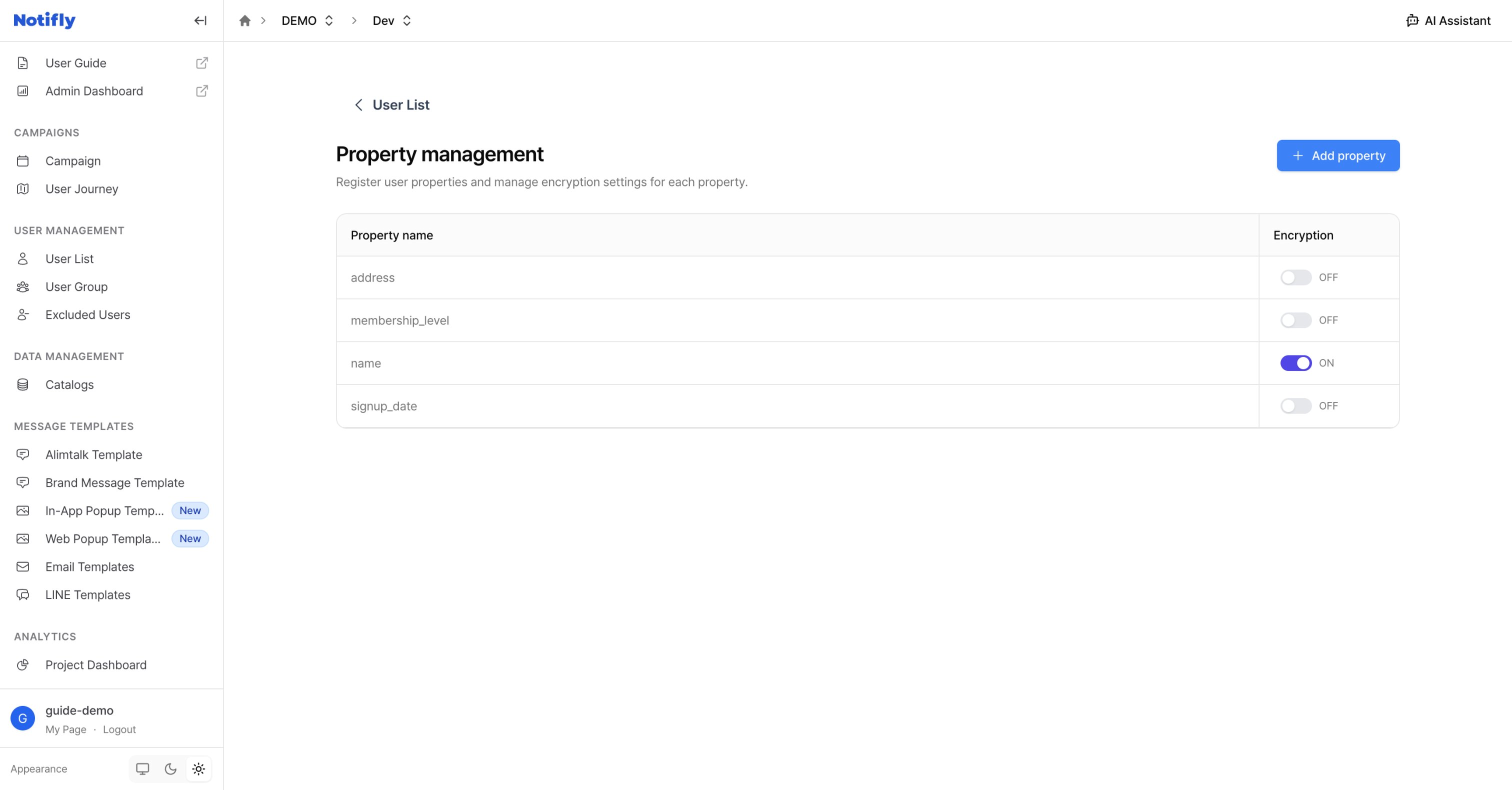
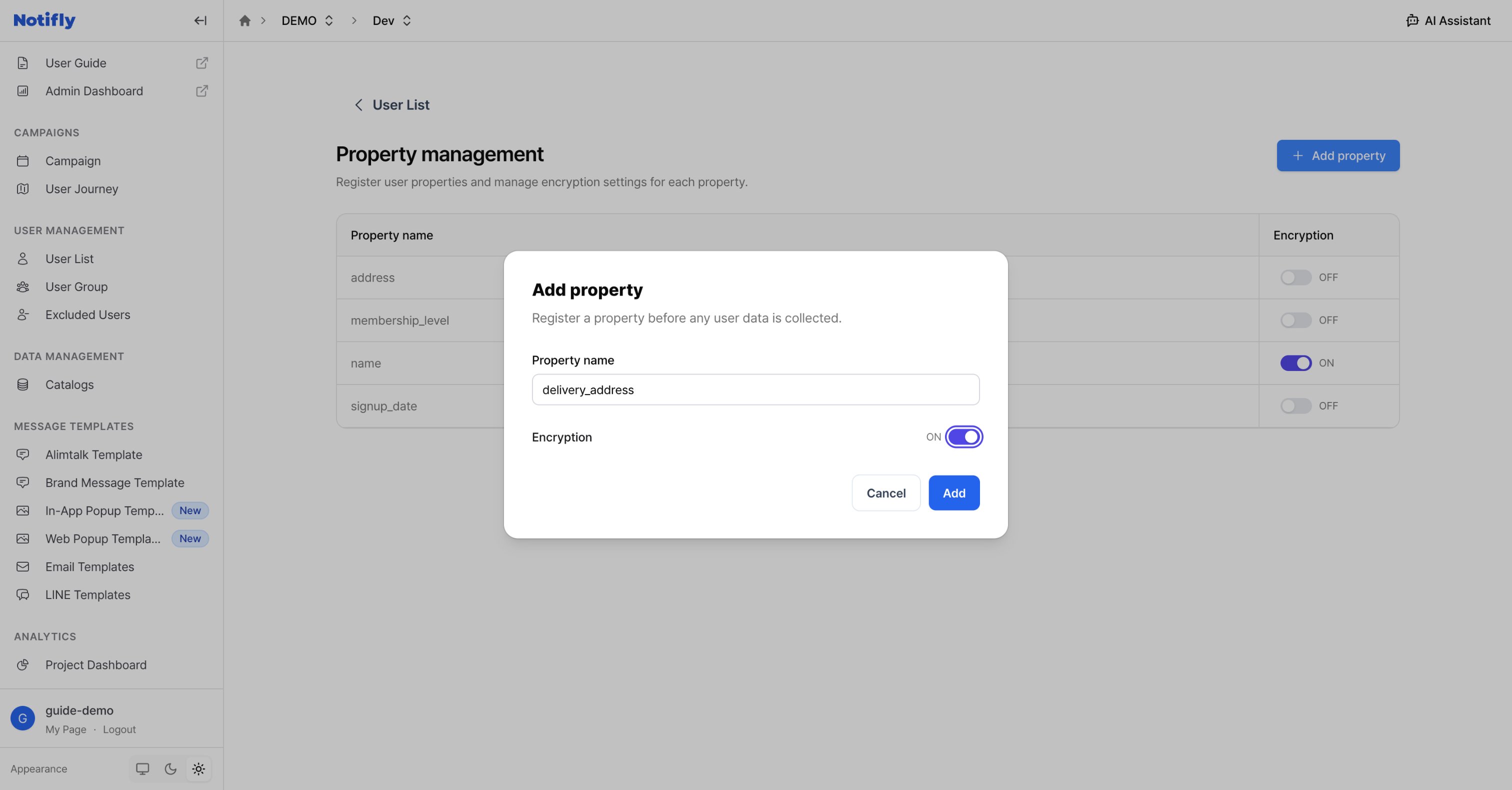
- Enter a Property name that matches the key you send. For example, if you send the shipping address as
delivery_address, register that exact name. - Turn on Encryption if the property contains sensitive information, then click Add.
Configure encryption
Turn on encryption
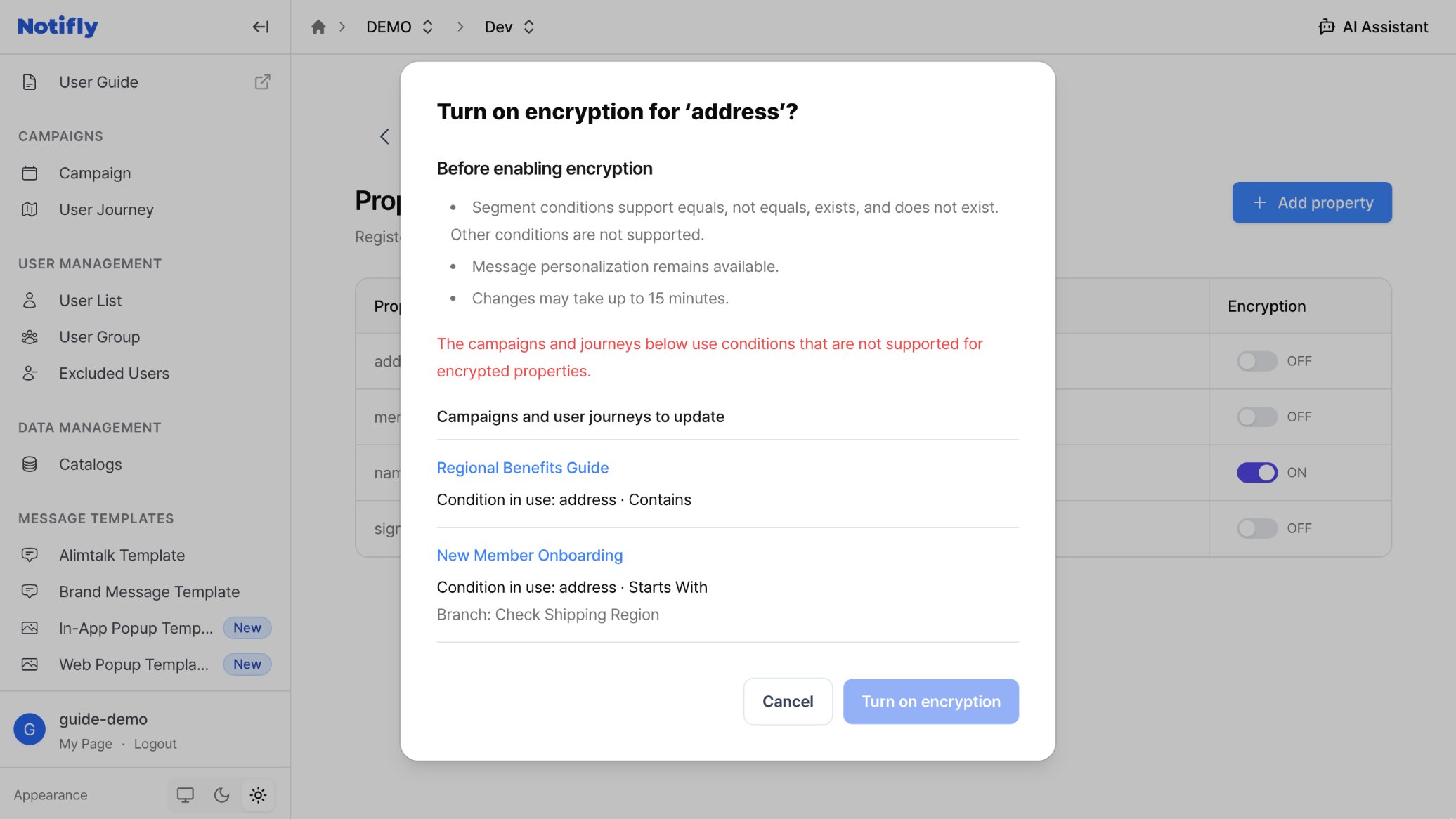
- In Property management, click the switch next to the property.
- Review the notes. Check whether the dialog lists campaigns or user journeys you need to update.
- Click Turn on encryption.
It can take up to 15 minutes for changes to encryption settings to take effect.
Check the impact on campaigns and user journeys
When you try to turn on encryption, Notifly checks the conditions of active campaigns and user journeys that use the property. Encryption stays off if any of those conditions are unsupported for encrypted properties. The confirmation dialog lists the campaigns, user journeys, and conditions you need to update. For example, if a campaign uses Contains withaddress, change that condition.
Turn off encryption
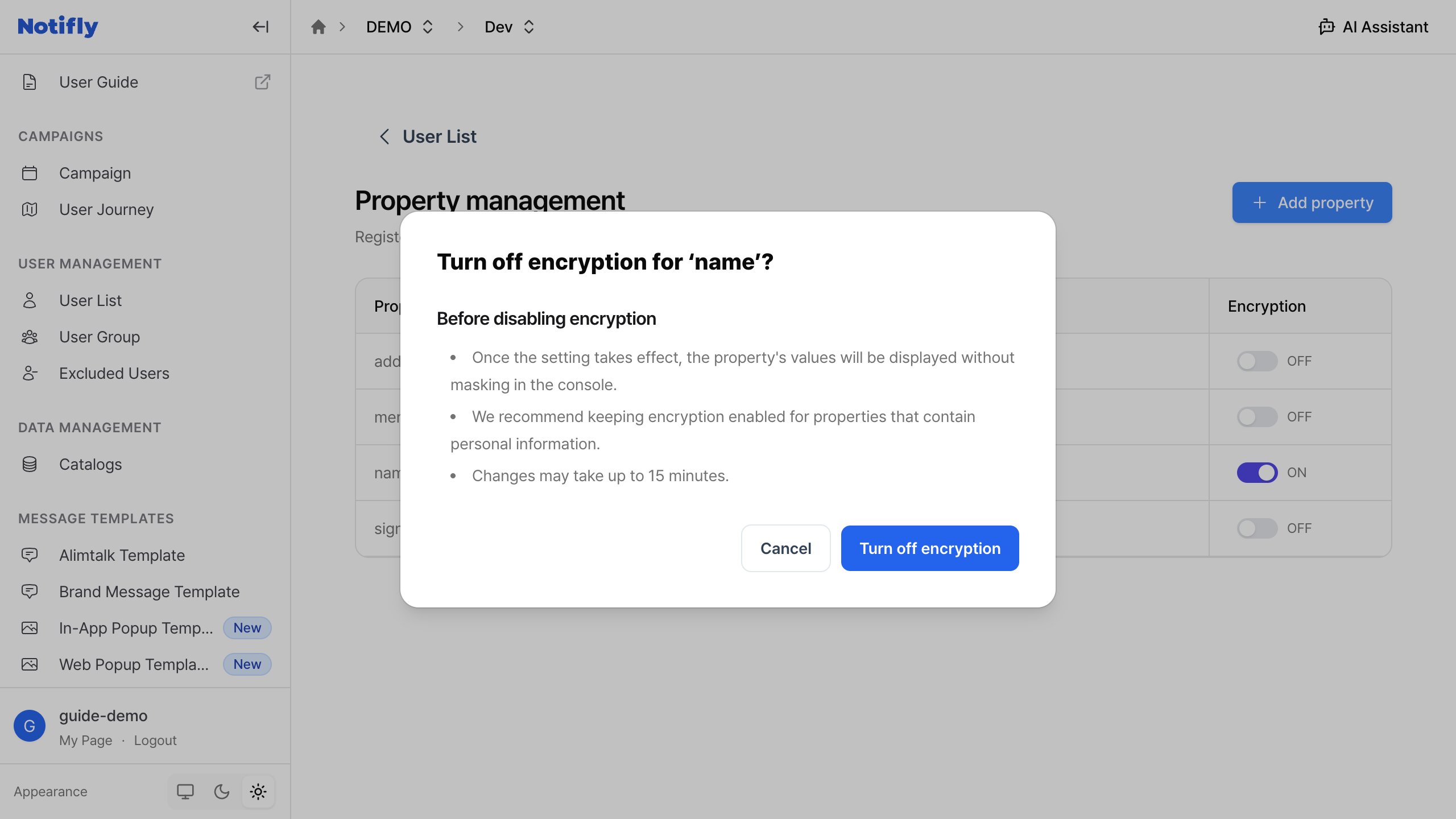
- Click the switch next to the encrypted property.
- Review Before disabling encryption.
- Click Turn off encryption.
Use encrypted properties
View user information
On the user detail page, a lock icon appears next to each hidden encrypted value. Properties without encryption remain visible.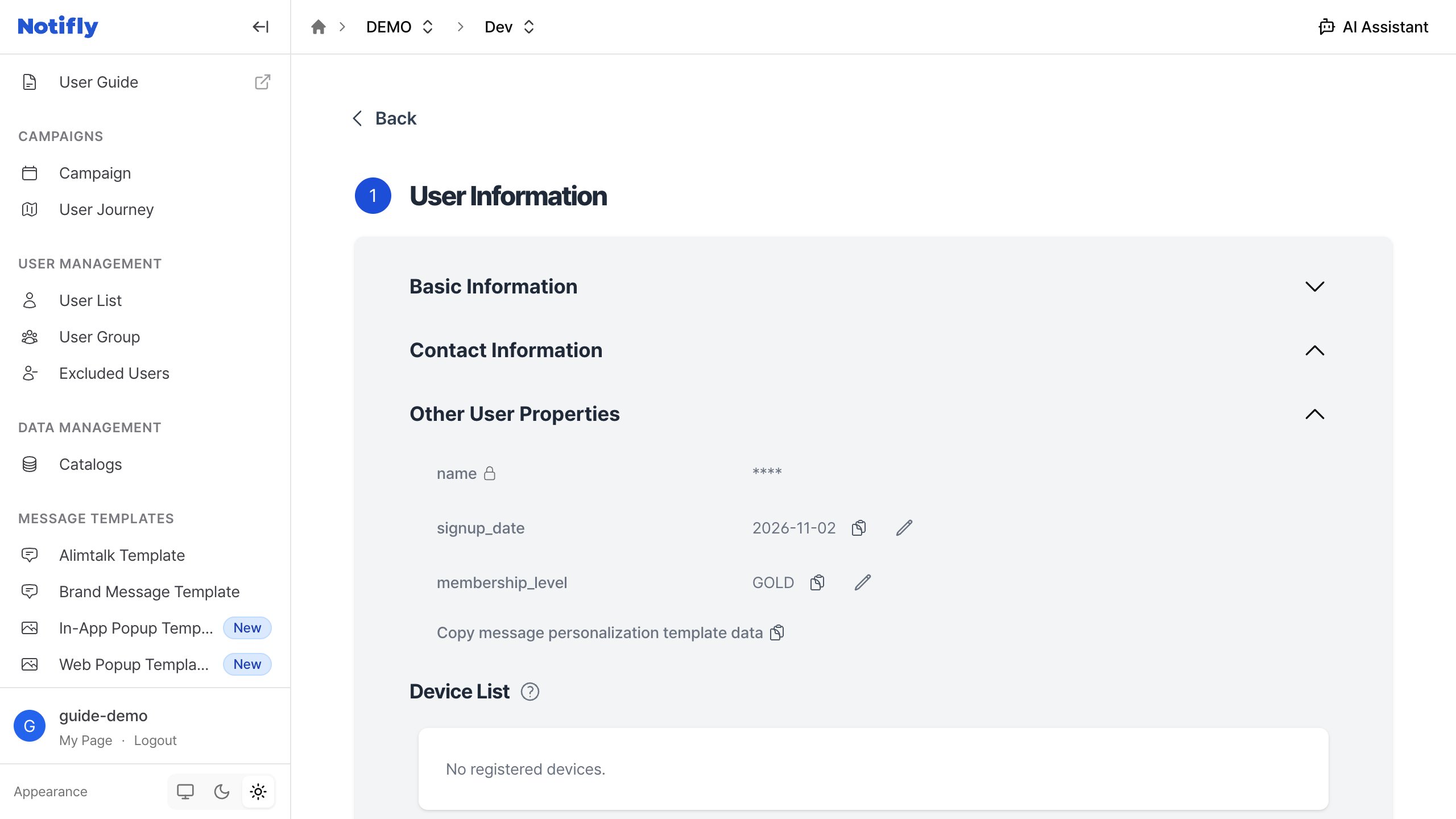
Audience conditions
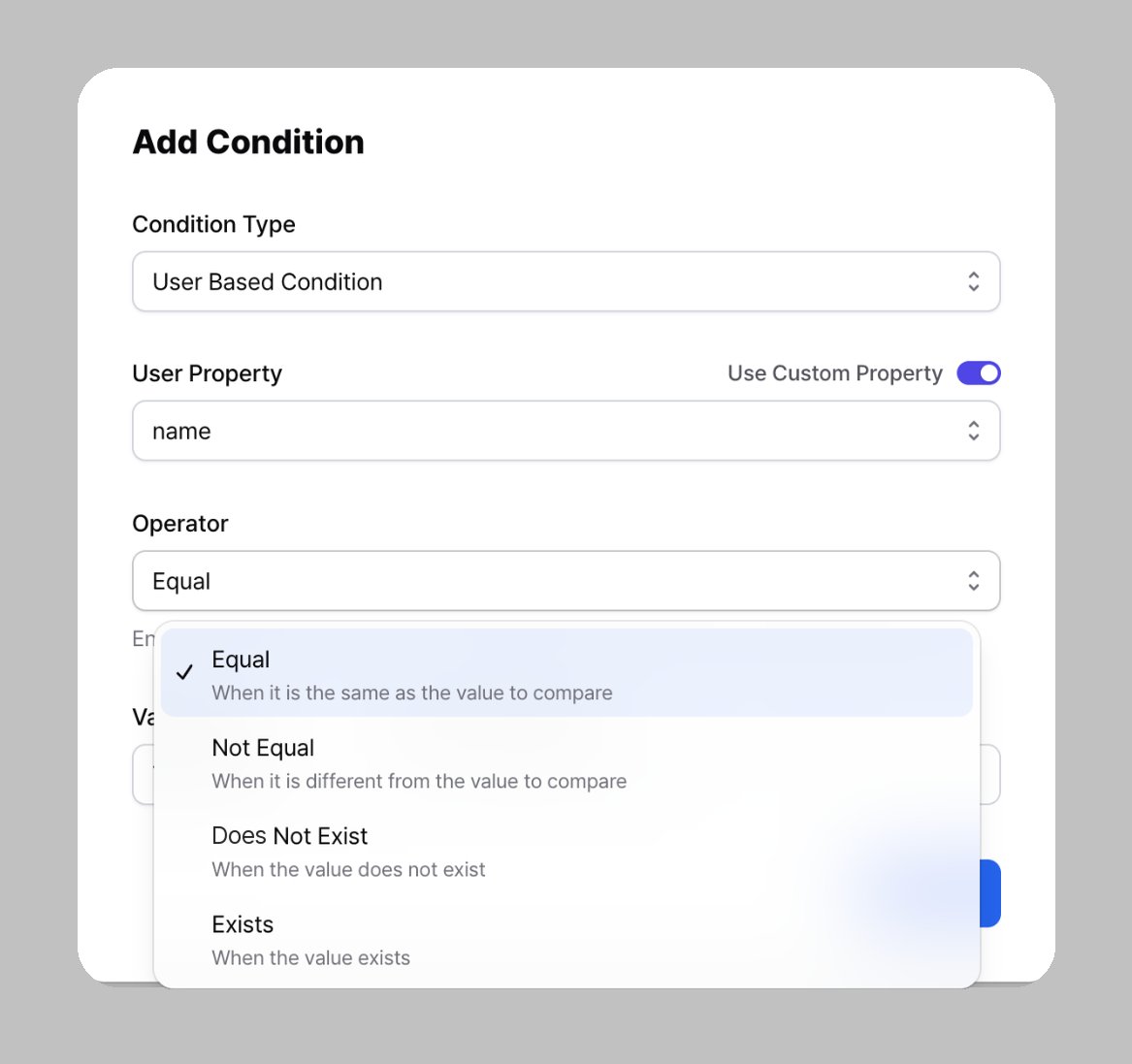
You can use only the following operators to define an audience with an encrypted property.- Equal matches users whose value equals the value you enter.
- Not Equal matches users whose value differs from the value you enter.
- Exists matches users with a value for the property.
- Not Exists matches users without a value for the property.
Message personalization
You can use encrypted properties in personalized messages. For example, you can insert a recipient’s name stored as an encrypted property into a message. Even if the console masks a value, the recipient sees it in the personalized message. Check that the information is appropriate to show to the recipient. For setup instructions, see Message personalization.Limits
- In segment conditions, use one of the supported operators. You can also use encrypted properties in message personalization.
- Turning encryption on or off can take up to 15 minutes. The previous setting can remain in effect until the change applies.
- If an encrypted user property changes during a session, Notifly checks whether the user qualifies to see a popup the next time it looks up the user’s state.