
Store reusable reference data such as products, stores, or content in a catalog. Retrieve the data using
catalog_items or catalog_selection_items.Basic syntax
- The basic format is
{{ category["variable_name"] | default: "fallback value" }}.- In the expression, specify the category and the field to insert.
- Use the
defaultfilter to supply a fallback when the field is missing.
- If the property is missing and you provide no fallback, Notifly sends the message with that part left blank.
- See Data categories for the categories you can use. Availability depends on the campaign’s audience type and delivery timing.
- In the campaign editor, use Personalization Variable to insert a Liquid expression without typing it.
Data categories
The categories available for personalization depend on the target audience and delivery timing. See Set the target audience and Delivery timing.- Properties of users in the Notifly database
- Category name:
user. - Use with User Group Settings, AI segments, or CSV uploads that identify users by user ID. For an API-triggered campaign, the recipient must match a registered user.
- For example, enter
{{ user["age"] }}where the user’s age should appear. The user’s age must be stored underagein Notifly for the value to render. - Use these expressions to access built-in properties:
- User ID:
user["$user_id"] - Email:
user["$email"] - Phone number:
user["$phone_number"] - If a custom property has the same name as one of these properties, the built-in value takes precedence.
- User ID:
- Category name:
- Registered device information
- Category name:
device. - Use registered device data with User Group Settings, a CSV upload that identifies users by user ID, or an AI segment. For an API-triggered send, the recipient must match a registered device.
- Unavailable for the webhook channel.
- Supported device properties:
external_user_id: User ID in your service.platform: Device platform (iosorandroid).os_version: Device operating system version.app_version: App version.
- Category name:
- Event parameters
- Category name:
event. - Use
eventwith event-based or API-triggered campaigns.- For an event-based send, you can use the parameters from the event that triggered the send. See Event-based sending for ways to send events with parameters.
- For an API-triggered send, put the parameters in
recipients[].eventParamsin the request body. See API-based sending.
- For example, use
event["name"]if the event includes anameparameter. Without that field, the value cannot be inserted.
- Category name:
- CSV data for a CSV-based audience
- Category name:
csv. - Available only for scheduled campaigns that use a CSV upload. CSV-based audiences do not support event-based sends.
- You can access only fields present in the uploaded file.
- If the file has a
budgetfield, access it withcsv["budget"]. You cannot create the campaign if it references a field that is missing from the file.
- Category name:
- Entry event for a user journey
- Category name:
entry_event. - In a user journey, use it to access parameters from the entry event or from
users[].eventParamsin an API-triggered entry request. - For example, use
entry_event["product_name"]if the entry event includes aproduct_nameparameter.
- Category name:
- CSV fields used to start a user journey
- Category name:
entry_csv. - If a journey uses CSV-based entry conditions, use it to access fields in the uploaded CSV file.
- For example, use
entry_csv["coupon_code"]if the file contains acoupon_codefield.
- Category name:
Channel support
Popup personalization requires a template made in the new popup editor and a supported SDK version. For editor instructions and minimum SDK versions, see Create an in-app popup template and Create a web popup template.
Popups support
user, device, and event. Use entry_event or entry_csv for data from the start of a journey. Notifly inserts a value when the data is available. Popups do not support the csv category for regular CSV sends.
Insert a personalization variable in the editor
- Select Personalization Variable at the bottom left of the message field. The button may be hidden for channels that do not support personalization.
- Choose a category from the list. The available categories depend on the channel, audience, and delivery timing.
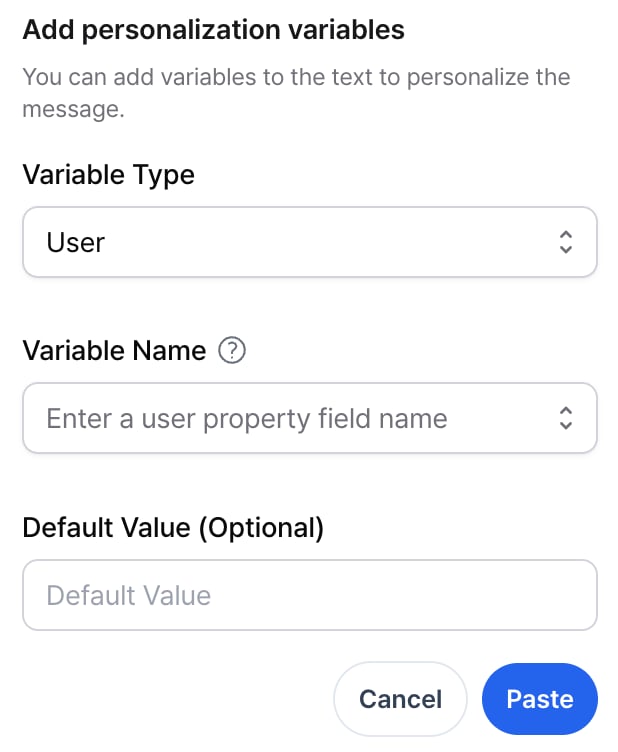
- Choose the field to insert or enter its name. This field is required.
- In Default Value (Optional), enter the text to use when the field is missing.
