
Required recipient information
Before you build an audience, check which recipient fields your channel needs.- Push notifications. A device token collected by the Client SDK is required.
- Kakao Alimtalk, Kakao Brand Message, and SMS. Register the mobile phone number under
$phone_number. You can upload a CSV file or enter the number on the user registration page. See Special Items on that page. You can also use the Set User Properties HTTP API or the Client SDK. - Email. Register the address under
$email. Upload a CSV file, enter the address on the user registration page, or use the Set User Properties HTTP API or the Client SDK.
1. User group settings
The user list shows users in the Notifly database. Define the campaign audience using their properties, device information, and event history.Groups and conditions
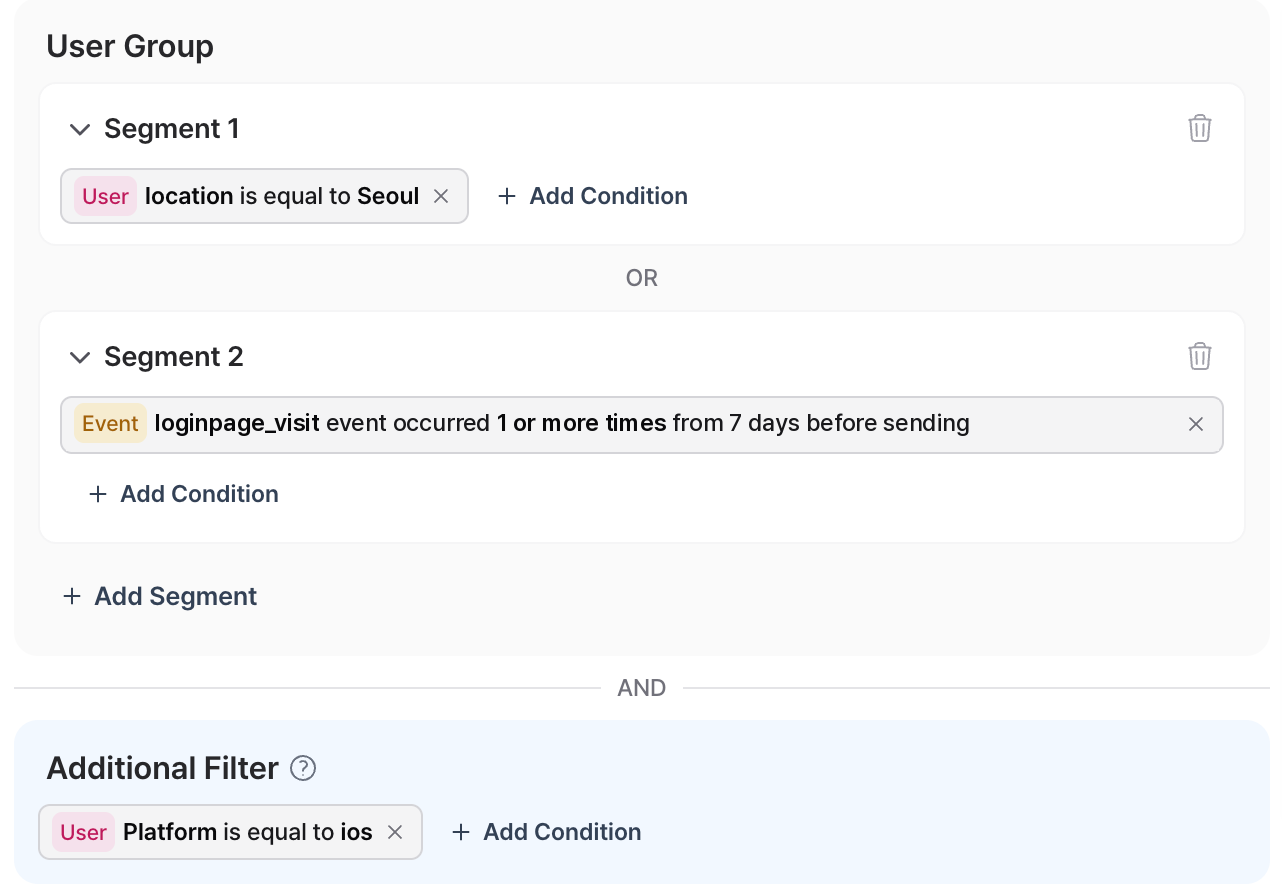
- Notifly combines groups with
OR. Users qualify if they meet the conditions for at least one group. - Notifly combines conditions within a group with
AND. Users must meet every condition in that group. See Condition types.
([Condition A] AND [Condition B] AND [Condition C]) OR ([Condition D] AND [Condition E]).
Data used in conditions
- User properties
- Upload a CSV file or enter the properties on the user registration page. You can also use the Set User Properties HTTP API or the Client SDK.
- User device information
- Use device information collected by the Client SDK.
- User event history
- See Event-based sending for ways to send events to Notifly.
- Notifly stores events by user. To see a user’s events, open the user list and select their row to view their details.
Condition types
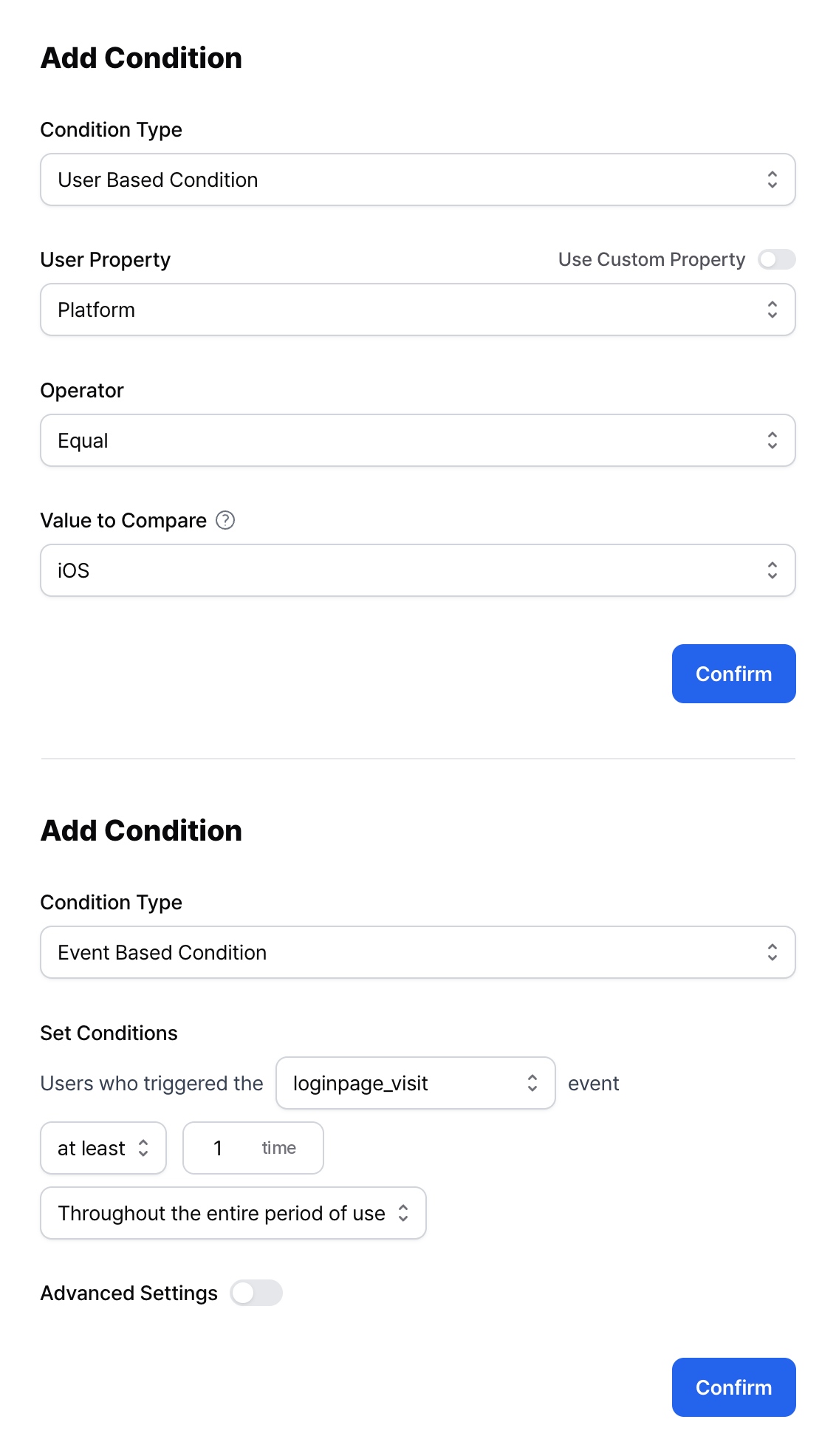
Groups can use conditions based on user properties or events.User property conditions
- Use device information or user properties to define a condition.
- Enter all four required fields.
- Property. Type the property name or select it from the list.
- Operator. Examples include equals, does not equal, at least, at most, greater than, and less than. The available operators depend on the property type and channel.
- Value type. Choose the type of the comparison value, such as text or number.
- Value. Enter the value to compare with the property.
Event conditions
- Use the user’s event history to define a condition.
- Enter these fields.
- Period. Set the time range for counting events.
- Event name. Select the event to count.
- Event count. Set the number of events, then choose whether the count must equal, be at least, be at most, exceed, or fall below that number.
Requirements and personalization
- Under User Group Settings, select users based on data registered in Notifly. You can personalize messages with user and device information, plus event parameters for event-based campaigns. See Message personalization.
- Notifly sends only if the user database has the required recipient information for the channel.
2. Upload a CSV file
Select Upload File, then Download Sample File to get the CSV template. To use the addresses listed in the file, choose the matching option under Upload Method, if the channel offers one.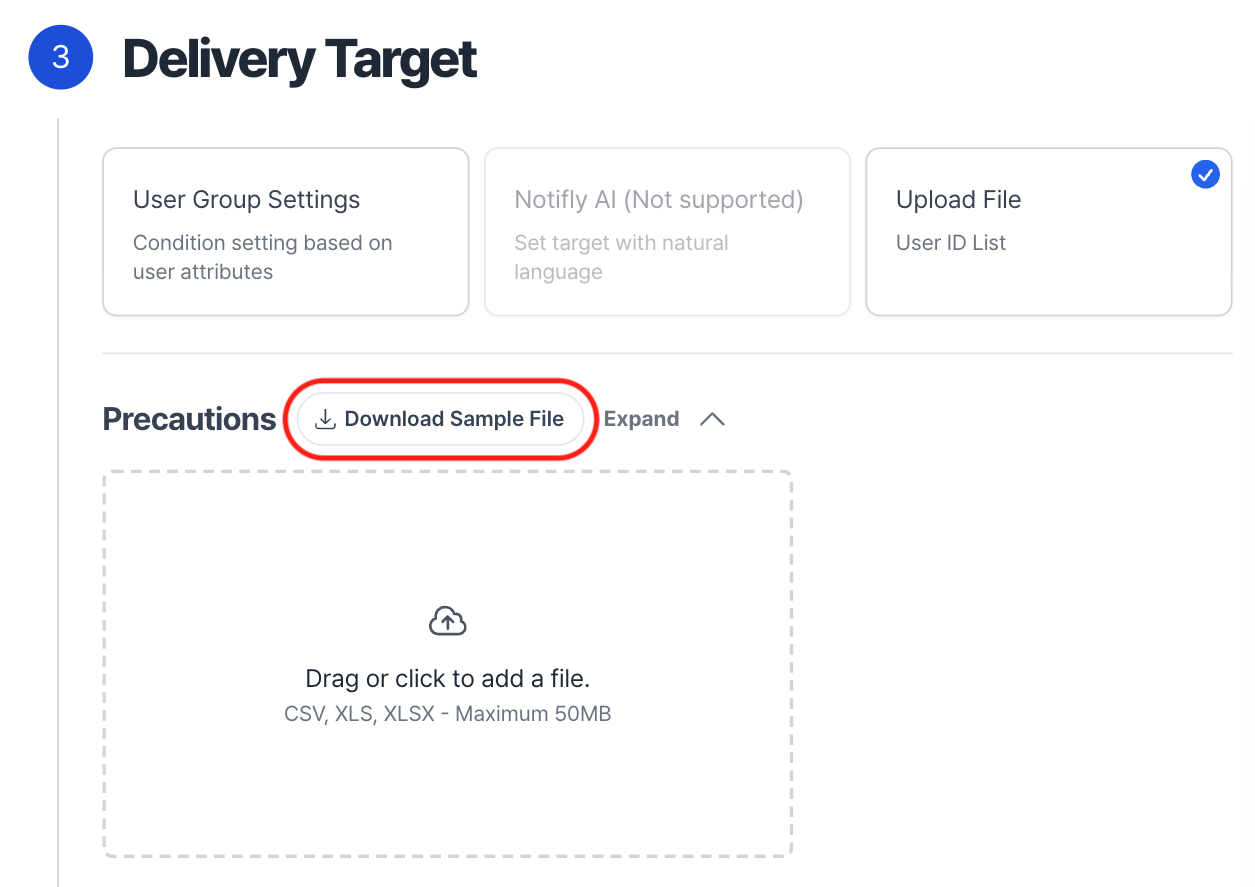
- Put the column names on the first row.
- Notifly treats values that are blank or contain only whitespace as empty.
- Notifly trims whitespace from the beginning and end of each value.
CSV channel requirements
- The file must contain the required recipient information for the channel.
- Push notifications require a
user_idcolumn and the users must already be in the Notifly user list. You cannot use data from the CSV file to personalize push messages. - Kakao Alimtalk, Kakao Brand Message, and SMS require a
phone_numbercolumn for phone-number-based uploads. - Email requires an
emailcolumn for address-based uploads. LINE requires aline_user_idcolumn for LINE user ID-based uploads.
- Push notifications require a
- If you export the file from Microsoft Excel, select UTF-8 encoding so recipients see the message text correctly.

- For sends based on addresses in the CSV file, recipients do not have to be registered in Notifly. Use fields in the file to personalize messages on channels that support CSV personalization. LINE does not support message personalization. If you select Based on user_id instead, Notifly uses the recipient information already registered for each
user_id. See Message personalization.
Throttled delivery
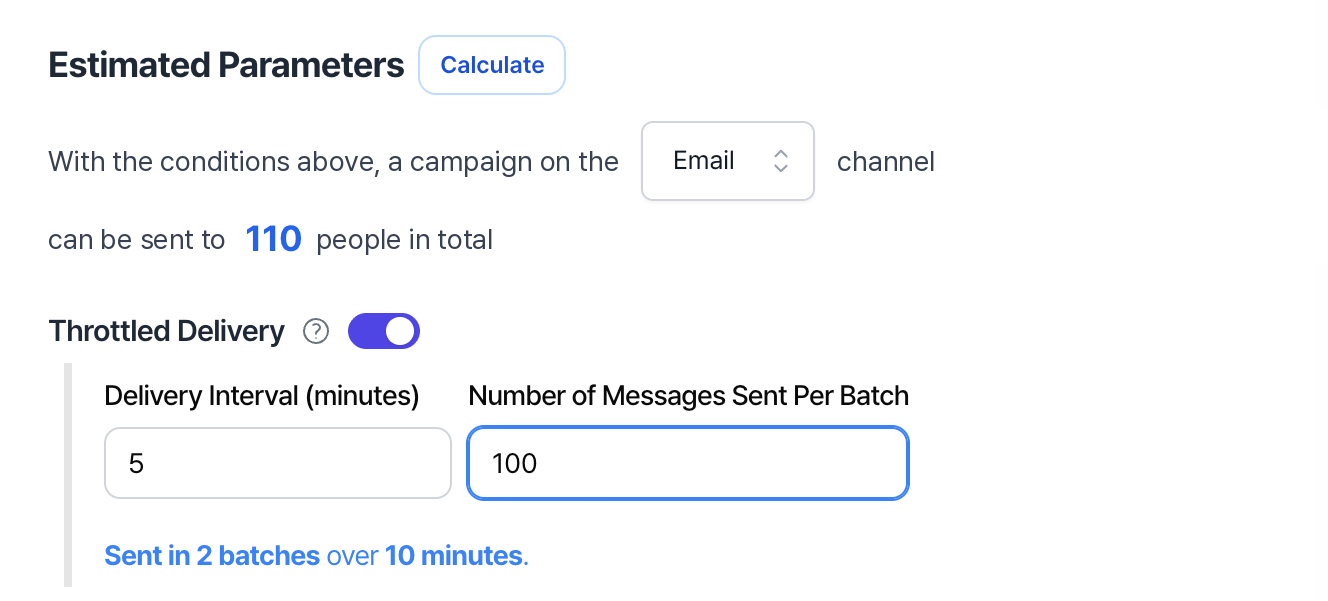
- Turn on Throttled Delivery to avoid sending a burst of traffic to your service.
- Set the Delivery Interval (minutes) and the Number of Messages Sent Per Batch.
- Notifly waits for the specified interval between batches.
- The batch size is a maximum. Each batch can contain fewer messages.
Example settings
- Delivery time is 18:00.
- Estimated audience size is 300.
- Delivery interval is 5 minutes.
- Maximum batch size is 100 messages.
- If all 300 messages are eligible, the three batches can send up to 100 each at 18:00, 18:05, and 18:10.
FAQ
How is the estimated audience size calculated?
How is the estimated audience size calculated?
Notifly counts users who meet the audience conditions and have the required recipient information for the selected channel.Notifly checks whether the field is filled in. It does not check that the phone number, email address, or other value works.
- App Push and Web Push require a device token.
- SMS and Kakao messages require a mobile phone number.
- Email requires an email address.
- LINE requires a LINE user ID.
- In-app popups, web popups, and webhooks require no additional recipient field.