
Overview
Set a frequency cap to limit how many messages Notifly can send to each user within a period. Set the cap for one campaign or apply rules across a project.Campaign and global frequency caps
Campaign frequency capping
How the cap applies
Notifly checks this cap for each user in one event-based campaign. If the user triggers that campaign several times during the interval, Notifly sends up to the limit you set.Examples
- Send an abandoned-cart reminder at most once per day, even if the user adds items and leaves more often.
- Send a promotion when a user views a particular product, up to twice per week.
- Send an alert when an item the user is interested in is back in stock, up to three times per month.
Set a campaign frequency cap
When you create an event-based campaign, turn on Use frequency capping.- Choose hours (
h), days (d), weeks (w), or months (m) as the interval unit. - Enter the interval length. For example, enter
3for three days. - For channels such as push or email, set the maximum number of sends per interval. The default is one. For in-app and web popups, the cap is one display per interval.
Time units
Example
For a campaign that sends messages, such as app push or email, set a three-day interval and a cap of two. Notifly can then send each user up to two messages in any three-day period.Global frequency capping
How the cap applies
Global frequency capping limits how often campaigns and user journeys send to each user across the supported channels in a project. Set separate limits by channel or add multiple rules to apply different limits.Global Frequency Capping is available on the Pro Plan or higher.
Supported channels
- App Push (
push-notification) - Web Push (
web-push-notification) - Email (
email) - Kakao Alimtalk (
kakao-alimtalk) - Legacy Kakao Friendtalk (
kakao-friendtalk) - Kakao Brand Message (
kakao-brand-message) - SMS (
text-message) - Webhook (
webhook) - LINE (
line)
Set a global frequency cap
- Open Settings at the bottom left of the console.
- In Project Info, open Global Frequency Capping.
- Turn it on. Notifly immediately applies a default rule of one app push per user every three hours. Edit the default rule or select Add rule to create an additional rule.
- Select the Channels and any Tags for the rule. Set the time window and the maximum number of sends.
- Select Save to apply the settings.
Apply one rule to several channels
A rule can include several channels. Notifly counts sends from all selected channels toward the same cap. For example, set one rule for email and SMS with a cap of three sends per day.- Two emails and one SMS use the entire allowance.
- To set a separate cap for each channel, use separate rules.
Skip global frequency capping for a campaign or message node
An urgent announcement or an important transactional message may need to bypass a global cap.- For a campaign, open Advanced Settings and turn on Ignore Global Frequency Capping. For a user journey, turn on the same setting in the message node editor.
Tag-based global frequency capping
Limit sends for a specific type of message
Tag-based frequency capping limits sends for messages with selected tags. Use tags such asPromotion, Coupon, and Re-engagement to group messages by purpose across campaigns and user journeys.
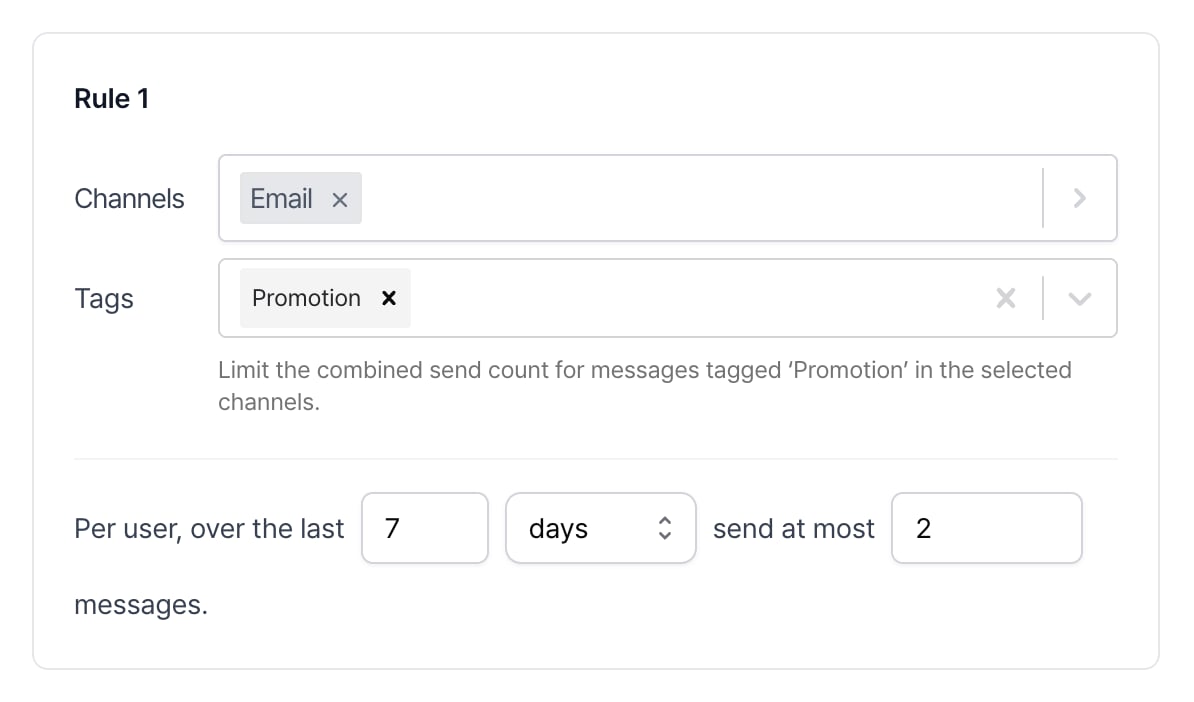
For example, set a rule for email with the Promotion tag and allow at most two sends per user over the last seven days. The rule counts only emails with that tag.
Tag campaigns and journey messages
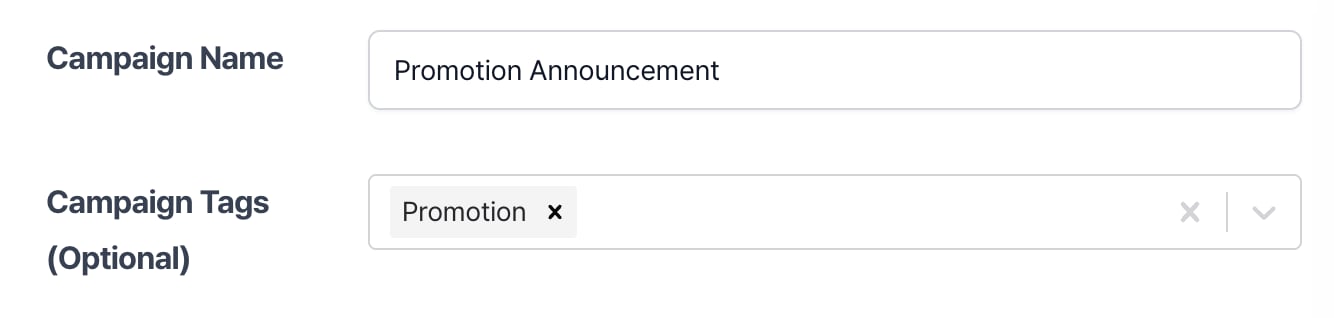
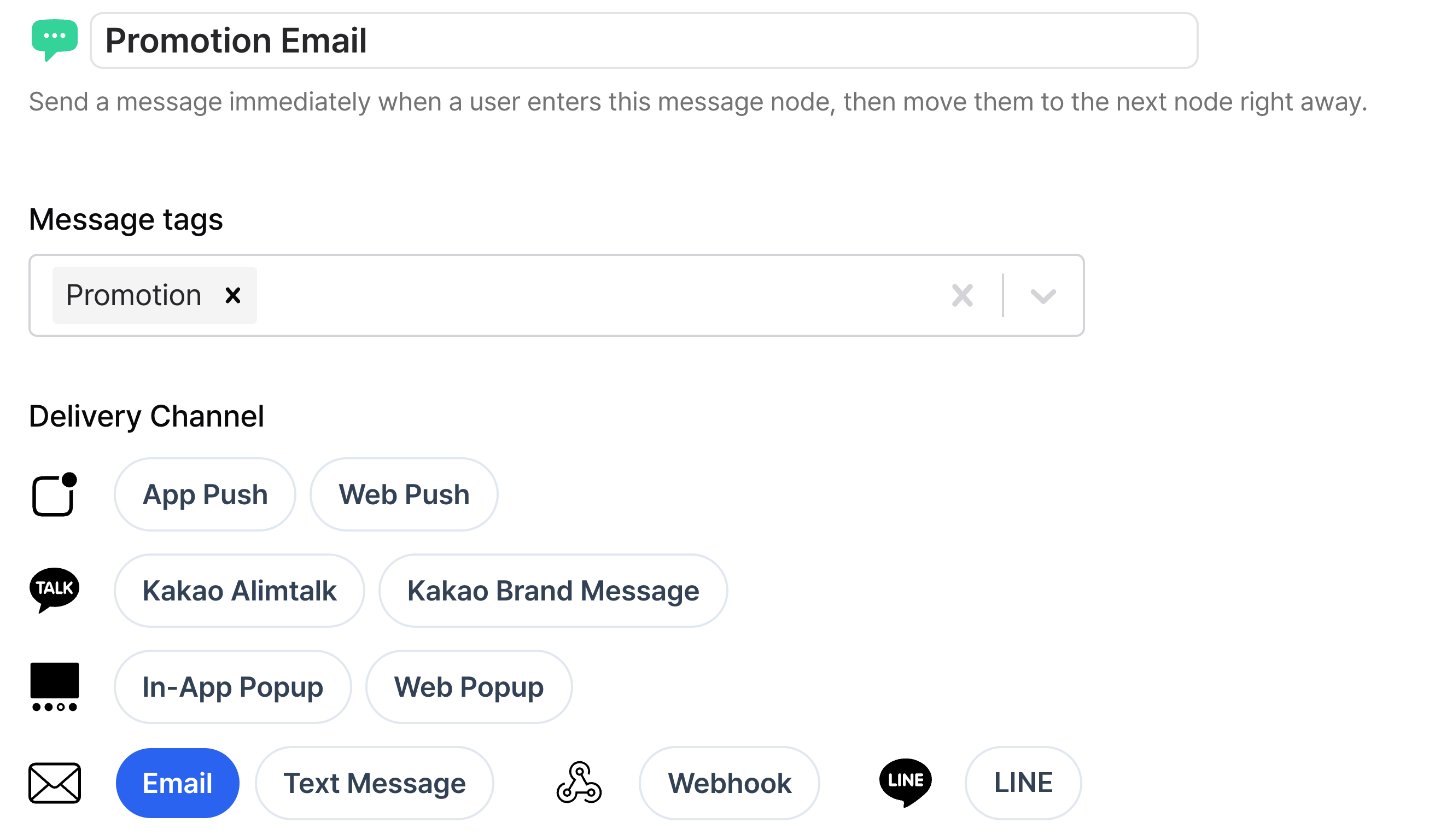
- For a campaign, set its tags in the campaign editor.
- For a user journey, use Message tags on each message node.
Select channels and tags for a rule
Each tag-based rule has channels, tags, an interval, and a send cap.
For this rule to count a message, it must use email or SMS and have the
Promotion tag, the Coupon tag, or both.
- If you select several channels, Notifly adds their send counts together.
- If you select several tags, matching any one is enough.
- A message with both tags counts once under this rule.
- If no tag is selected, the rule counts all messages from the selected channels.
Promotion at two per user in a rolling seven-day window.
Channel rules and tag rules
To count all emails, select the email channel. To count only promotional emails, also select the
Promotion tag.
Apply multiple rules
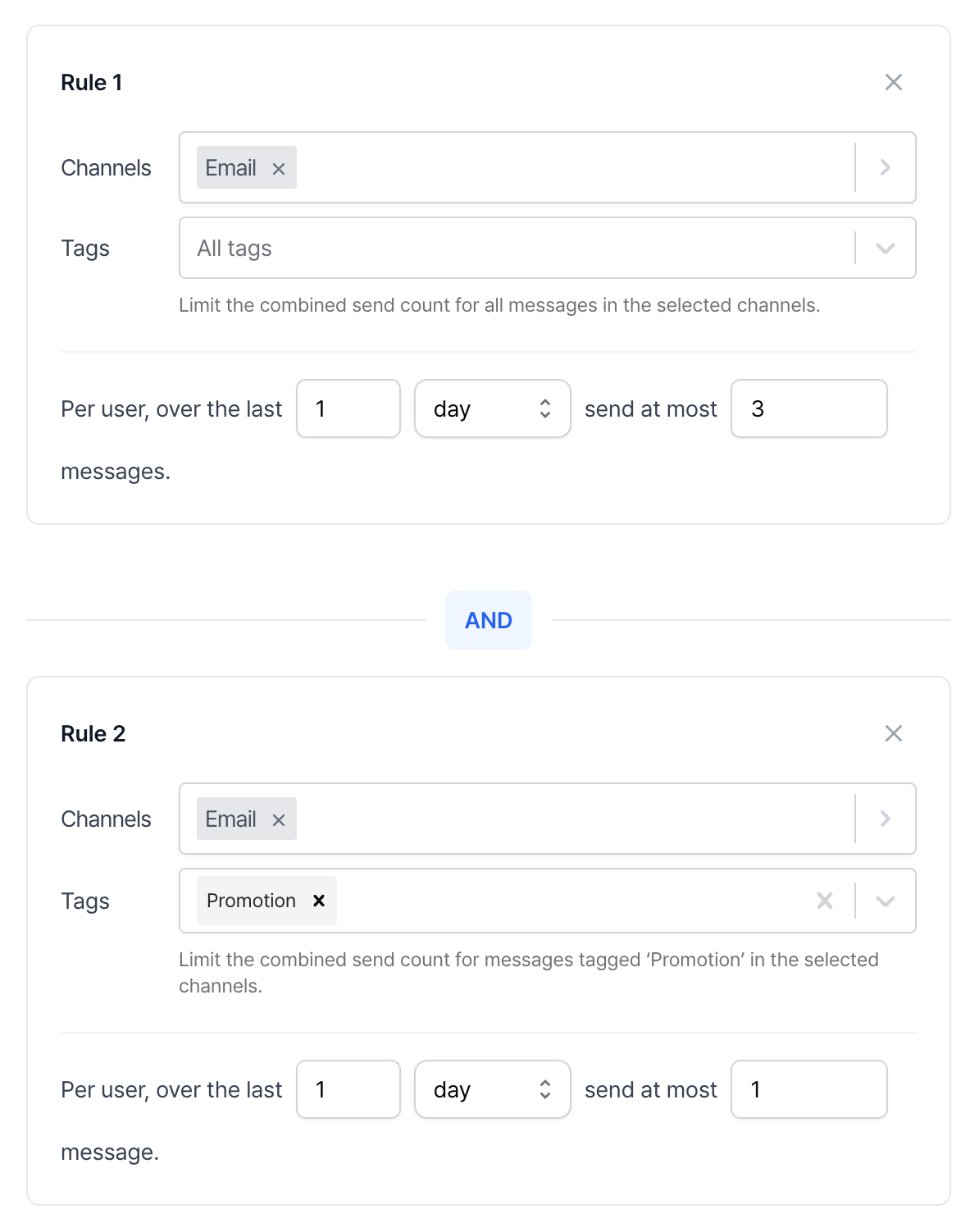
To send the message, Notifly must find room under every cap that applies. Suppose you set the following rules.- Both rules apply to an email with the
Promotiontag. - Only the channel rule applies to an email without the tag.
- One promotional email counts once under each rule.
In this example, a regular email has no
Promotion tag. The example assumes no other sends beyond those in the table.
Reserve capacity for important campaigns
To leave room for important messages, set a lower cap for routine promotions than for the channel as a whole. For example, allow up to three app pushes per user in a rolling 24-hour window. Cap routine promotions at two so they cannot use the third send.1. Tag campaigns by purpose
In this example, assign exactly one of the two tags to each app push campaign. Apply the same tagging rule to app push message nodes in user journeys.
2. Save both rules in Global Frequency Capping
A message tagged
Priority notice counts toward the overall app push cap. A message tagged Routine promotion counts toward both caps. Routine promotions use at most two sends in 24 hours, leaving the third available for a priority notice.
Leave Ignore Global Frequency Capping off for each campaign and message node.
3. Check what one user receives
This example starts with no sends over the last 24 hours and assumes that each successful send is counted before the next check.
The priority notice can send after two routine promotions. Notifly looks back 24 hours each time it checks the cap.
Tag names and rule order do not change the send order. This rule leaves one send available under the overall app push cap after two routine promotions. To send an important campaign earlier, schedule it for an earlier time.
- A
Priority noticeis blocked if the overall cap is full. It must also satisfy other send conditions, including any campaign resend conditions. - If a message has both
Priority noticeandRoutine promotion, the routine promotion cap also applies. Untagged app pushes count only toward the overall cap. Check that each routine promotion campaign and node has its tag. - Other global rules, such as a shorter channel limit, can also block a priority notice. Check all applicable rules.
Change tags after a send
Notifly counts each message under the tags it has when it sends. If you change tags after scheduling a campaign or while a user is waiting in a journey, the new tags apply only to future sends.
Adding, removing, or replacing a tag does not reclassify messages already sent.
What happens when you ignore the global cap
Turning on Ignore Global Frequency Capping skips both channel and tag checks. Notifly still records the send, so later checks for other messages can count it.How frequency caps are enforced
What counts toward a frequency cap
Scheduling a message does not count toward the global frequency cap. If a rule includes webhooks, a failed request can count toward the cap.Campaign and global caps apply together
When both a campaign cap and a global cap apply, Notifly checks both before sending. For example, set a global app push cap of five sends per day and a cap of two per day for Campaign A. Suppose Notifly has sent four app pushes to a user in the last 24 hours, and the user triggers Campaign A for the first time.- Global cap: one of five sends remains.
- Campaign A cap: both sends remain.
- The message is within both limits and can send.
Example frequency caps
By channel
Use these example caps as starting points and adjust them based on your campaign analytics.By industry
E-commerce- Abandoned-cart reminders: 1 per day
- Sale alerts: 3 per week
- Restock alerts: 2 per month
- New content alerts: 2 per day
- Personalized recommendations: 5 per week
- Newsletters: 1 to 2 per week
- Transaction alerts: no global cap when Ignore Global Frequency Capping is on
- Promotions: 1 to 2 per week
- Reminders: 1 per day
Review your campaign analytics and adjust these caps based on how users respond.