1. Message formats
Can I send emoji in SMS messages?
Can I send emoji in SMS messages?
Can I use emoji in personalized messages?
Can I use emoji in personalized messages?
What happens if a personalization variable is missing and has no default?
What happens if a personalization variable is missing and has no default?
Hello, {{ csv["name"] }}! and name is null.Notifly replaces the missing value with an empty string. The sent message reads Hello, !.Can I insert the send date in YYYY-MM-DD format?
Can I insert the send date in YYYY-MM-DD format?
YYYY-MM-DD.{{ "now" | date: "%Y-%m-%d", "Asia/Seoul" }}2. User List and user properties
Why does User List show Not Registered for some users?
Why does User List show Not Registered for some users?
Why does User List show fewer users than the number of app installs?
Why does User List show fewer users than the number of app installs?
Is there a size limit for user properties?
Is there a size limit for user properties?
3. Upload and use CSV files
Does a push campaign CSV need only the user_id column?
Does a push campaign CSV need only the user_id column?
user_id column. Confirm that the IDs in that column are registered in Notifly’s User List.Can I sync users from Firebase in real time?
Can I sync users from Firebase in real time?
Examples include the JavaScript SDK guide and the HTTP API for setting user properties.
4. Select and export a subset of users
How do I target users with app push notifications turned on?
How do I target users with app push notifications turned on?
push_subscribe = ON. For promotional app push notifications, also filter to users with recorded marketing consent.How do I export users with app push notifications turned on?
How do I export users with app push notifications turned on?
push_subscribe is selected for export and enter a reason if prompted. Click 확인 (Confirm). When you receive the CSV by email, open it and filter for push_subscribe="ON". You can use other property columns to narrow the list.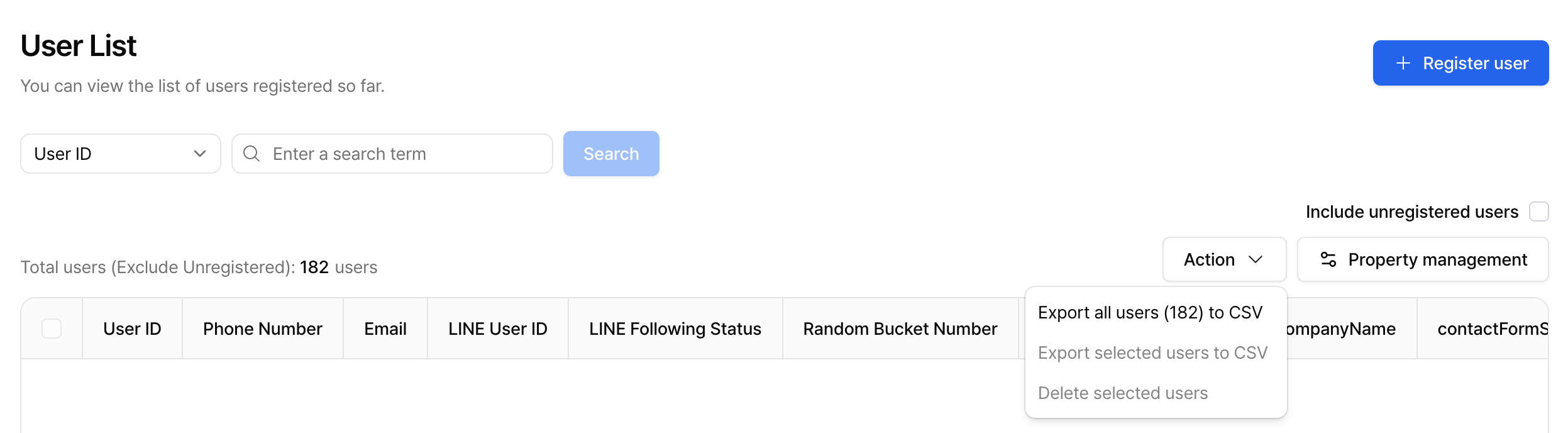
5. Message delivery
What happens to event-triggered messages during quiet hours?
What happens to event-triggered messages during quiet hours?
If I set a campaign event condition to 0 days, does it use events from the same day?
If I set a campaign event condition to 0 days, does it use events from the same day?
Which icons appear on app and web push notifications?
Which icons appear on app and web push notifications?
Why does my web popup still appear after I stopped the campaign?
Why does my web popup still appear after I stopped the campaign?
sessionDuration initialization option. See JavaScript SDK initialization.6. Customize campaigns
Group 1 has conditions A and B. Group 2 has C and D. Who receives the message?
Group 1 has conditions A and B. Group 2 has C and D. Who receives the message?
(A and B) or (C and D) receive the message. See campaign targeting.Can I change the design of a web popup with CSS?
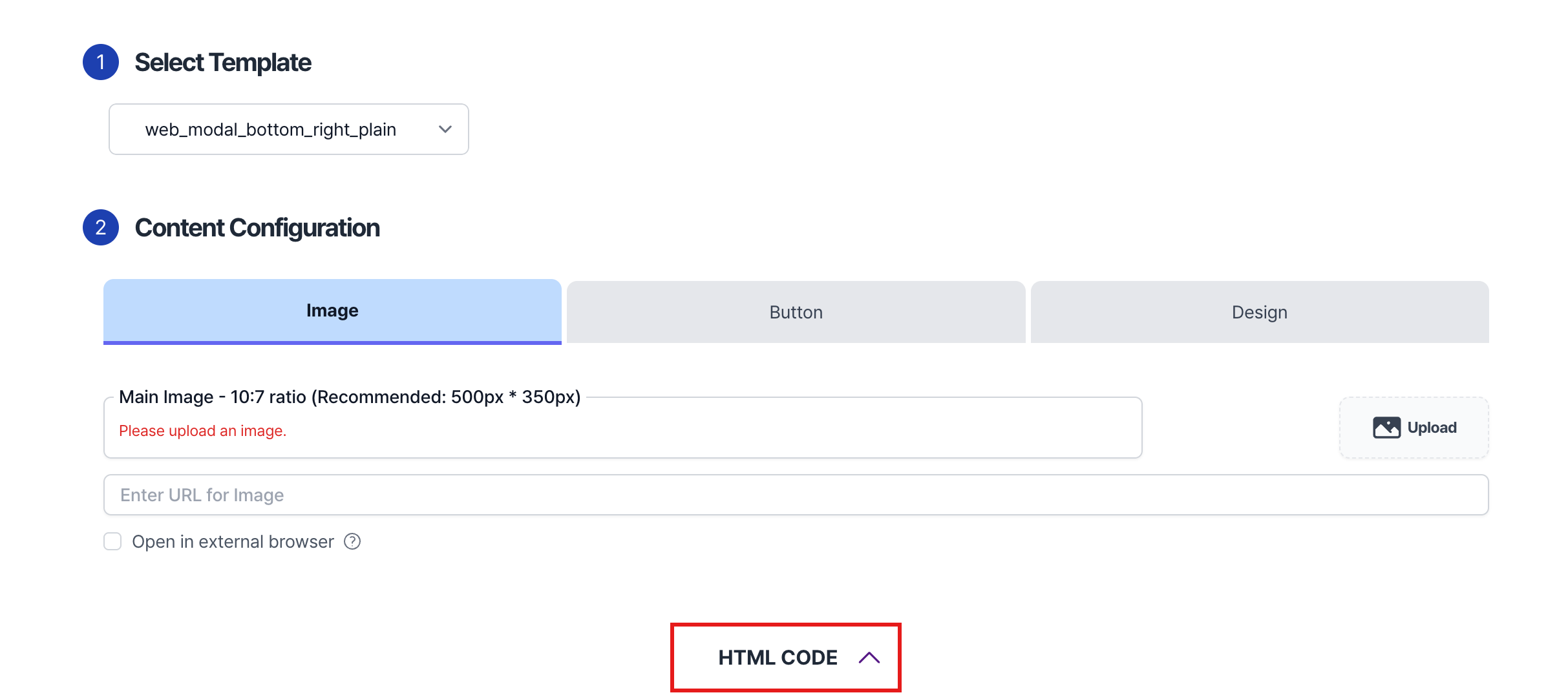
Can I change the design of a web popup with CSS?
7. Plans and billing
Can I manage two services as separate products? How does billing work?
Can I manage two services as separate products? How does billing work?
How does Notifly bill for message sends, and which dates does the bill cover?
How does Notifly bill for message sends, and which dates does the bill cover?
- With standard monthly billing, you pay the subscription fee for the upcoming period and the message charges for the previous period. Check Payment History for available invoices. If your company has a separate agreement, follow its billing schedule and usage terms.
- For that schedule, usage includes sends from 00:00 UTC on the previous billing date through the moment before 00:00 UTC on the current billing date.
- For example, if the billing date is the fifth of each month, the May bill covers sends from April 5 at 9 a.m. until just before May 5 at 9 a.m. in Korea and Japan (UTC+9).
When does Notifly issue a South Korean tax invoice?
When does Notifly issue a South Korean tax invoice?
Where can I check per-message rates?
Where can I check per-message rates?
How do I check billing terms for an account outside South Korea?
How do I check billing terms for an account outside South Korea?