Create a user journey

In the Notifly console, go to User Journey and click Create new.

Journey details

Enter a name and description for the journey.

Configure entry conditions

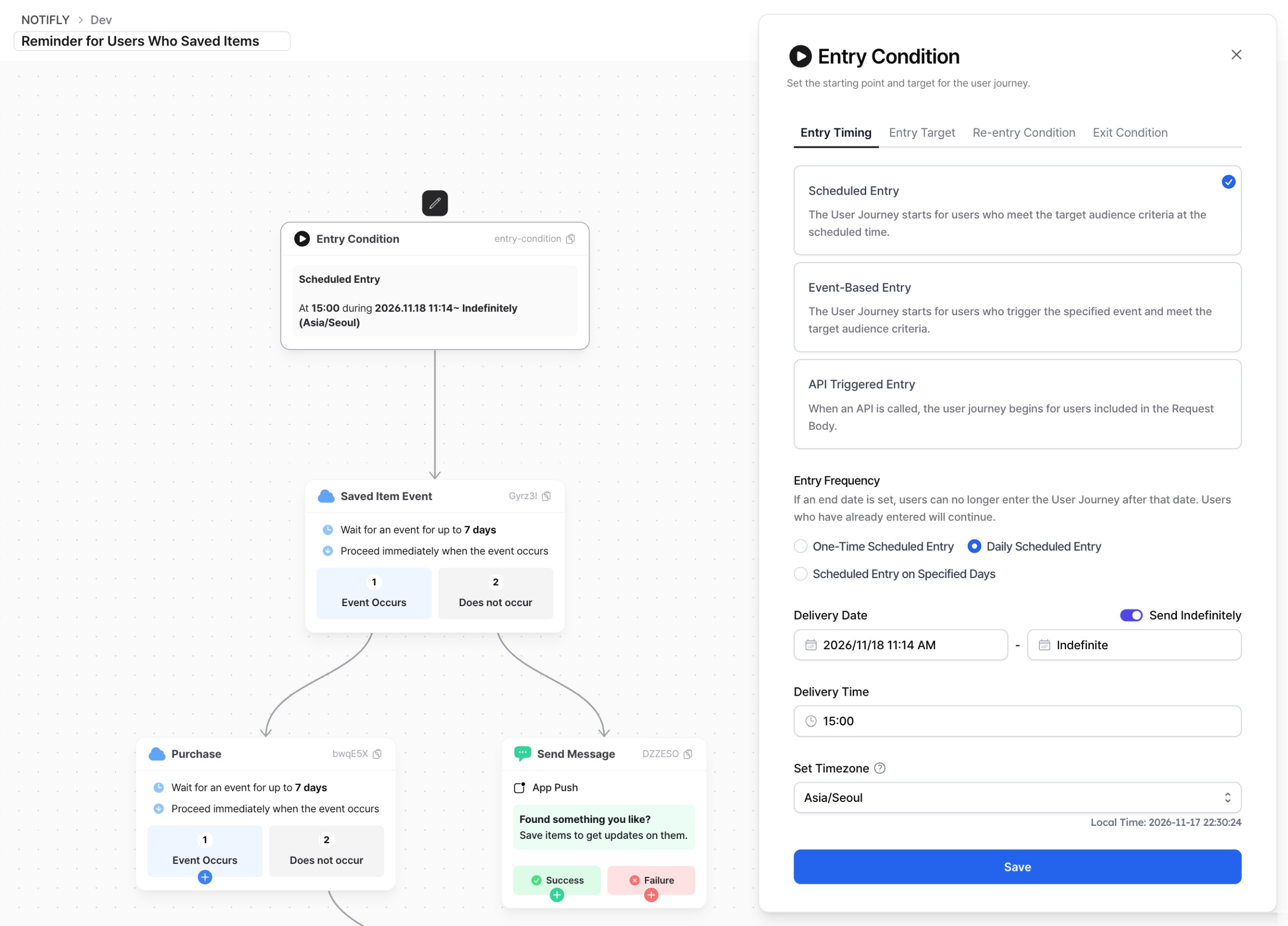
On the Entry Condition node, select the pencil icon to set when the journey starts and which users can enter.

Entry timing

Under Entry Timing, choose Scheduled Entry to start once or on a recurring schedule. Choose Event-Based Entry to start when an event occurs. For API Triggered Entry, include the target users in the API request body. User journey entry timing settings
Target audience

For scheduled or event-based entry, set criteria such as user properties or events under Entry Target. Notifly checks those criteria at entry. Active sessions continue even if the users no longer meet them. For scheduled entry, choose Upload File to specify users in a CSV.

Re-entry conditions

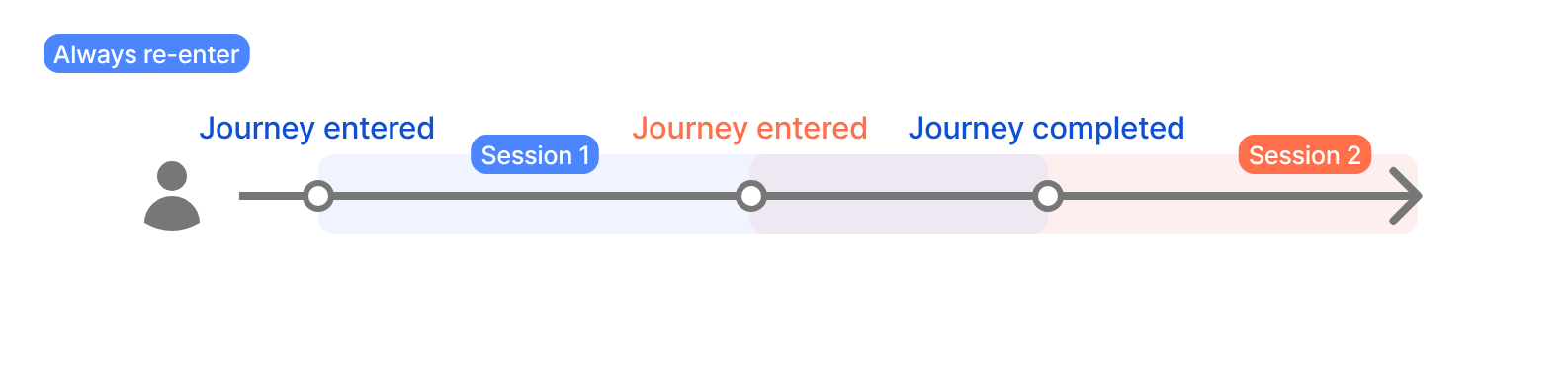
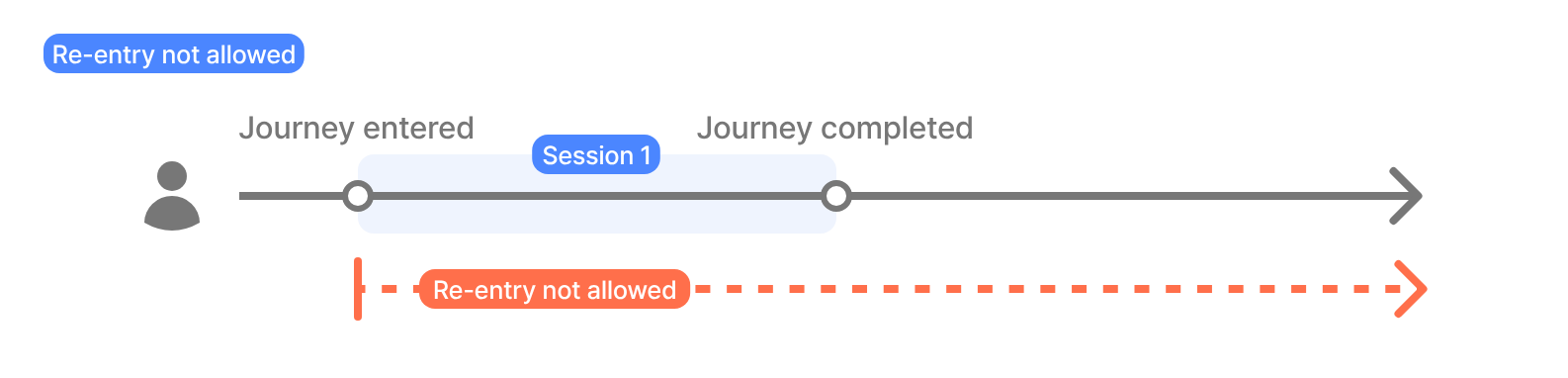
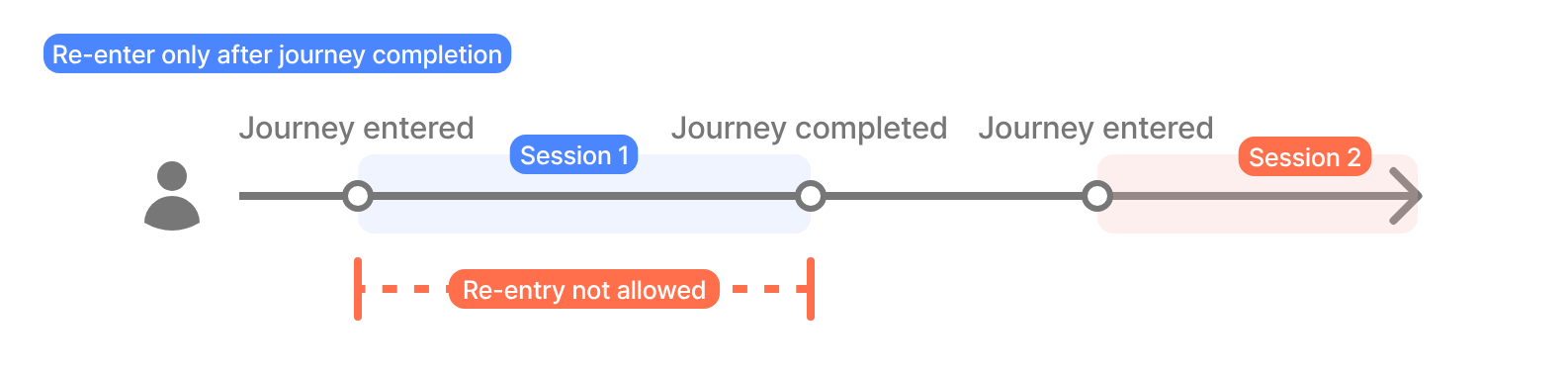
Choose whether a user can enter the journey again after meeting the entry conditions. The default is Re-enter only after journey completion. Re-entry not allowed Re-entry after a session ends Always re-enter
Exit conditions

Choose what ends a session before the next node. For example, in a journey that encourages repeat purchases, set the purchase event as the exit event so buyers stop receiving follow-up messages. Notifly counts users who exit separately.

Configure conversions

In the journey builder, click Conversion Settings. Enter 1 to 14 days for the Tracking Period. Turn on Use Conversion Events and choose up to four events that measure the journey’s performance. Click Confirm to apply these settings. Message nodes use the same conversion settings. In the overall journey statistics, each conversion metric counts up to one event per session. See User journey statistics.

Save the user journey

Save any open node edits. Click Save at the top of the journey builder, then select Save in the confirmation dialog.

User journey states

A user journey can be Active, Inactive, or Paused. To add, delete, or move nodes, the journey must be inactive or paused. If you deactivate a journey, all sessions in progress exit. Reaching the entry end date does not automatically deactivate the journey. Users cannot enter an inactive or paused journey even if they meet the entry timing and audience conditions. If you pause an active journey, sessions wait at their current nodes. They can resume after you reactivate the journey.

Edit a user journey

You can edit a journey while it is inactive or paused. After you reactivate a paused journey, sessions follow the updated connections. Sessions whose wait expired while the journey was paused can exit instead of resuming.

Delays when many users enter at once

When many users enter a journey at the same time, nodes can run later than scheduled. Allow extra time between nodes when timing matters.