
Register a sending address or domain
Open Settings > Channel Settings > Email, then choose how to register your sender:- Choose Registered Sending Domains to verify a domain and use sending addresses on that domain without verifying each one.
- Choose Registered Sending Emails to verify an individual address without verifying its domain.
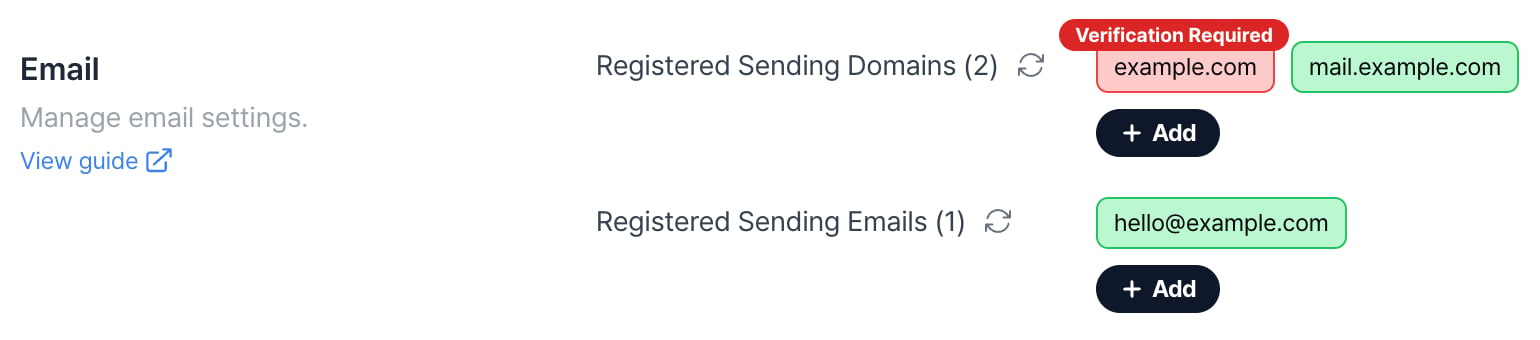
1. Register an individual sending address
Under Registered Sending Emails, open the form to add an address. Enter the address and click Verify and Register. Follow the verification link sent to the address, if prompted.2. Register and verify a sending domain
For bulk email, send from a domain your company manages. A familiar address helps recipients recognize your service, and you can authenticate the domain yourself.- Use a sender name and address that customers can recognize.
- Authenticate your domain so receiving mail providers can verify your messages.
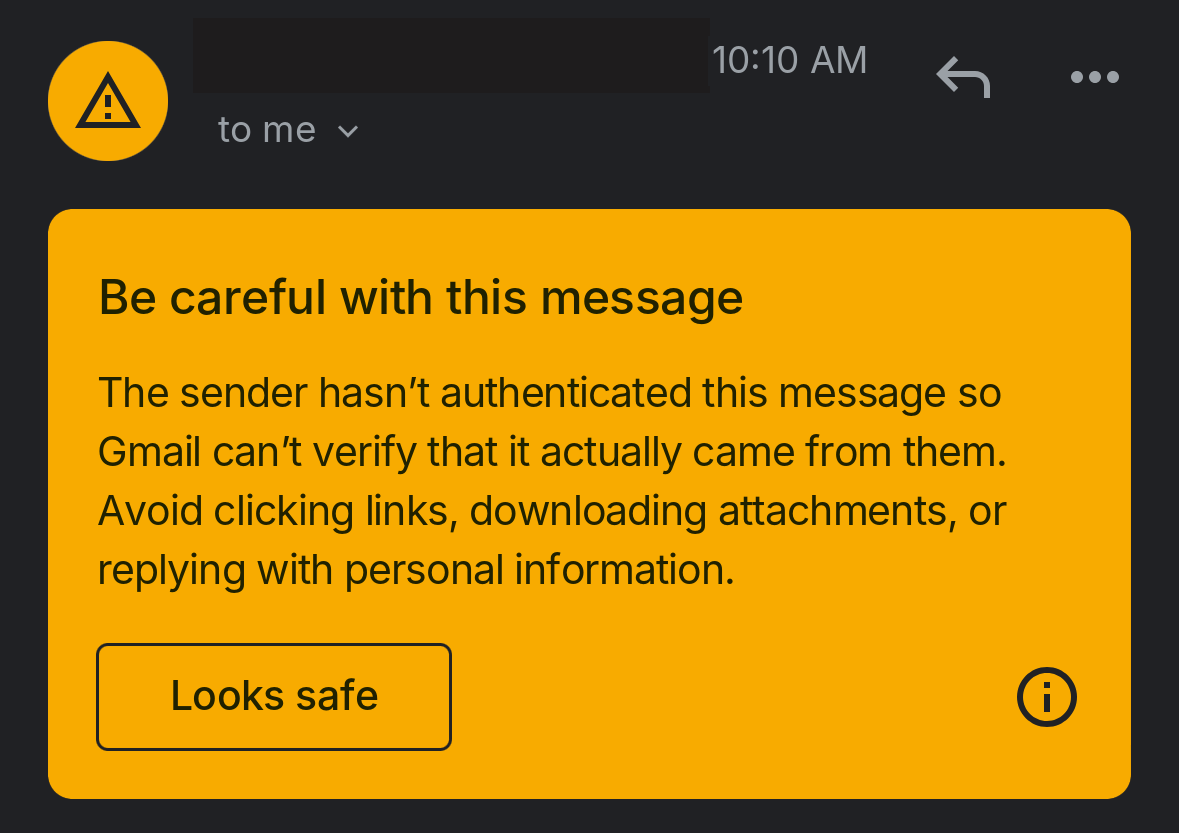
Notifly lets you register an individual sending address without verifying the domain. Receiving providers may still require domain authentication. Check their rules before sending in bulk.
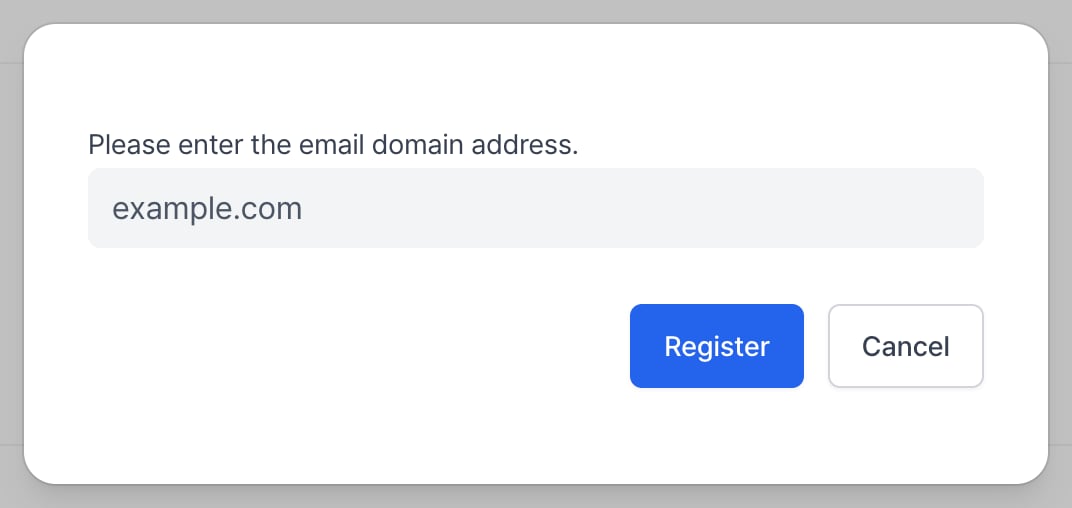
- Under Registered Sending Domains, open the form to add a domain. Enter your domain, such as
example.com, and click Register.
- After you register the domain, select it to view its details.
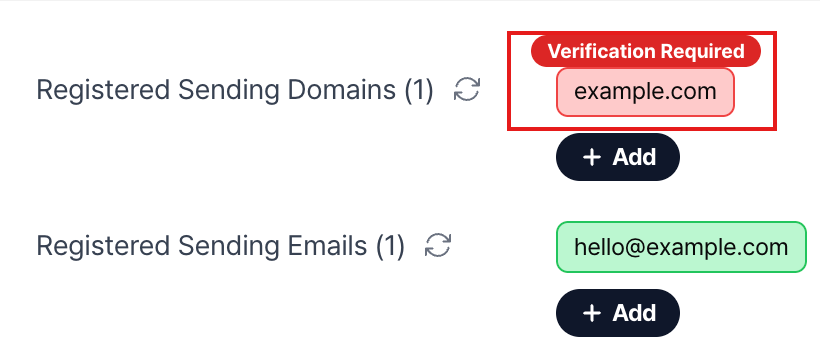
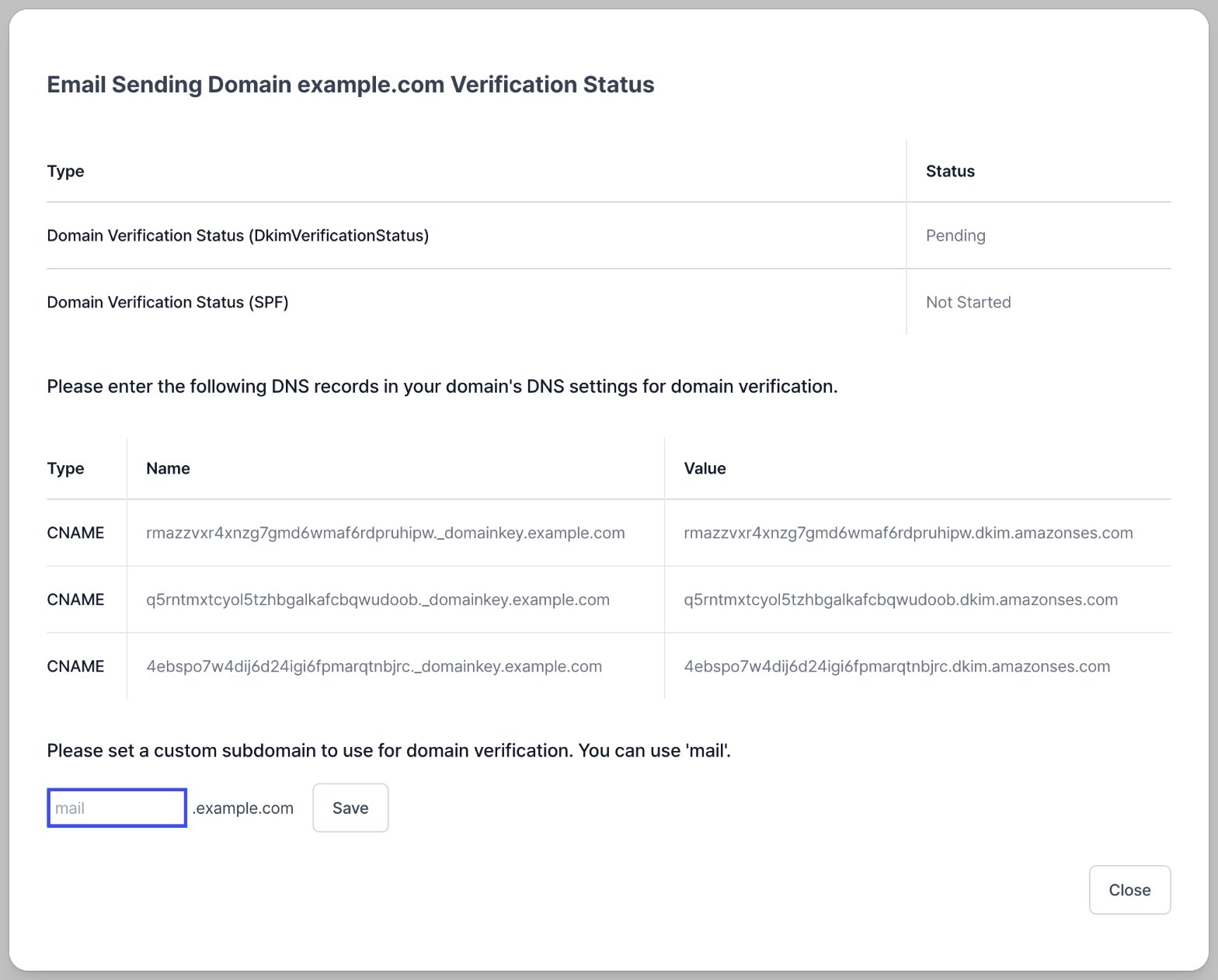
- Choose a custom subdomain such as
mail. Click Save, then refresh the page to see the five DNS records used for verification.
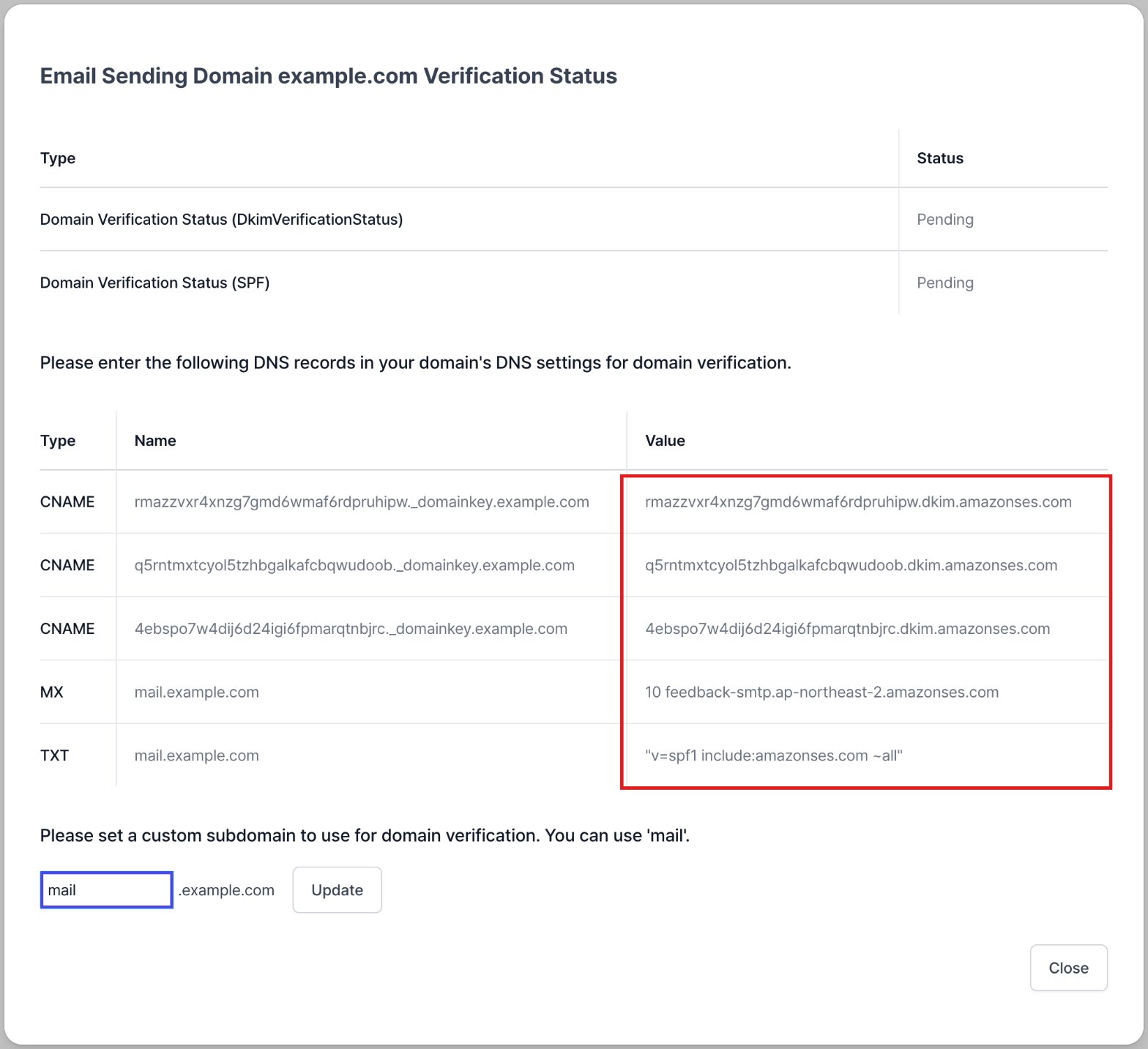
- Add the five records to the DNS settings on your domain host’s website. See the guides for common providers below.
- Squarespace DNS records for email
- Amazon Route 53 DNS settings
- Cafe24 DNS settings (Korean)
- Gabia domain settings (Korean)
- Whois DNS settings (Korean)
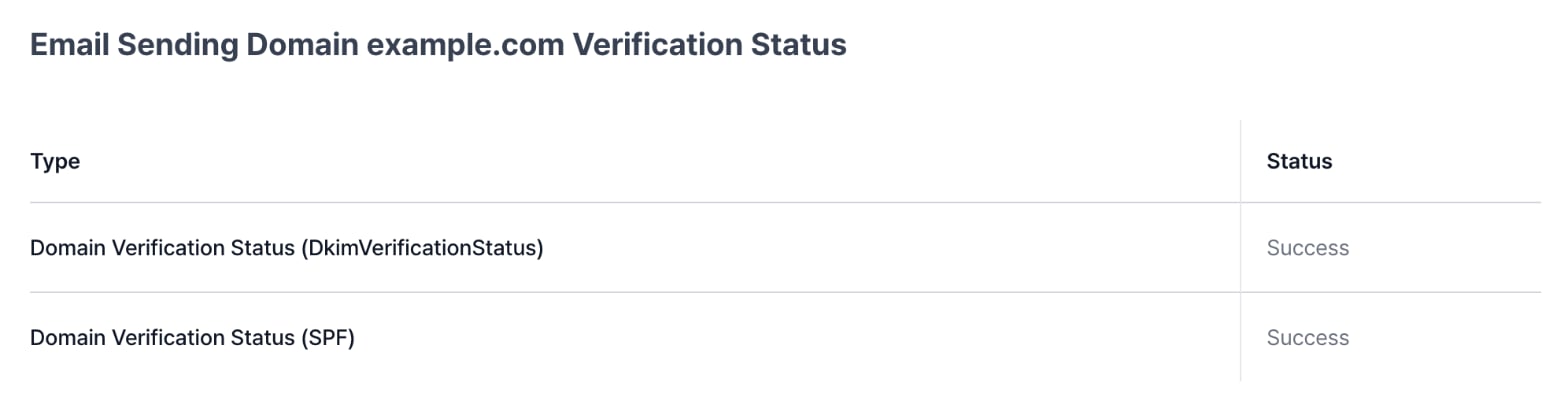
- When verification finishes, the domain status turns green in Notifly settings. Open the domain details and confirm that the DKIM and SPF statuses show SUCCESS.

- Add your sending address under Registered Sending Emails, for example user@example.com. If you’ve verified the domain, Notifly registers the address immediately without a separate verification step.
Notifly email monitoring policy
Notifly monitors email bounce rates to protect its sending infrastructure and reduce the risk that customer domains are flagged as spam. Notifly may restrict sending if the bounce rate is too high. The bounce rate is the number of reported bounces divided by the number of sends.- If a recipient server returns an email, Notifly may add the affected user to Excluded Users for email and skip the user in later email sends.
- Notifly does not send email to addresses at @kakao.com, @daum.net, @hanmail.net, or @nate.com.
FAQ
What are SPF and DKIM?
What are SPF and DKIM?
SPF (Sender Policy Framework) authorizes sending servers for the envelope sender domain. DKIM (DomainKeys Identified Mail) signs messages so the receiving provider can verify the signing domain. If you send from user@example.com, the sender address the recipient sees can differ from the envelope sender. Configure SPF and DKIM for the domain you use with Notifly.
Why is my domain still unverified after setting up SPF and DKIM?
Why is my domain still unverified after setting up SPF and DKIM?
DNS changes can take up to 48 hours to propagate. To check whether the records are correct before then, contact the Notifly team.
Why is the Email complaint count high?
Why is the Email complaint count high?
Email complaint counts how many times recipients reported your messages as spam.
- If you send too many emails in a short time, use Throttled Delivery to space out delivery.
- If your email is very short or contains only an external link, include a short summary of the linked content in the body alongside the link.
- If your sender name, email address, and message content don’t match, mail providers may mark the email as spam. Use a sending domain that matches your service name.
Can I send to Apple private email relay addresses?
Can I send to Apple private email relay addresses?
To send to an Apple private email relay address, register your sending domains or addresses with Apple and meet its sender authentication requirements. Ask Notifly to confirm the settings for your sending domain.If you publish a DMARC record for your verified domain, the following example configures reporting only.
- Type: TXT
- Name: _dmarc.yourdomain.com (for example, _dmarc.example.com)
- Value:
v=DMARC1; p=none; rua=mailto:dmarc-reports@example.com; ruf=mailto:forensic-reports@example.com; pct=100 - Set the
ruaandrufvalues to valid email addresses. Replace the example addresses with your own.