
- Make sure the Notifly SDK is installed in your app.
- Run the app push integration test.
1. Set when to send
App push supports scheduled, event-triggered, and API-triggered sends. See Campaign send timing for details. For users with the app on multiple devices, where the notification goes depends on how the send is triggered.- For scheduled and API-triggered sends, Notifly sends to all of the user’s devices.
- For event-triggered sends, Notifly sends only to the device where the user triggered the event.
2. Set the audience
To select recipients for app push, set up a user group or upload a CSV. See Set up a user group.3. Set the message content and action
3-1. Basic notification settings
Set the title, body, image, and what happens when a user taps the notification.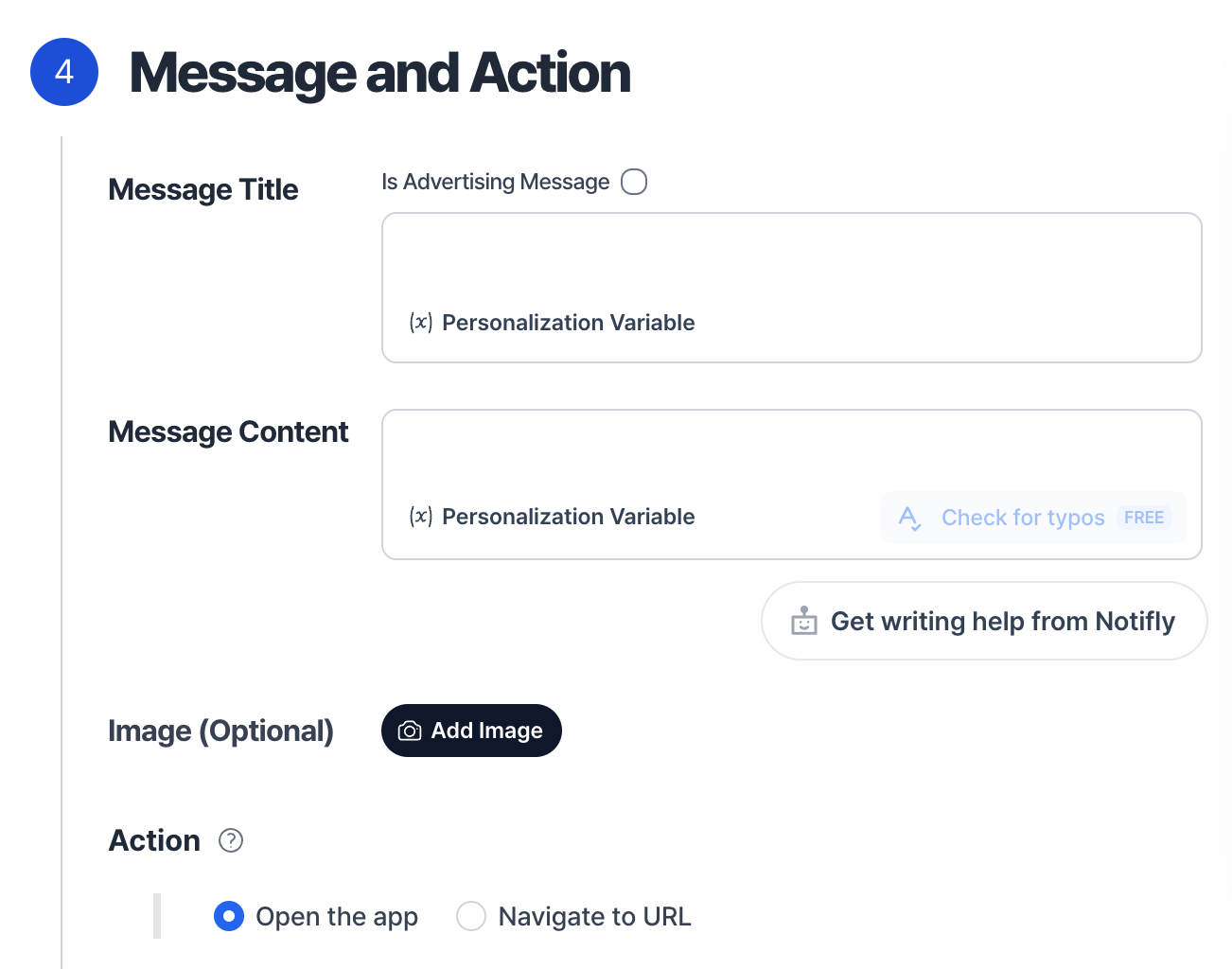
3-1-1. Set the title and body
Enter the title and body to preview the notification.- The amount of text shown varies by device. To reduce truncation, keep Android titles within 65 characters and bodies within 240. On iOS, keep the notification within roughly four lines (178 characters in total).
- You can include emoji.
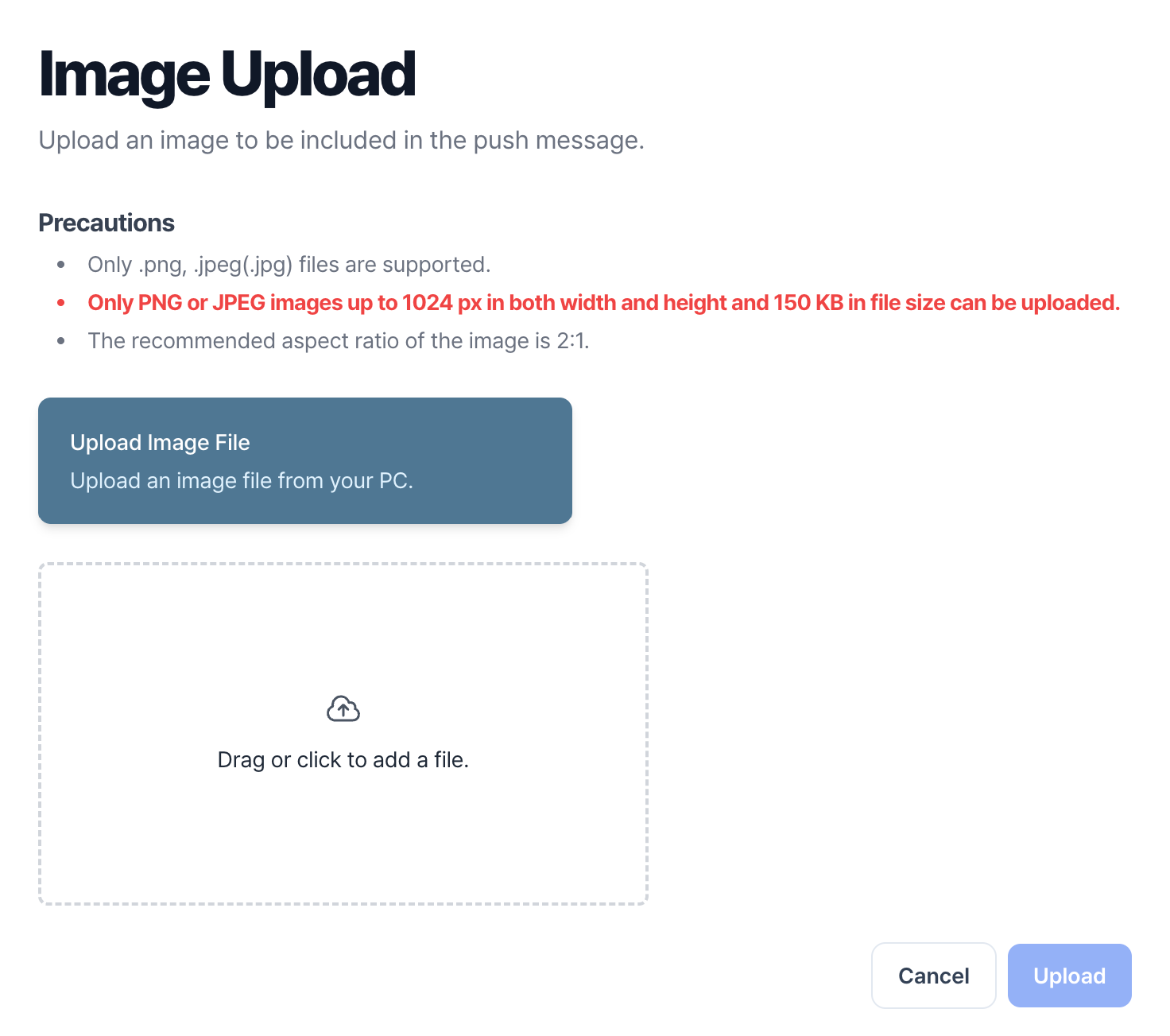
3-1-2. Add an image (optional)
- Use a PNG or JPEG (.jpg or .jpeg) file.
- We recommend a 2:1 aspect ratio (width to height).
- Keep the image within 1024 px in both width and height and 150 KB in file size.
3-1-3. Set the tap action (optional)
- By default, tapping a notification opens the app.
- To open a web page when the user taps the notification, enter the page URL. To open a specific screen in the app, enter a deep link that your app already handles.
3-2. Advanced notification settings (optional)
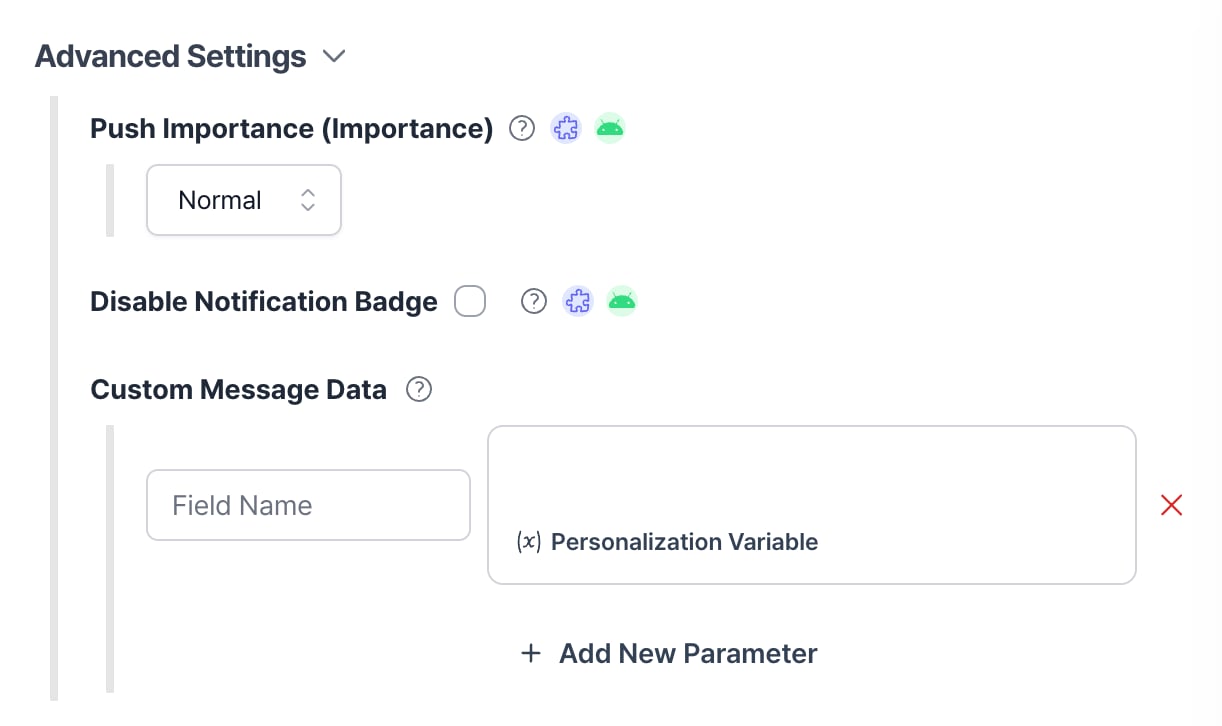
3-2-1. Set the notification importance (Android only)
On Android, the importance level controls how prominently the notification appears and whether it makes a sound. For a heads-up notification, select High.3-2-2. Disable the notification badge (Android only)
A badge is an indicator on the app icon. Turn on Disable Notification Badge to hide it on Android.3-2-3. Add custom message data
Add custom data to the push message’sdata field. For example, your app can use it to add messages to its notification inbox or handle different types of push notifications.
4. Send promotional app push notifications
Record each user’s marketing consent through the app SDK. Set up an opt-out page and send only to users who opted in. For a single-language message, turn on Is Advertising Message. For a localized message, add the required advertising disclosures and opt-out instructions to each language version. To reuse the consent filter across campaigns, add it as a default user condition. See Set up opt-outs for promotional app push notifications.5. Receive delivery results through a webhook
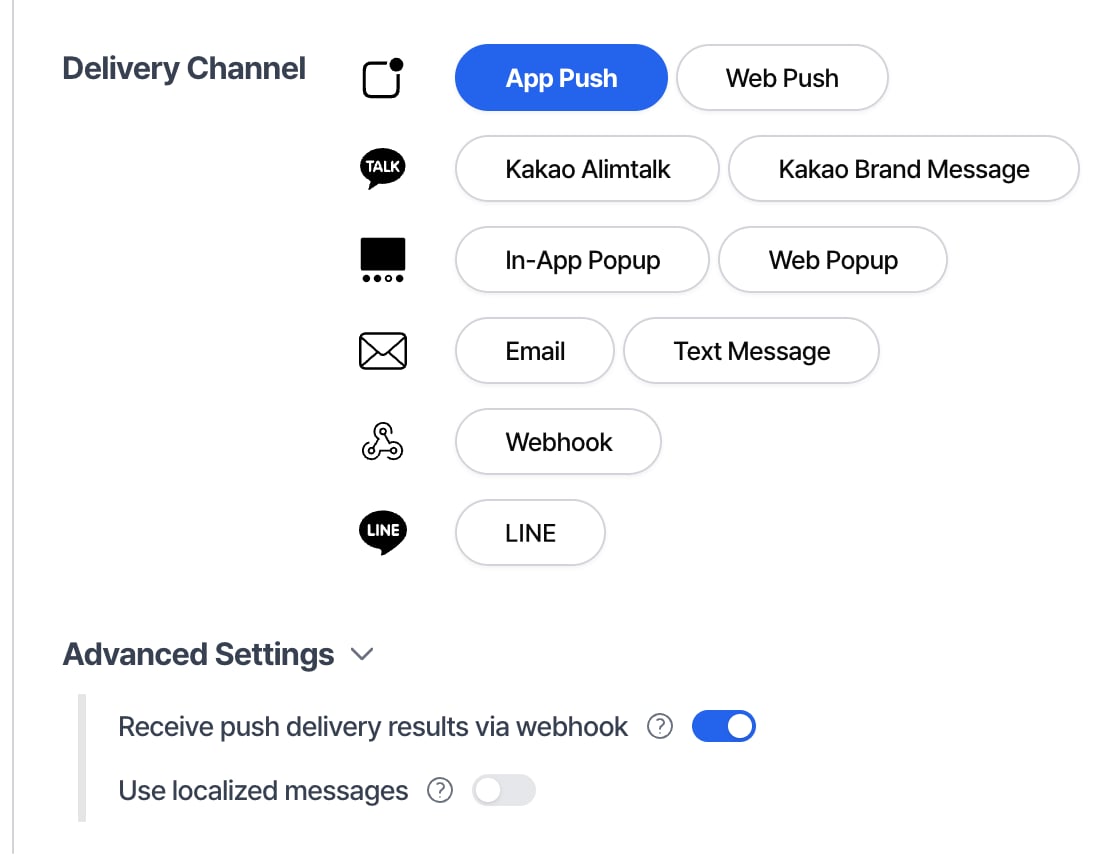
Use a webhook to receive app push delivery results from Notifly in real time. Open Settings > Channel Settings > Push Notification (App) and enter your endpoint in Webhook URL for Receiving Delivery Results.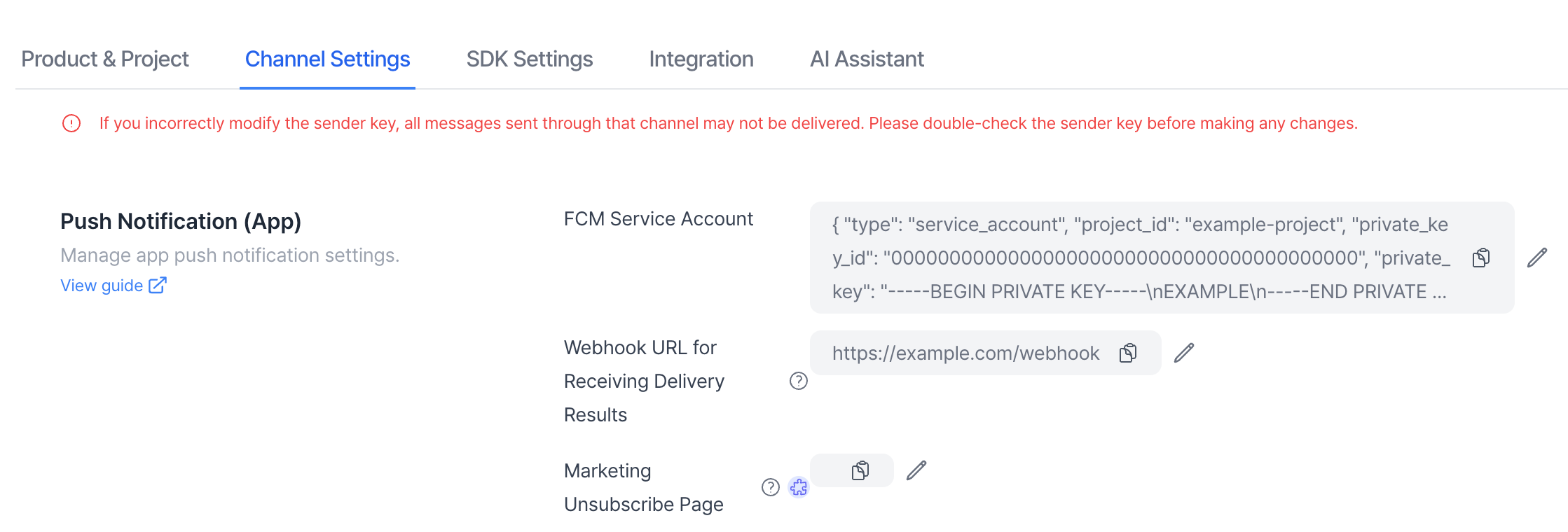
POST request each time it sends an app push notification successfully. The campaign and user journey examples below show "ios" in the platform field. For Android, the value is "android".
[Campaign]
FAQ
What should I check if I didn't receive a push notification?
What should I check if I didn't receive a push notification?
Run the app push integration test.