Overview
Before setting up a popup, integrate the Android SDK or iOS SDK into your app. The app loads popup campaigns when it starts. If you create or update a campaign while the app is open, it loads the changes the next time it starts.1. Set the audience
Choose the user groups that should see the popup. See Set up a user group.2. Set when to show the popup
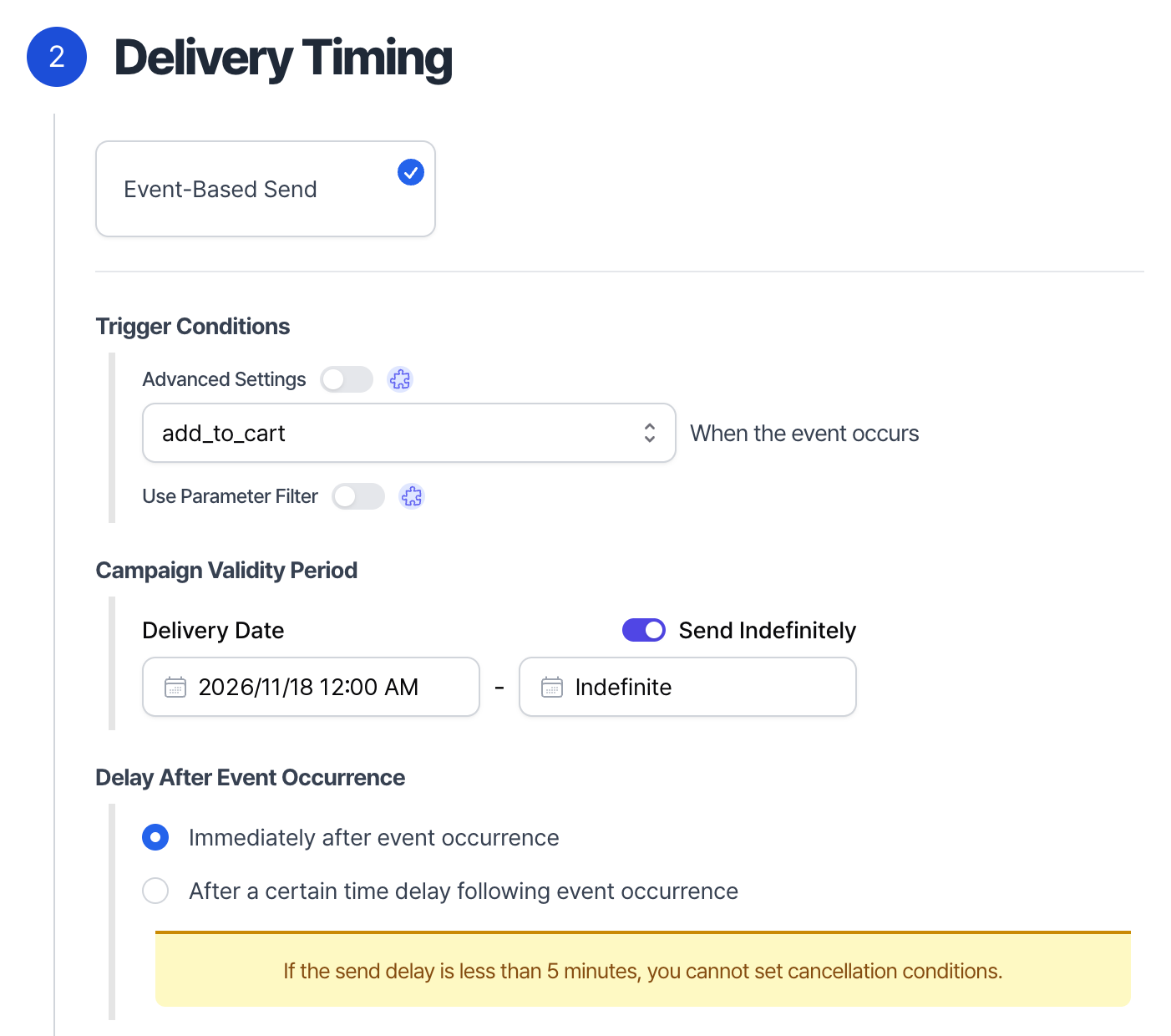
To set the trigger, choose Event-Based Send and select the event that should show the popup.Example: Show a popup when a user adds an item to their cart
To show the popup immediately when theadd_to_cart event occurs, use the settings below. You can also set a start and end date.
3. Set the message
In the sidebar, open Message Templates > In-App Popup Templates. Choose a design from the gallery. Customize it in the editor, then save it to use in a campaign.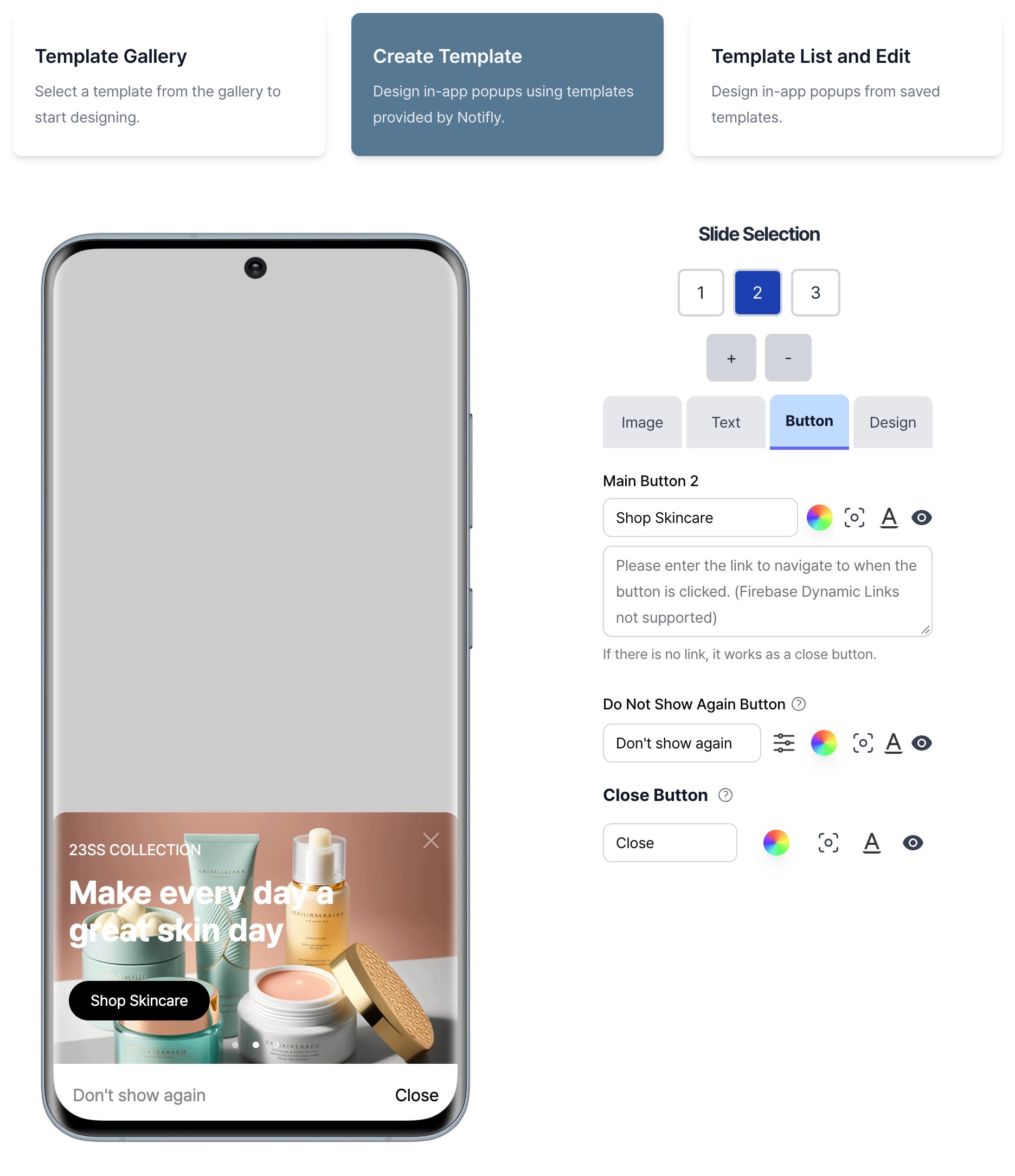
Add an image
Check the recommended aspect ratio for your template when you upload an image.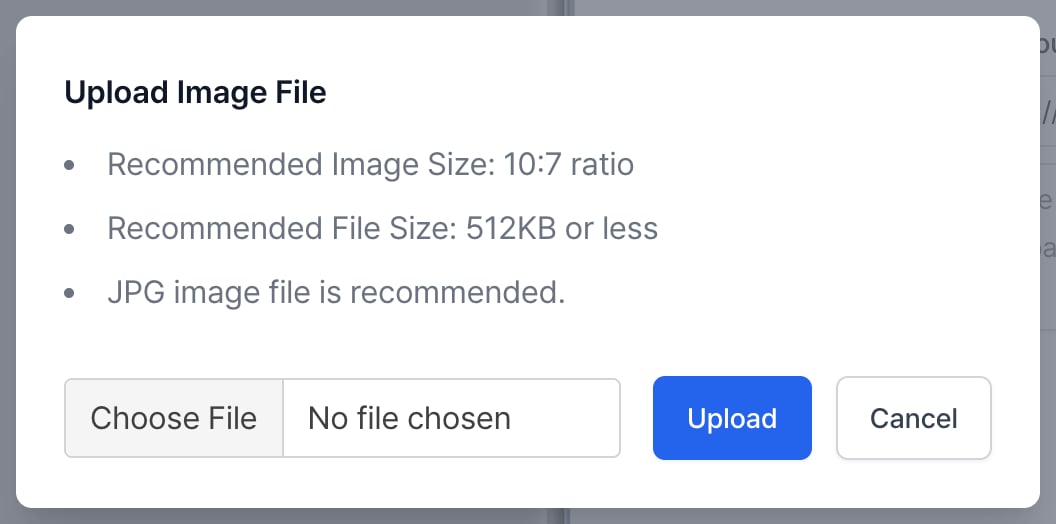
Customize the text and buttons
Edit the popup text and button labels. Use the color and style settings to match the popup to your app.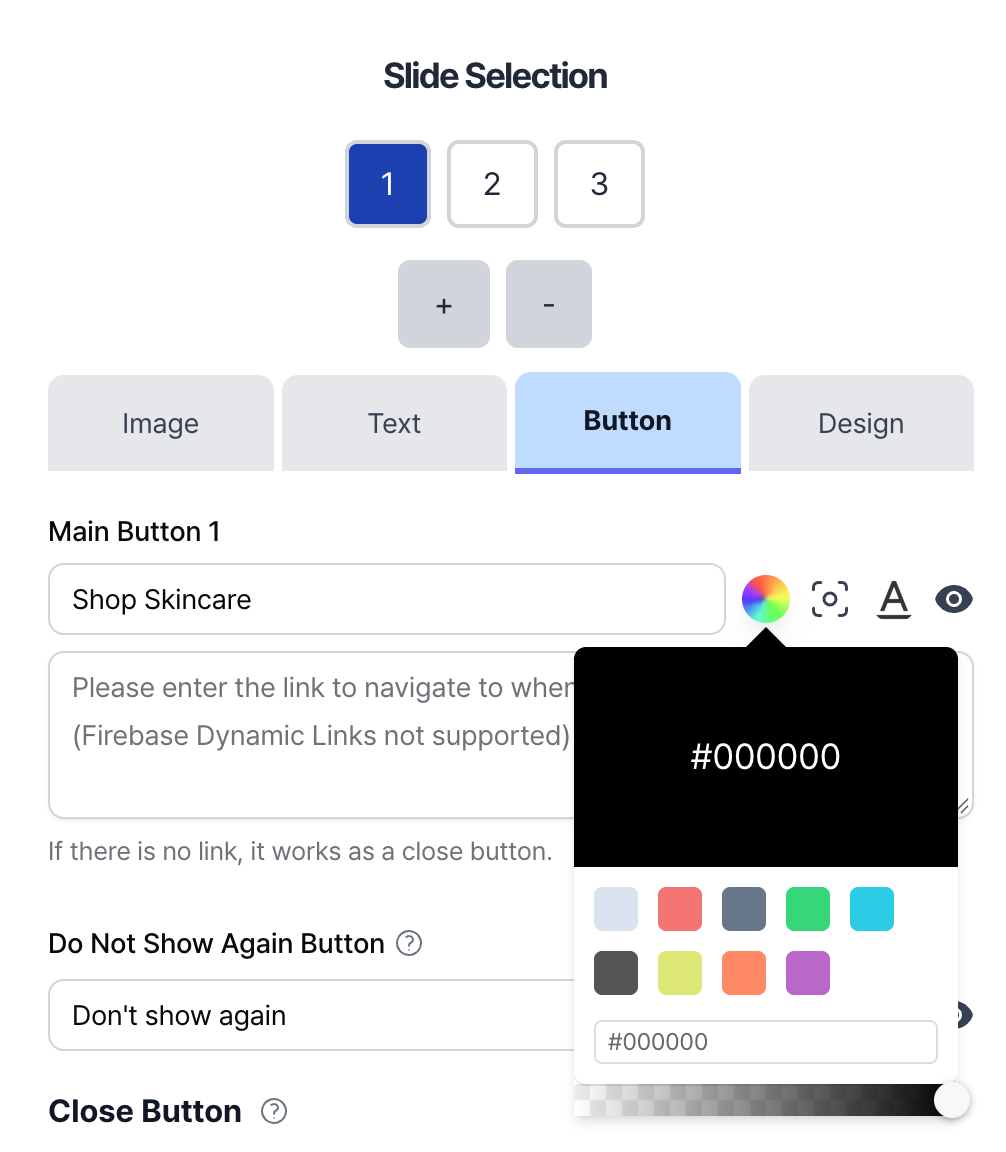
Set how long to hide the popup
In the legacy editor, add a Do Not Show Again Button so users can hide the popup. Set how long the popup stays hidden after a user taps the button.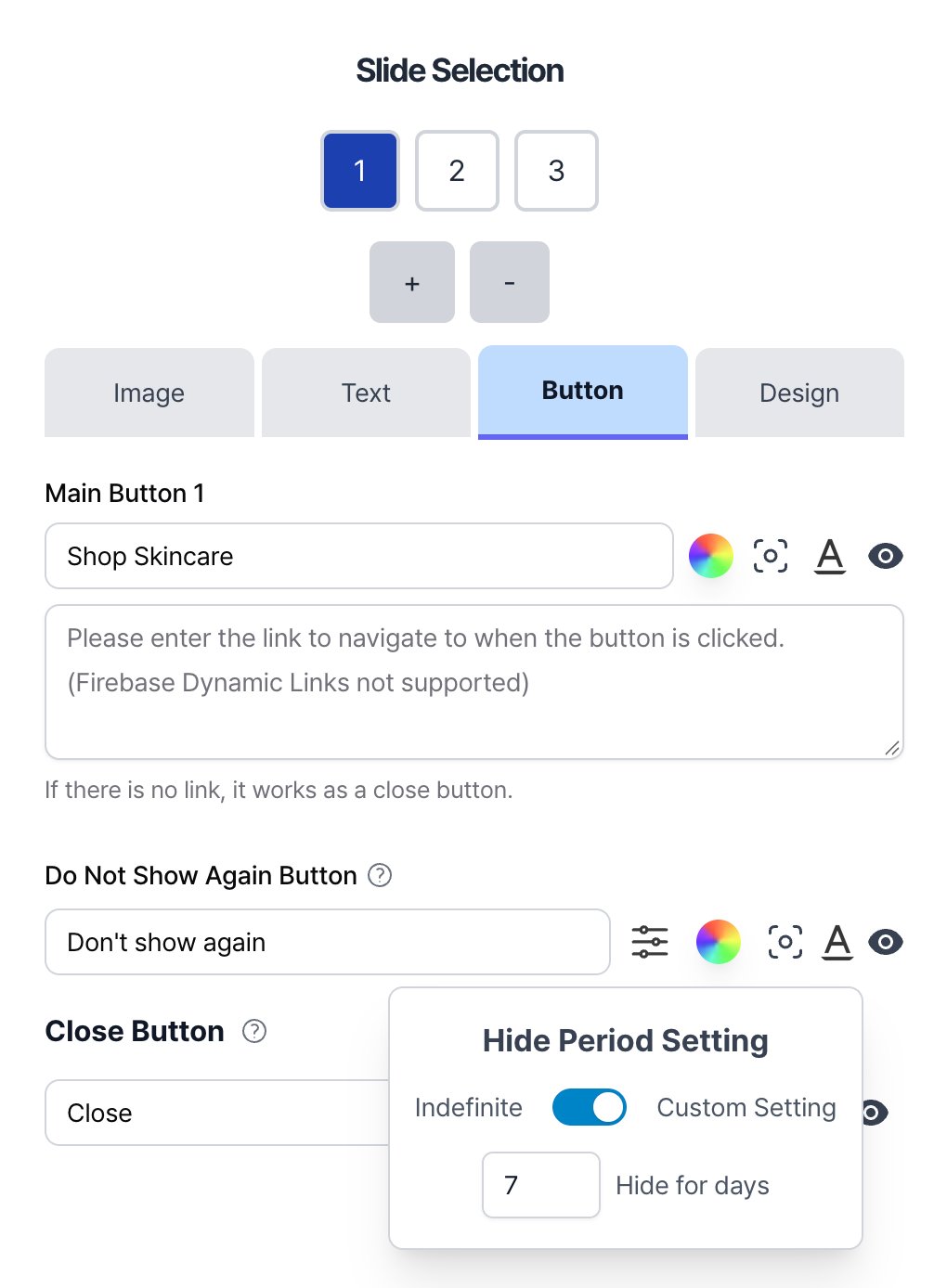
Create a campaign with the template
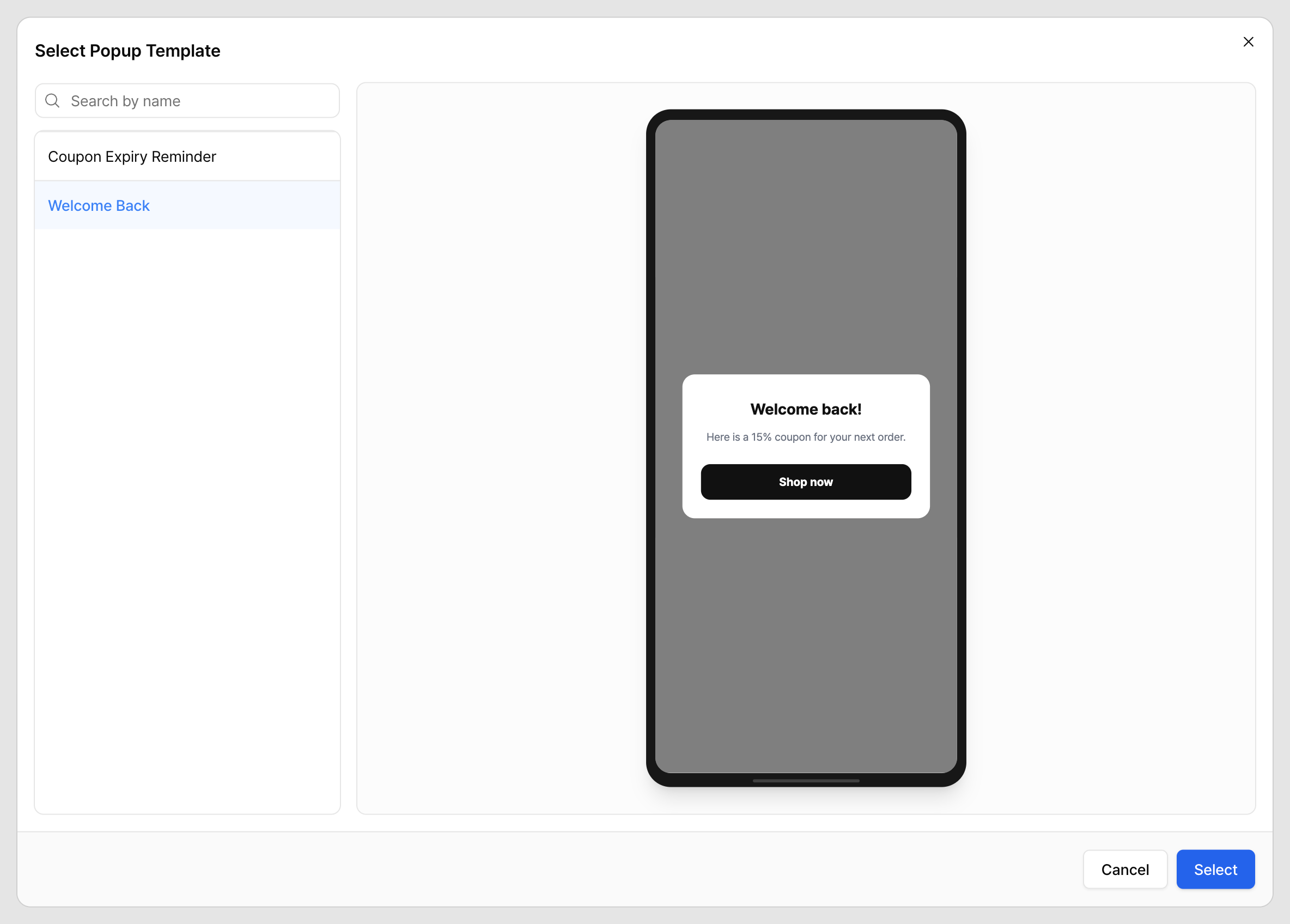
When you create an in-app popup campaign, click Select Template and choose one of your saved templates. See Create a campaign for the full procedure.