
- Create a LINE Official Account.
- In LINE Official Account Manager, enable Messaging API and confirm that the channel appears in the LINE Developers Console.
Check LINE’s account setup and verification requirements for the country or region where your business operates. See Get started with the Messaging API.
1. Register a LINE channel
Open Settings > Channel Settings. In the LINE settings, click Register Channel.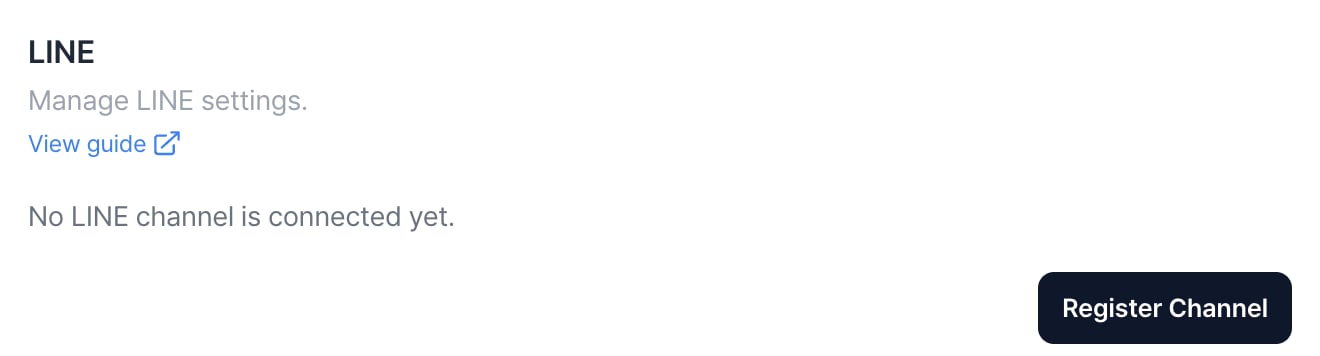
1-1. Enter the channel details
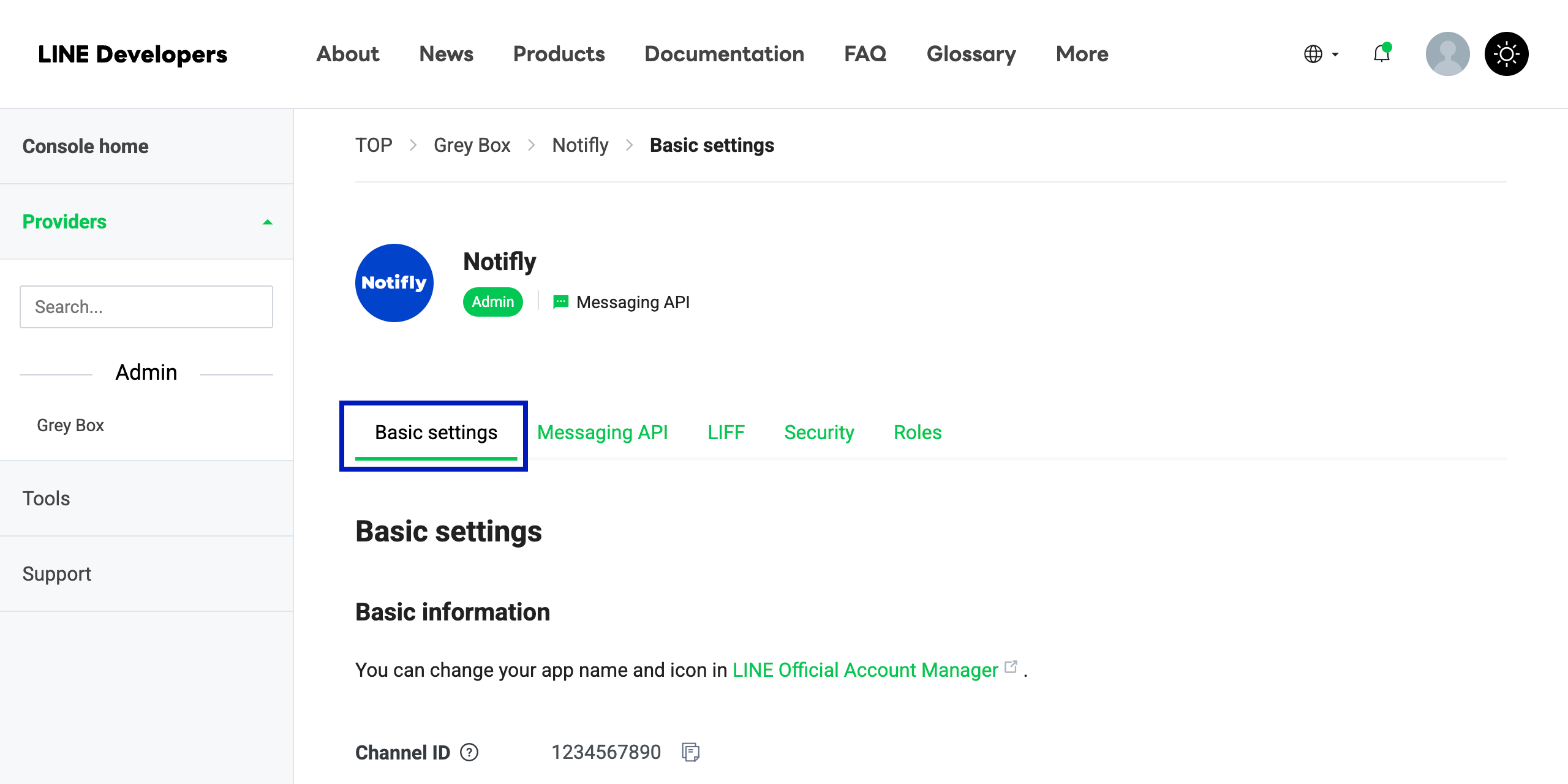
- Sign in to the LINE Developers Console.
- In the Basic settings tab, find the channel ID and channel secret and enter them in Notifly.
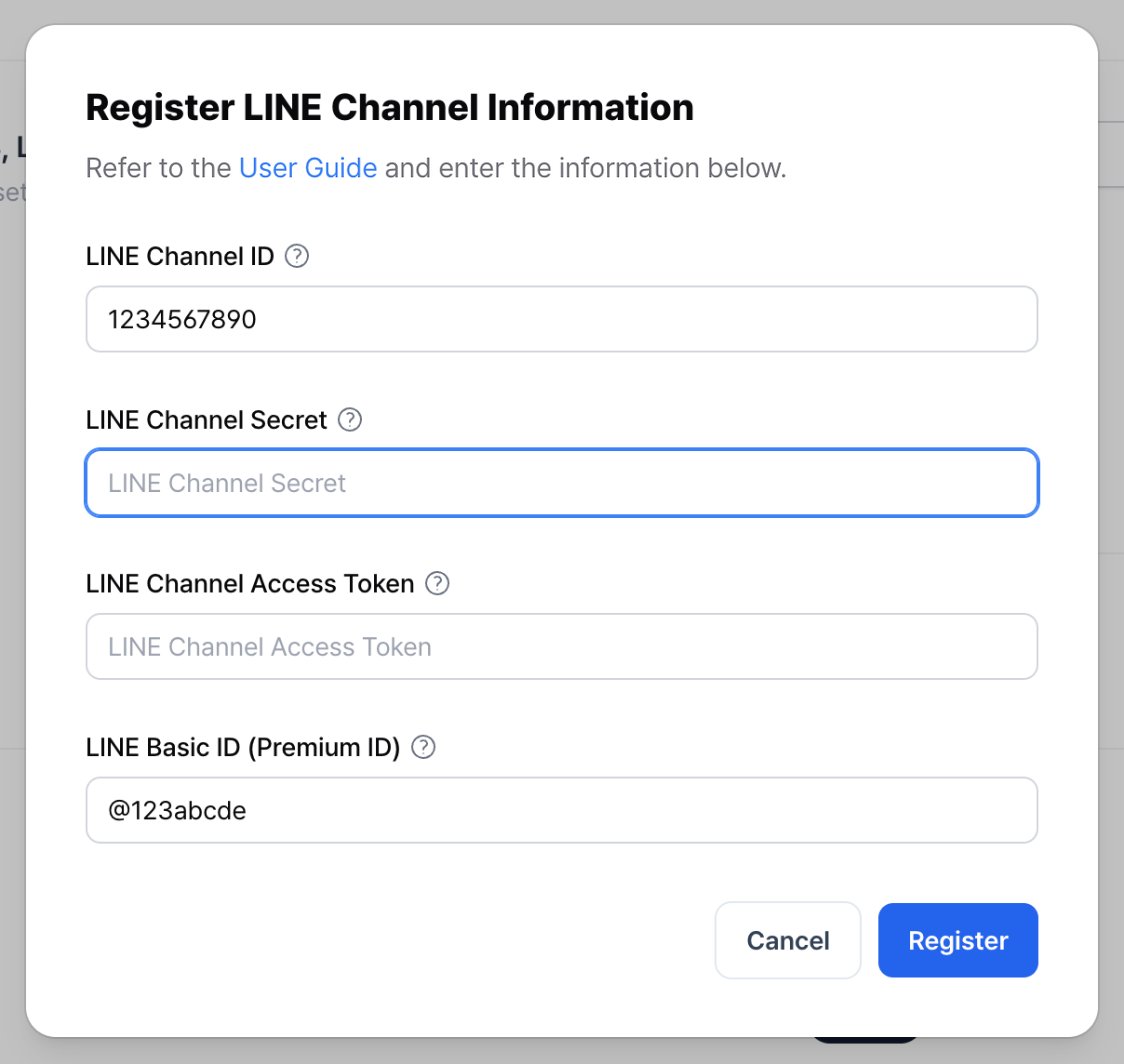
- LINE Channel ID. The unique identifier for the LINE channel.
- LINE Channel Secret. The secret for the Messaging API channel.
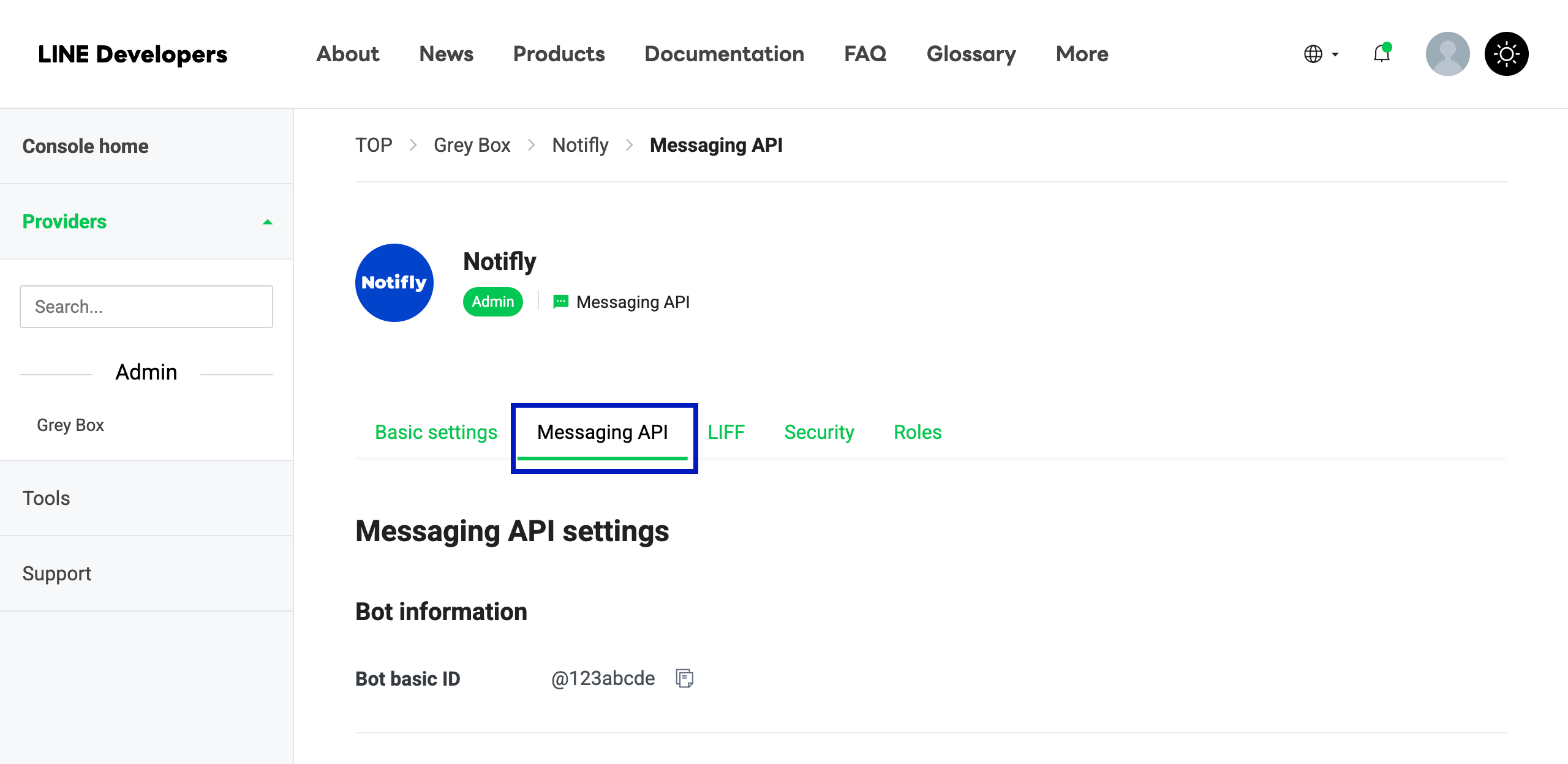
- In the Messaging API tab, find the channel access token and your Basic ID or Premium ID and enter them in Notifly.
- LINE Channel Access Token. Enter the channel access token.
- LINE Basic ID (Premium ID). Enter your Basic ID or Premium ID. Users can search for this ID to add your account as a friend. You can also use it to create an add-friend link.
1-2. Check the connection
Click Register after entering your channel details. Notifly uses the LINE API to verify the connection.- If the connection succeeds, the console shows LINE Channel Registered and opens the webhook setup. You can use the channel in campaigns and user journeys.
- If the connection fails, check the error details. Verify the channel ID, channel secret, and access token in the LINE Developers Console.
2. Set up the LINE webhook
LINE uses a webhook to report when a user adds your LINE Official Account as a friend, blocks it, or unblocks it. Set up the webhook so Notifly can keep track of these changes.2-1. Set the webhook URL
If your server already receives LINE webhooks, keep its URL and go to section 2-2 to set up forwarding. If you’re setting up a webhook for the first time, follow the steps below.- Open your channel’s Messaging API tab in the LINE Developers Console.
- In Webhook URL, enter the following Notifly endpoint and save it.
- Turn on Use webhook.

- Click Verify and check for a success message.

2-2. If you already use a webhook
Keep your current server as the webhook endpoint in LINE. Verify the LINE signature there. Then send a POST request tohttps://integration.notifly.tech/line/webhook with the unmodified request body and the original x-line-signature header. Do not parse and reserialize the body before forwarding it. Continue sending the events to your existing system.
3. Save each recipient’s LINE user ID
Notifly sends LINE messages using each recipient’s LINE user ID. Save the ID through a Notifly SDK, the HTTP API, or a CSV upload.3-1. Integrate LINE Login into your service
Before integrating LINE Login, check that the LINE Login and Messaging API channels are under the same provider in the LINE Developers Console. The same LINE user has a different ID under each provider. See how LINE issues user IDs.- Implement LINE Login in your app or website.
- When login succeeds, capture the user ID returned by LINE.
- Pass the ID to the Notifly SDK or HTTP API as the
$line_user_iduser property.
For help adding LINE Login to your app or site, see the LINE Login developer documentation.
3-2. Add a LINE user ID from the user list or through a CSV upload
- Open the user list in the Notifly console and choose to add users or upload a CSV.
- For CSV uploads, add a
$line_user_idcolumn. - Enter the corresponding LINE user ID in each row.
4. Create a LINE message template
You can reuse a saved LINE message template in campaigns and user journeys.- In the Notifly console, open the message settings for a LINE campaign or user journey.
- Select Line as the campaign channel.
- Under LINE Message Type, select Text and enter the message body in Message Content.
- To reuse the message, click Save as Template. In the new tab, enter a Template Name and click Save.
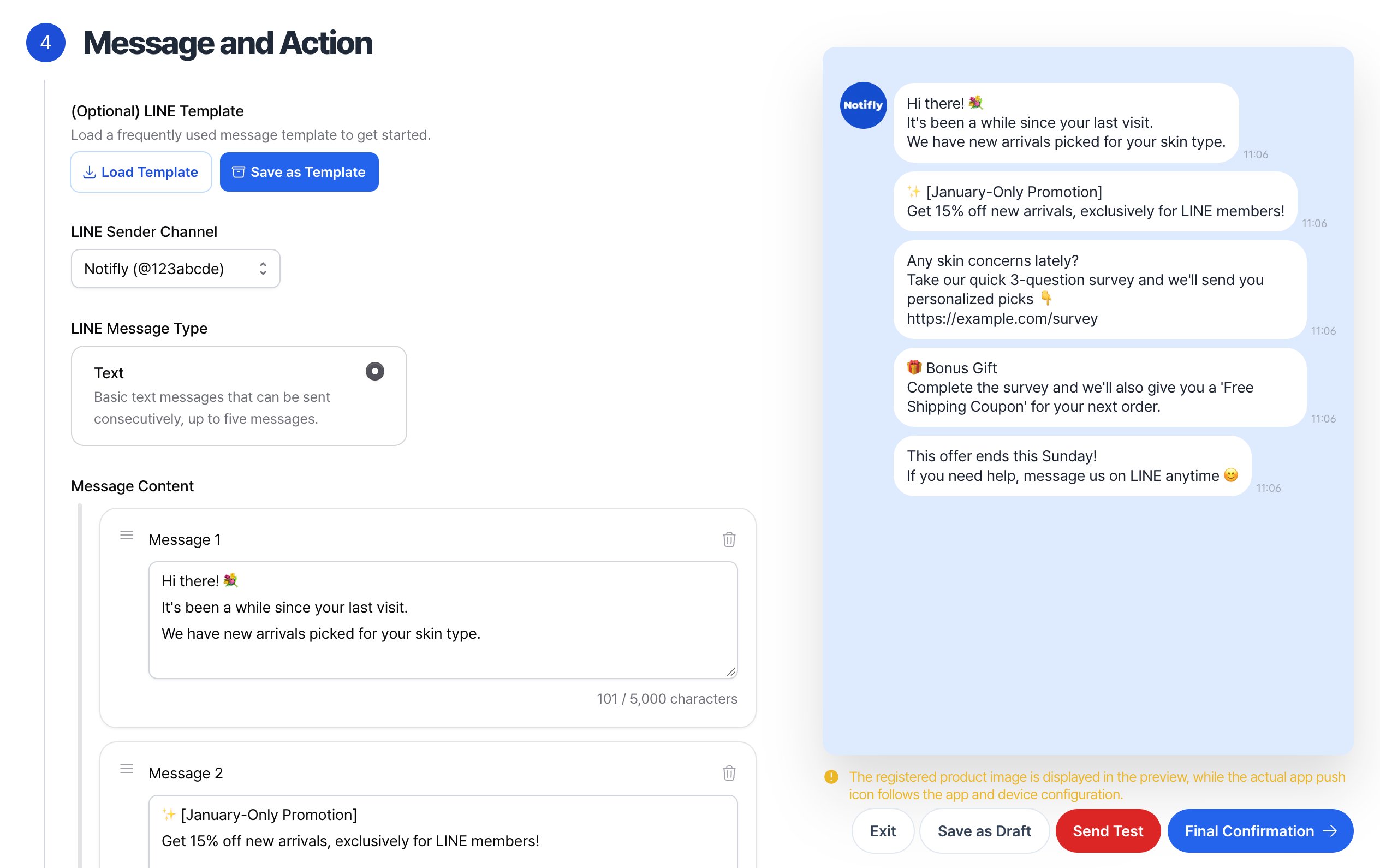
This editor doesn’t support:
- LINE emoji and sticker messages
- Mention tags
- Template messages, Flex Messages, coupons, and rich menus
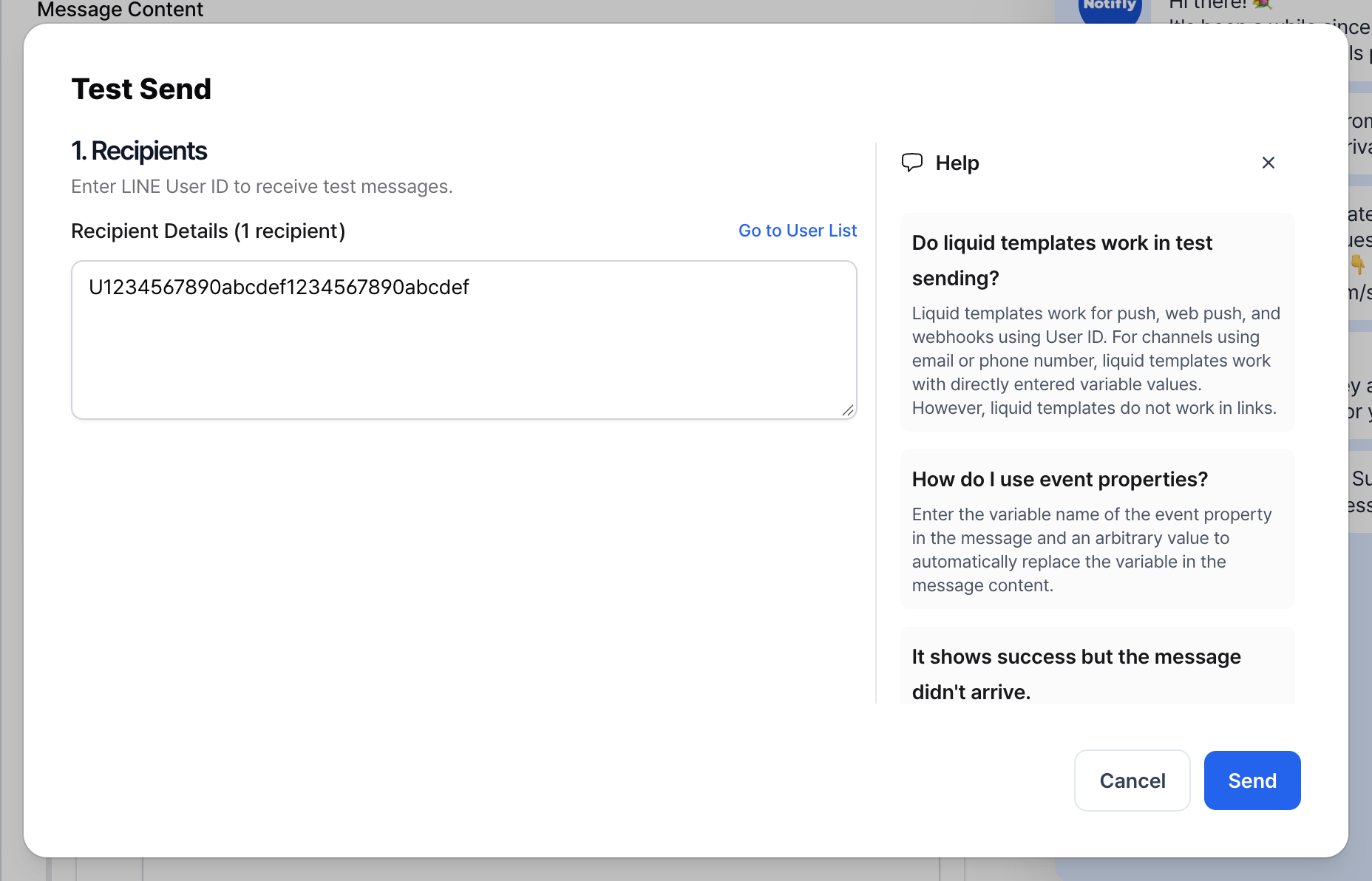
5. Send a test message
- Get the test recipient’s LINE user ID.
- In a campaign, click Send Test. In a user journey message node, click Test Send.
- In the dialog, enter the recipient’s LINE user ID and click Send.
- Check that the message arrives in the LINE app.
6. Set the send timing and audience
LINE supports scheduled, event-triggered, and API-triggered sends. Use a user group for scheduled or event-triggered campaigns. Scheduled campaigns also support CSV audiences. For API-triggered campaigns, specify recipients in the request. See Campaign send timing and Set up a user group. Notifly skips recipients who have no LINE user ID or are recorded as having blocked the LINE Official Account. If Notifly has no record of the recipient’s friend or block status, it can still attempt to send.7. View statistics and reports
Find LINE message statistics in the campaign details and user journey reports.- Send requests (
send_success): The number of recipients in requests the LINE API accepted. - Send failures (
send_failure): The number of recipients Notifly couldn’t send to. An invalid token or request, or a rate limit, can cause a send to fail.
8. Billing
Notifly counts each recipient in a request that the LINE API accepts (send_success) toward your message usage. Ask your customer success manager about your project’s rates and billing terms.
You pay any LINE Official Account fees directly to LINE. LINE counts messages against your Official Account plan’s allowance and leaves out recipients who can’t receive the message. See LINE Messaging API pricing.
FAQ
Can I connect multiple LINE channels to one project?
Can I connect multiple LINE channels to one project?
You can connect one LINE channel per project. If you run separate LINE channels by country or brand, use separate projects or email contact@notifly.tech to discuss your setup.
Do I have to configure the LINE webhook?
Do I have to configure the LINE webhook?
You can send basic multicast messages without a webhook. Configure the webhook to track when users add your LINE Official Account as a friend, block it, or unblock it.
Why don't I see a Delivered metric in my campaign report?
Why don't I see a Delivered metric in my campaign report?
LINE can accept a multicast request without confirming receipt by each user. Notifly counts recipients in requests that LINE accepted (
send_success) and in failed sends (send_failure). These counts don’t show who received the message.