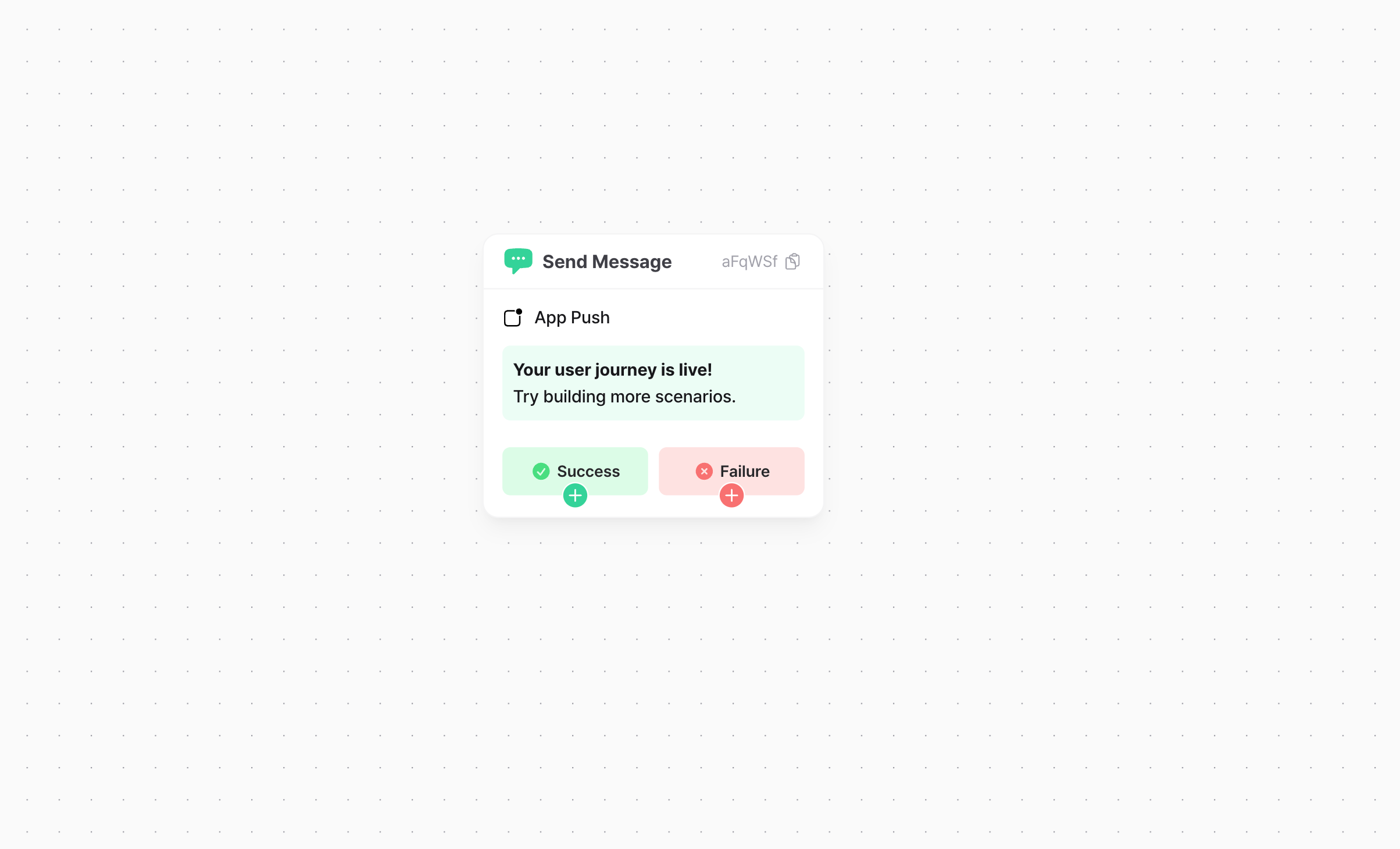
Choose a channel
Choose one channel per message node. The channel selector includes app push, web push, text message, email, Kakao Alimtalk, Kakao Brand Message, in-app popup, web popup, webhook, and LINE. Availability depends on your plan and project settings. Kakao Friendtalk may appear in older journeys and is no longer selectable for new nodes.Channels that send immediately
Channels such as email, SMS, and Kakao Alimtalk send as soon as the user reaches the node. To send at a specific time, place a delay node before the message node.In-app and web popups
Choose the event that can trigger the popup.Enter the message content
Enter the content for the selected channel. For email, write a plain-text message or select an existing HTML template. For Kakao Alimtalk, select an existing template.Branch on the send result
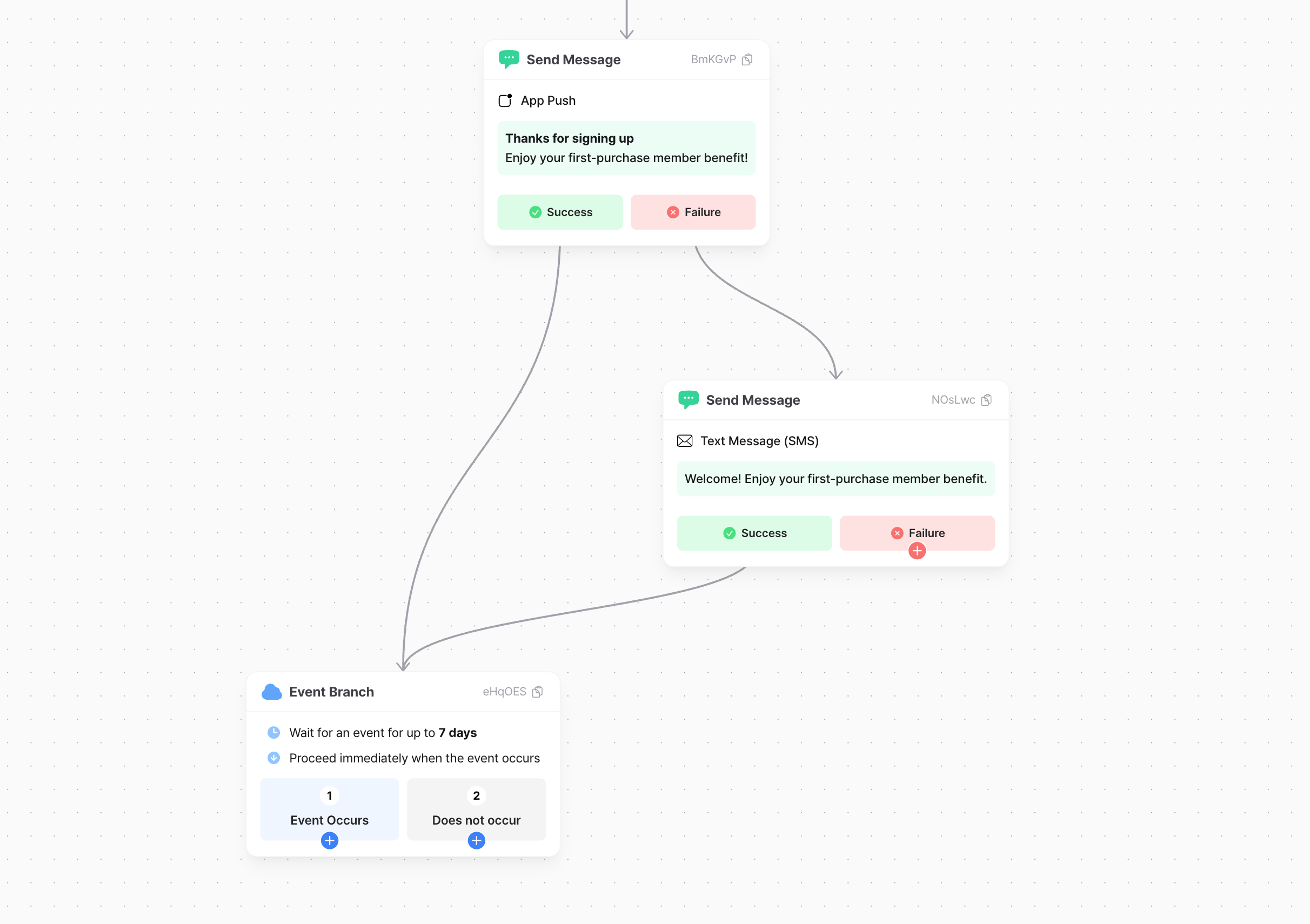
For channels such as app push, text message, email, and Kakao Alimtalk, connect the success and failure branches to the nodes you want users to follow. Notifly moves each user to the next node when it receives the send result.- A message can be sent successfully without reaching the recipient. For example, the recipient’s device may be off.
- You can point both the success and failure branches to the same node.
- If Notifly cannot send the message, the user follows the failure branch. This happens if the user lacks a phone number for SMS or a valid device for push, or if a frequency cap blocks the send.
- If a system issue occurs during sending, the user exits the journey to prevent an unintended send.
View message node statistics
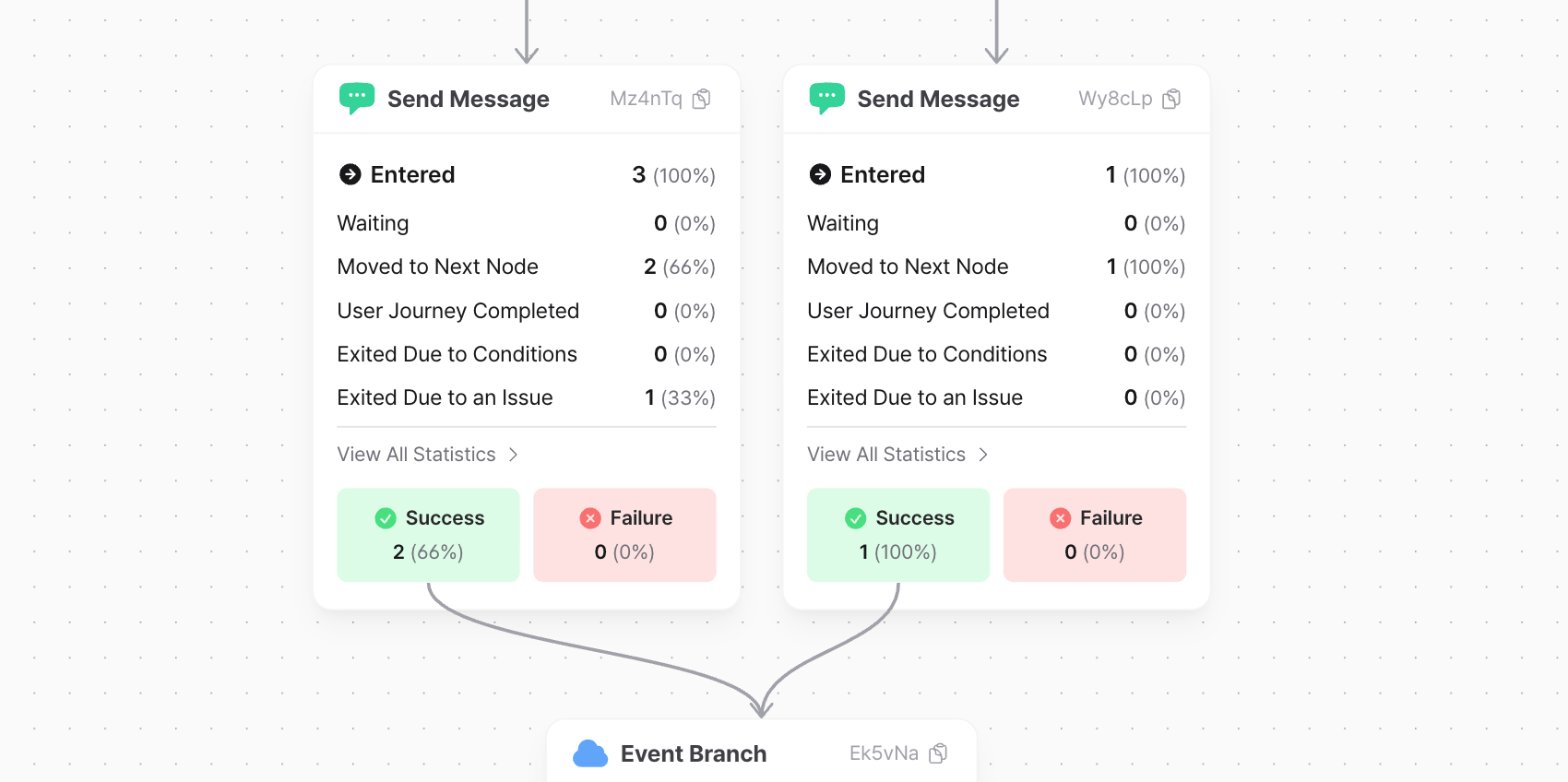
In Statistics view, select a message node. The panel on the right shows send results, including successes and failures, and conversions for that node.