
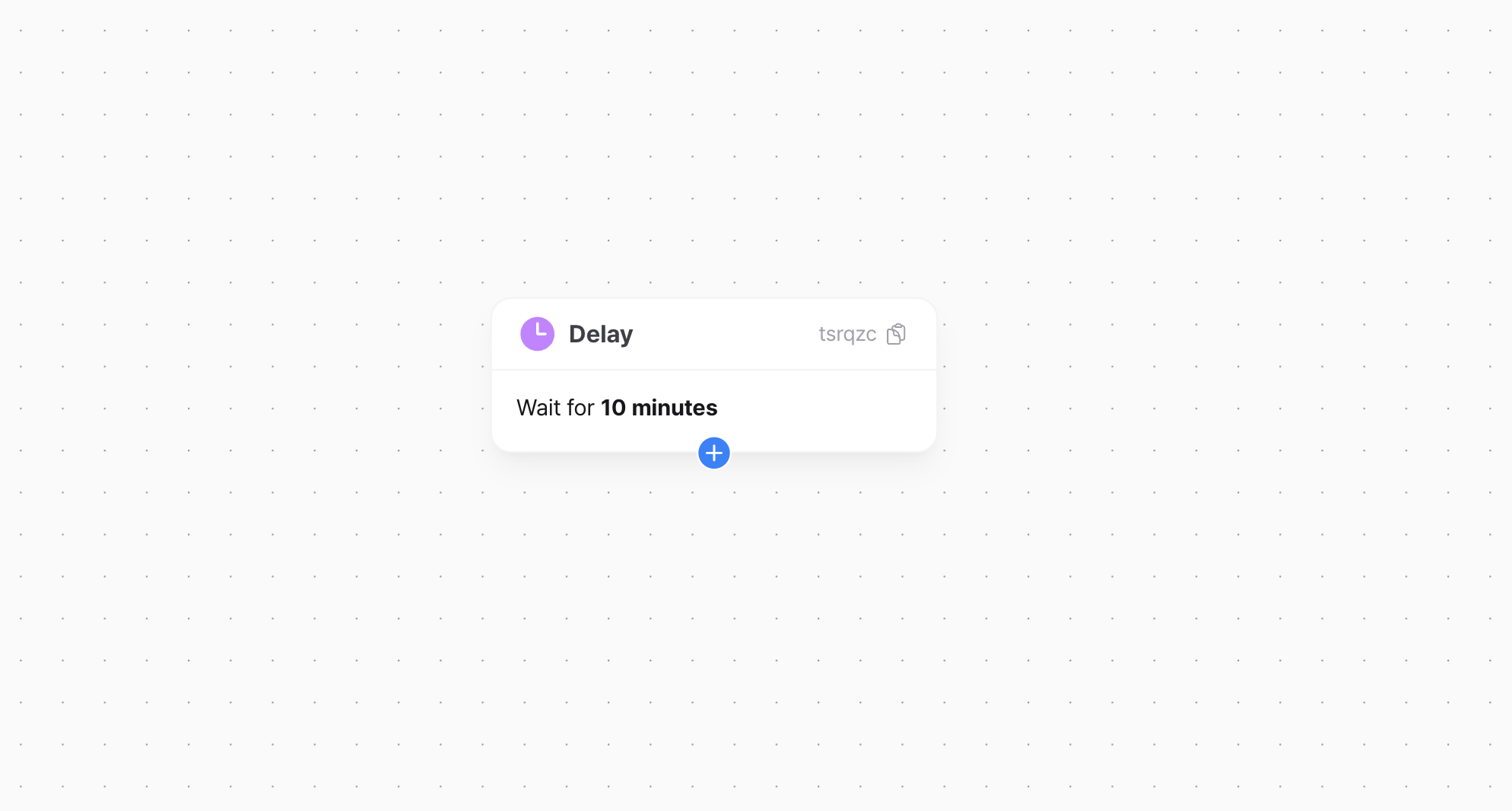
Configure a delay
Use a delay node to space out messages or set when users move on. Set a duration, a time of day, or a specific date and time. If a user meets an exit condition while waiting, Notifly records the exit at the delay node. Choose how to set the wait:- Fixed delay. Use the same duration or time for everyone.
- Dynamic delay. Use a parameter supplied when the user enters the journey.
Fixed delay
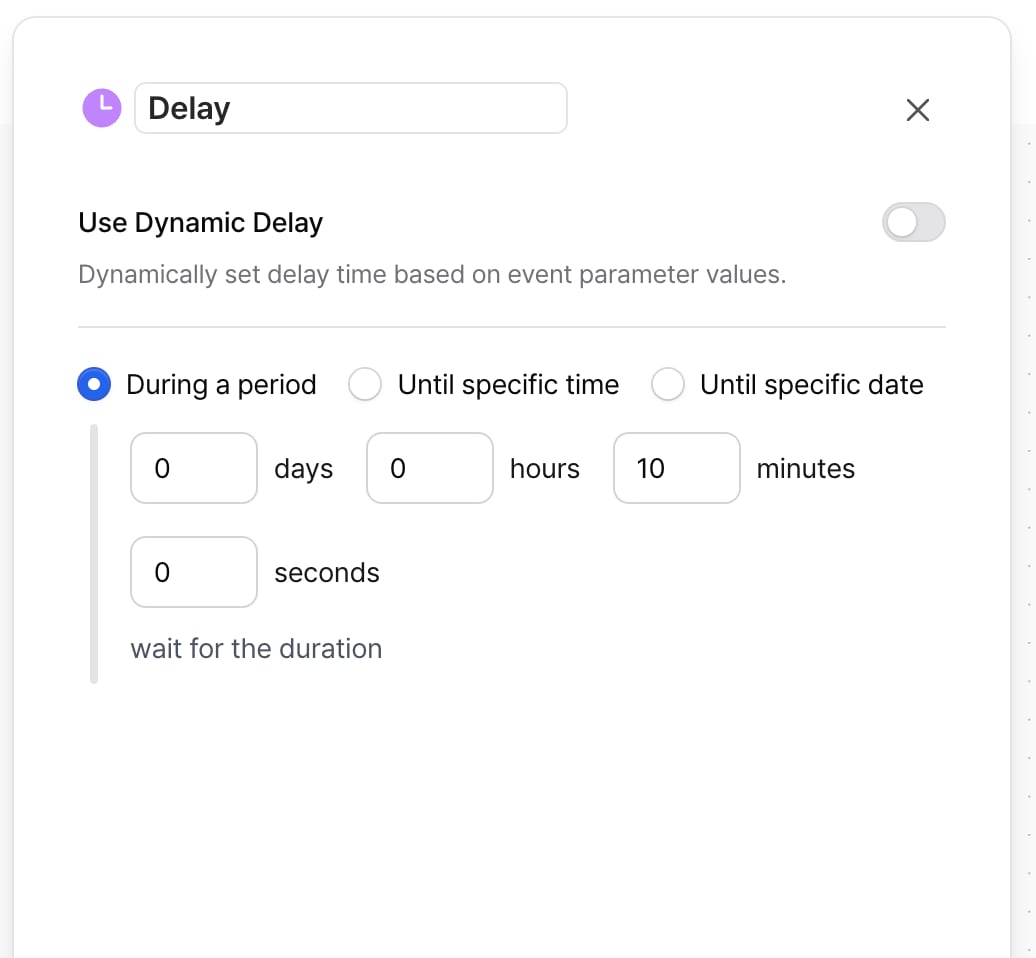
Wait for a duration
Select During a period. For example, with a delay of 12 hours and 30 minutes, the user moves on 12 hours and 30 minutes after entering the delay node.Wait until a set time of day
Select Until specific time. If you set the delay to 3:00 PM and a user enters at 6:00 PM on July 23, they move on at 3:00 PM on July 24. To wait for the next 3:00 PM after two days, place a separate two-day delay node before this node.Wait until a specific date and time
Select Until specific date and set the date and time. A user who enters the node after that time automatically exits the journey.Dynamic delay
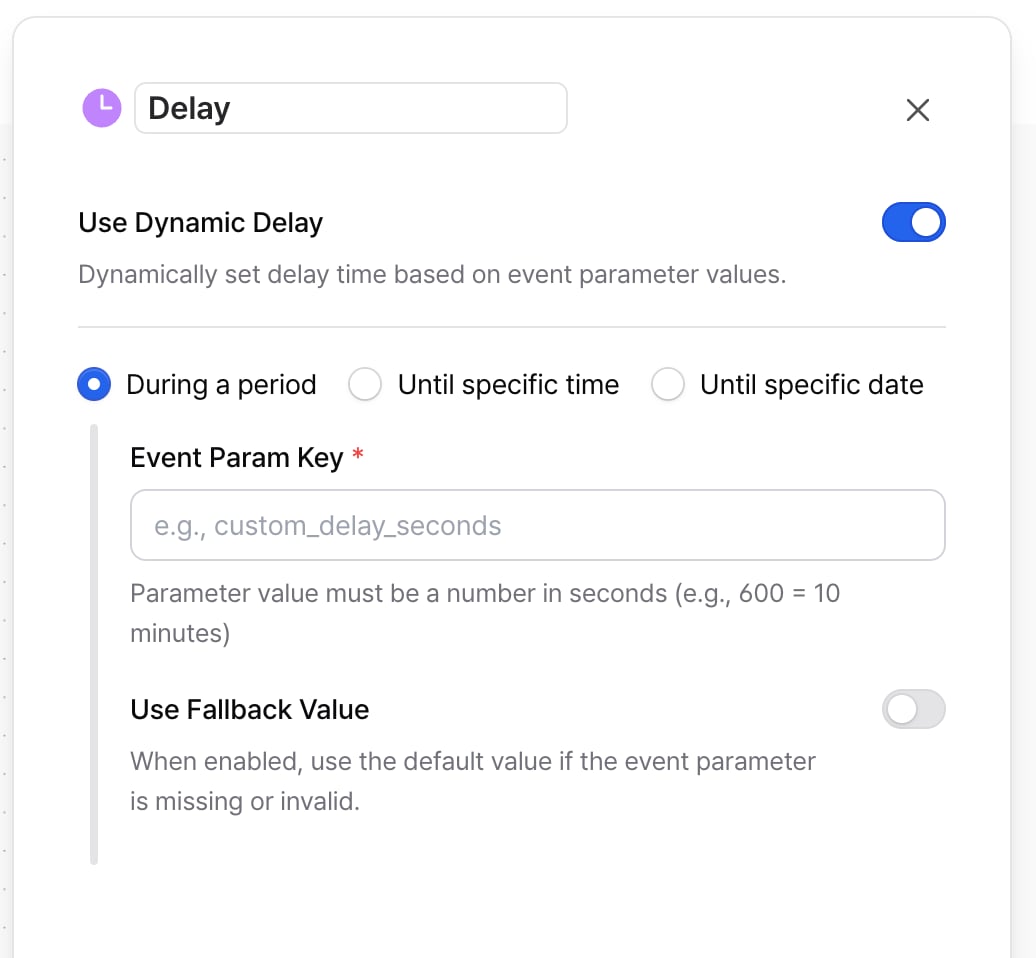
Use dynamic delays with Event-Based Entry or API Triggered Entry. Both must supply an entry parameter.
Set the duration or time in the entry event parameters. For an API-triggered journey, put the parameter in
users[].eventParams.Settings
- Choose During a period, Until specific time, or Until specific date.
- Set Event Param Key to the name of the entry parameter that supplies the value.
- Turn on Use Fallback Value to use a fixed value when the event parameter is missing or invalid.
Wait for a duration
Wait for the duration in the parameter.The parameter value must be a number in seconds. For example,
600 means a wait of 10 minutes.
Wait until a set time of day
The user waits until that time of day. If the time has already passed, they wait until the same time the next day.Use ISO 8601 time format. For example,
14:30+09:00 means wait until the next 14:30 KST.
Wait until a specific date and time
Wait until the date and time in the parameter.Use ISO 8601 date-time format. For example,
2024-01-15T14:30:00+09:00 means wait until January 15, 2024 at 14:30 KST.
FAQ
What happens if the parameter value for a dynamic delay is invalid?
What happens if the parameter value for a dynamic delay is invalid?
If you turned on Use Fallback Value, Notifly uses the value you set. Without a fallback, the user exits the journey with the status Exited Due to an Issue.
What if the specified date and time has already passed?
What if the specified date and time has already passed?
If Until specific date receives a date and time in the past, the user exits the journey with the status Exited Due to an Issue. Notifly evaluates the supplied date and time first, so the session exits even if you set a fallback.