
- Event export to Mixpanel is available on Notifly’s Pro and Enterprise plans.
- Contact your Notifly representative to use this feature.
How it works
Notifly collects the selected events and sends them in batches to Mixpanel’s Import Events API at regular intervals. Expect a short delay before the data appears after setup.Set up event export
1. Find your Mixpanel project token
In the Mixpanel dashboard, open the project you want to connect and copy its Project Token. You can usually find it under Project Settings.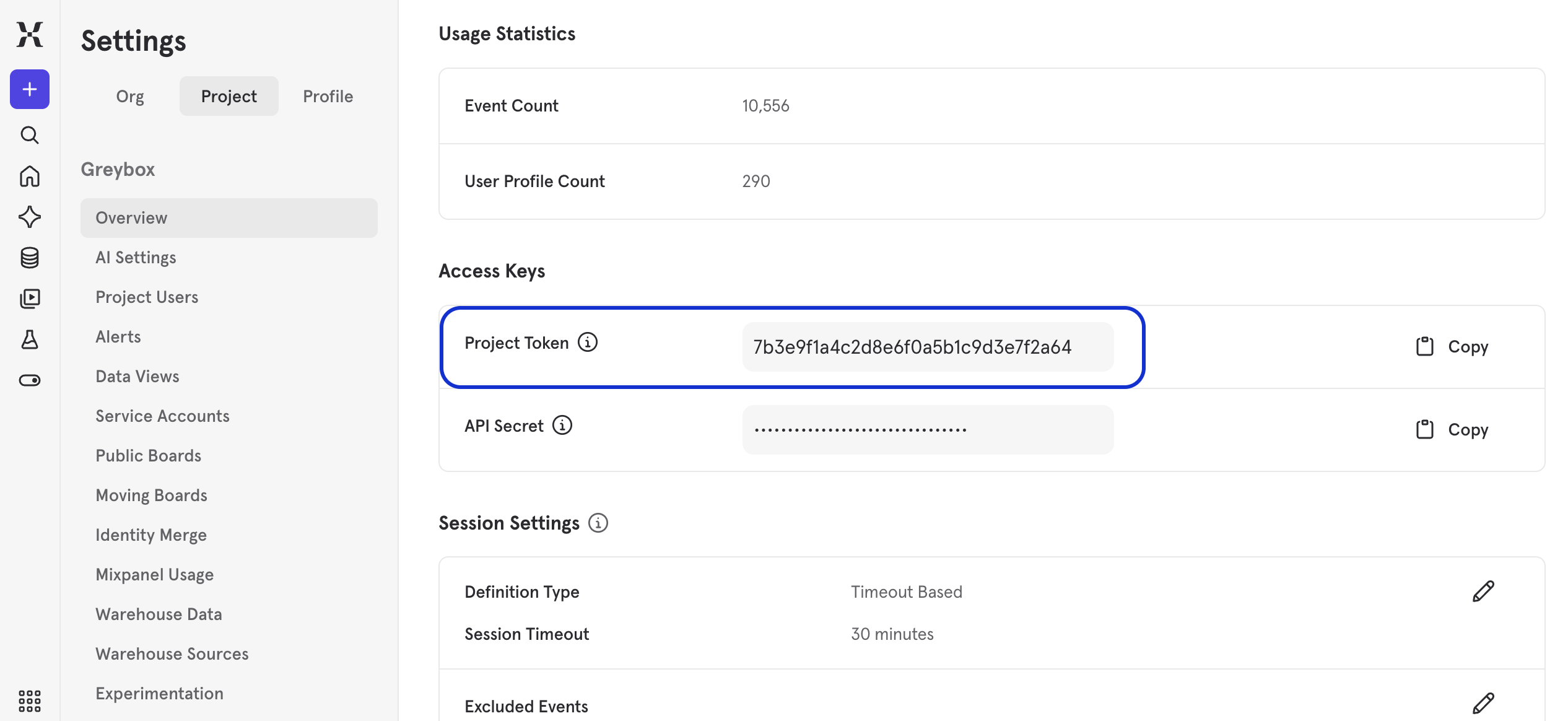
2. Enter the Mixpanel project token in Notifly
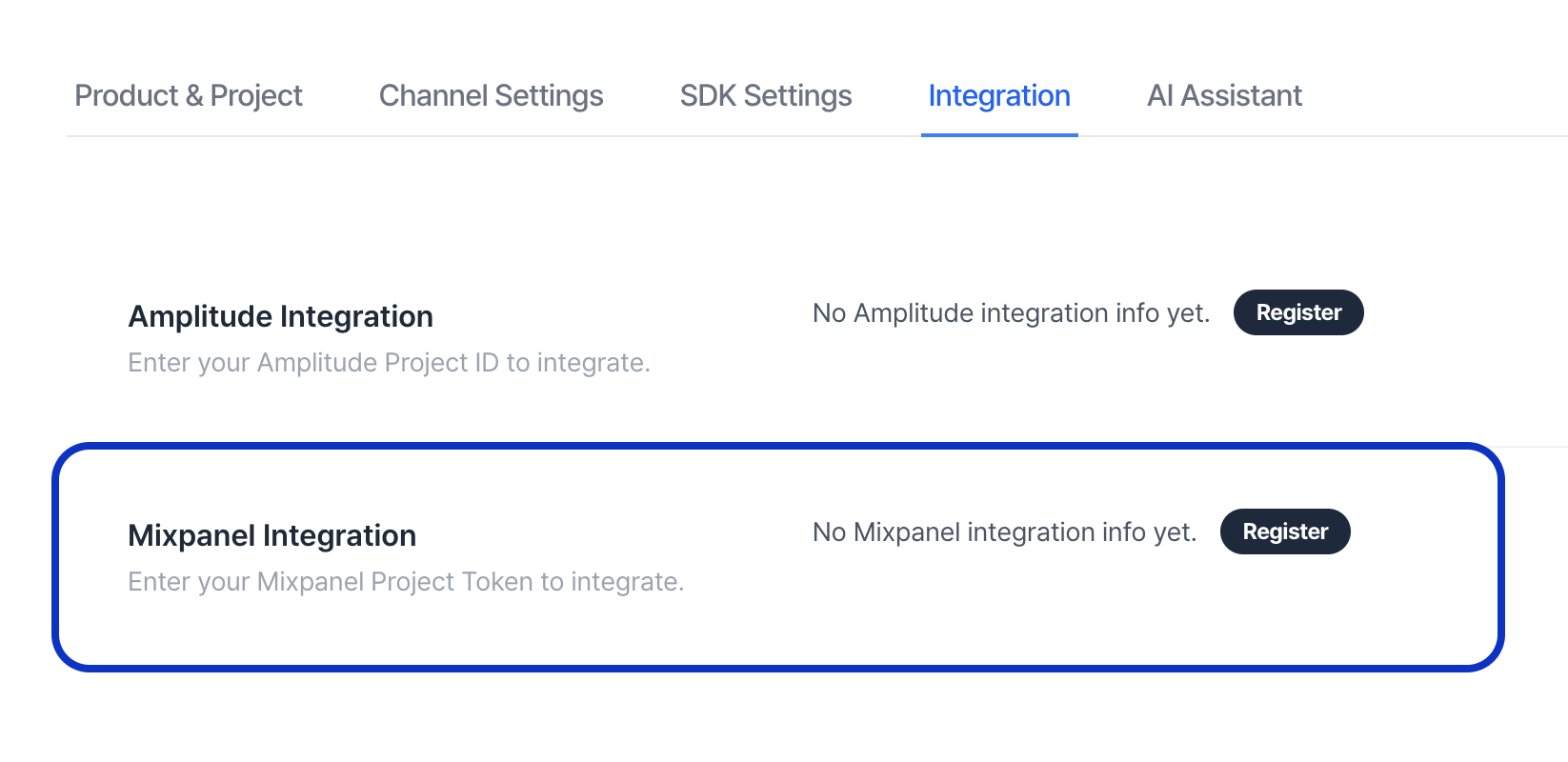
- In the Notifly console, open Settings > Integration.
- If you’re setting up Mixpanel for the first time, click Register under Mixpanel Integration and paste the token into Project Token. If Mixpanel is already connected, edit and save Project Token as needed.
3. Choose events to export
Under Events to import to Mixpanel, select the events you need for your analysis. Check your Mixpanel plan or agreement for how exported events count toward usage and may affect your bill.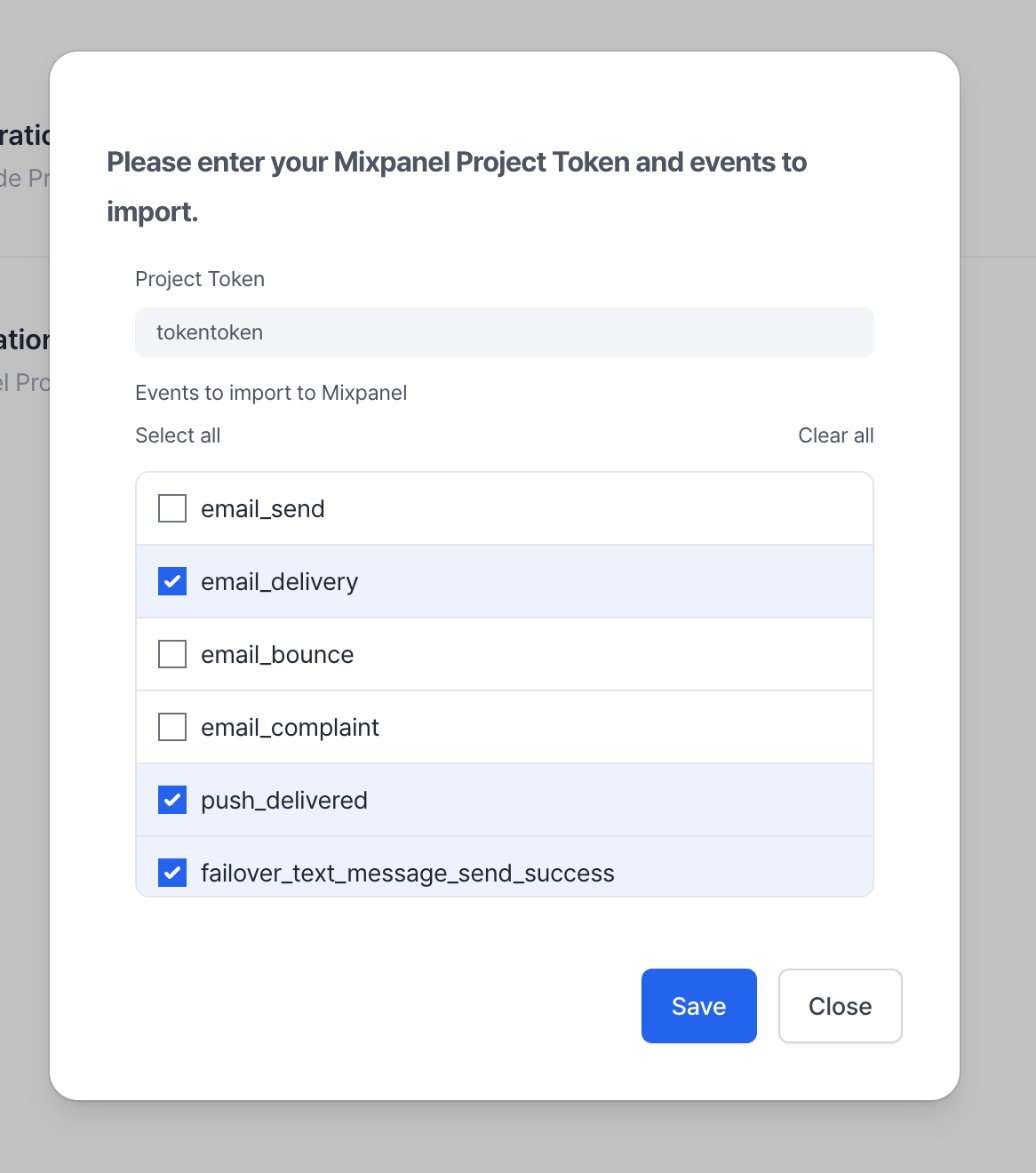
- Use Select all to select every event or Clear all to clear the selection.
- If you’re setting up the integration for the first time, click 저장 (Save, shown in Korean). If you’re updating the event selection, click Save.
Supported events
Events without an external user ID
Mixpanel requires adistinct_id. Notifly uses external_user_id as distinct_id and skips events without an external_user_id by default.
If you need to export events without an external_user_id, contact Notifly support to check whether your project supports exporting those events.
FAQ
I finished setup. Why don't I see data in Mixpanel yet?
I finished setup. Why don't I see data in Mixpanel yet?
Notifly sends events in batches at regular intervals. Allow time for the data to appear in Mixpanel.
- Check the Mixpanel project token.
- Make sure the event is selected.
- Check that the test user has an
external_user_id.
Do I need to send all events?
Do I need to send all events?
Send only the events you need. Opens and clicks may tell you more about user behavior than send logs. Prioritize the events you use in your analyses to manage your Mixpanel costs.
Can Mixpanel count the same event twice?
Can Mixpanel count the same event twice?
Notifly maps each event’s unique ID to Mixpanel’s
$insert_id field. If Notifly resends an event after a network issue, Mixpanel checks the combination of event name, timestamp, distinct_id, and $insert_id to identify duplicates in its reports.Can I connect multiple Mixpanel projects?
Can I connect multiple Mixpanel projects?
The console supports one project token. For a custom setup that connects several projects, email contact@notifly.tech.