
The Amplitude integration is available on Notifly’s Pro and Enterprise plans. Available sync schedules depend on your Amplitude plan.
- Send a reminder with a discount to users who left items in their cart.
- Introduce a new feature through in-app popups and push notifications to users who haven’t tried it.
- Send a series of personalized messages, such as offers or updates, to users who haven’t opened the app in at least 30 days.
Before you start
- The integration maps an Amplitude user ID or a selected user property to Notifly’s
external_user_id. - Each user needs an ID in both Amplitude and Notifly. The integration excludes anonymous users.
- Notifly creates one user group per cohort. If you sync the same cohort through a new destination, Notifly resets the existing user group. Review the new destination’s user ID mapping before syncing.
1. Get your Notifly credentials
- In the Notifly console, open Settings > Product & Project.
- Copy your Project ID.
- Under API Credentials, copy your Access Key. Copy the Secret Key from the dialog that appears when you create or renew it. For an existing Secret Key, ask your development team.
Store the Secret Key only on the server. Notify your development team before renewing it.
2. Add the destination in Amplitude
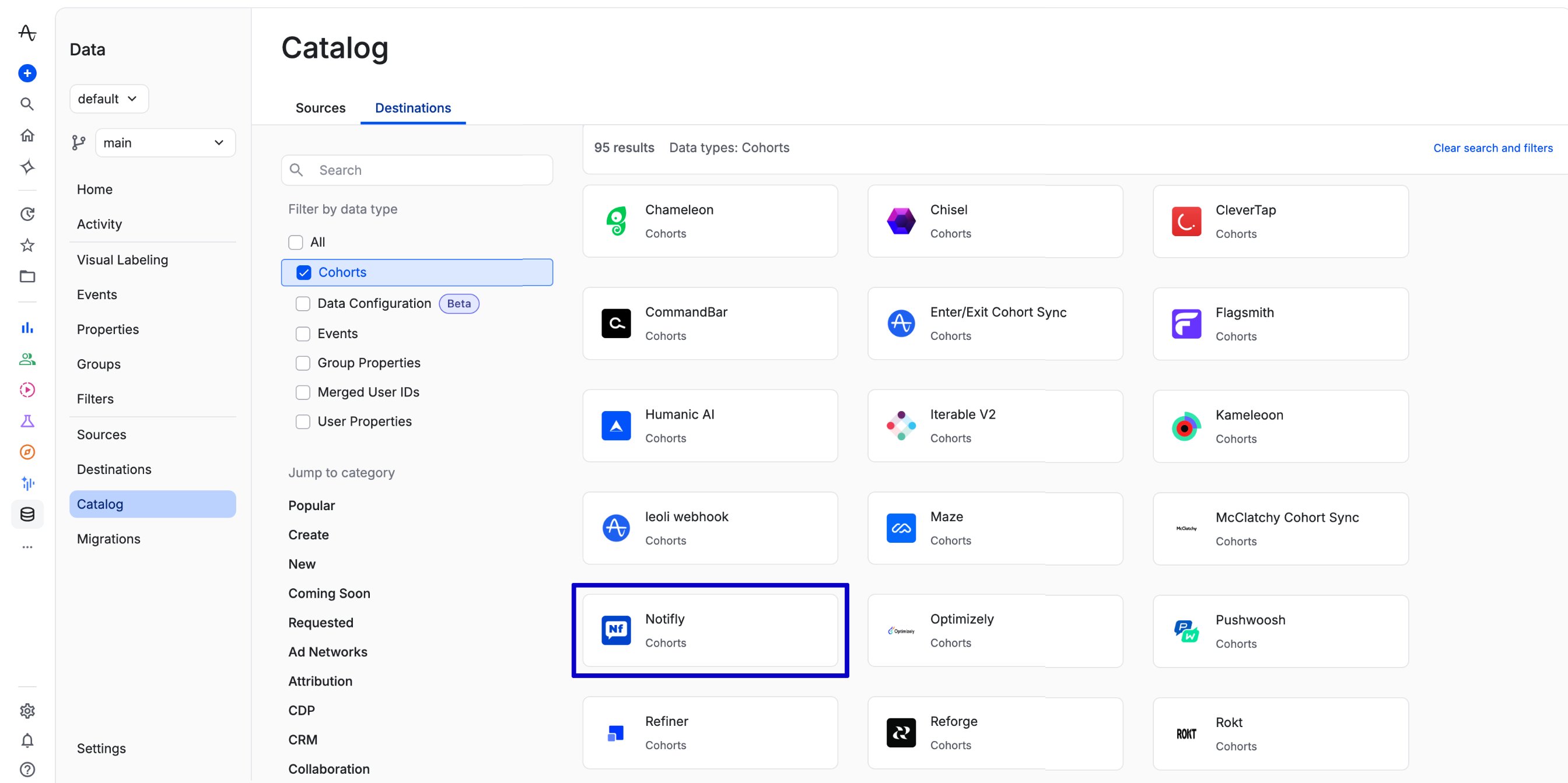
- In Amplitude Data, go to Catalog > Destinations.
-
In the Cohort section, select Notifly.
If you don’t see Notifly, contact Amplitude.
-
Enter a name in Name. Paste the Notifly Access Key into API Key, the Secret Key into Secret Key, and the Project ID into Project Id.
Copy the Secret Key before closing the dialog that appears when you create or renew it. To get an existing key, ask your development team.
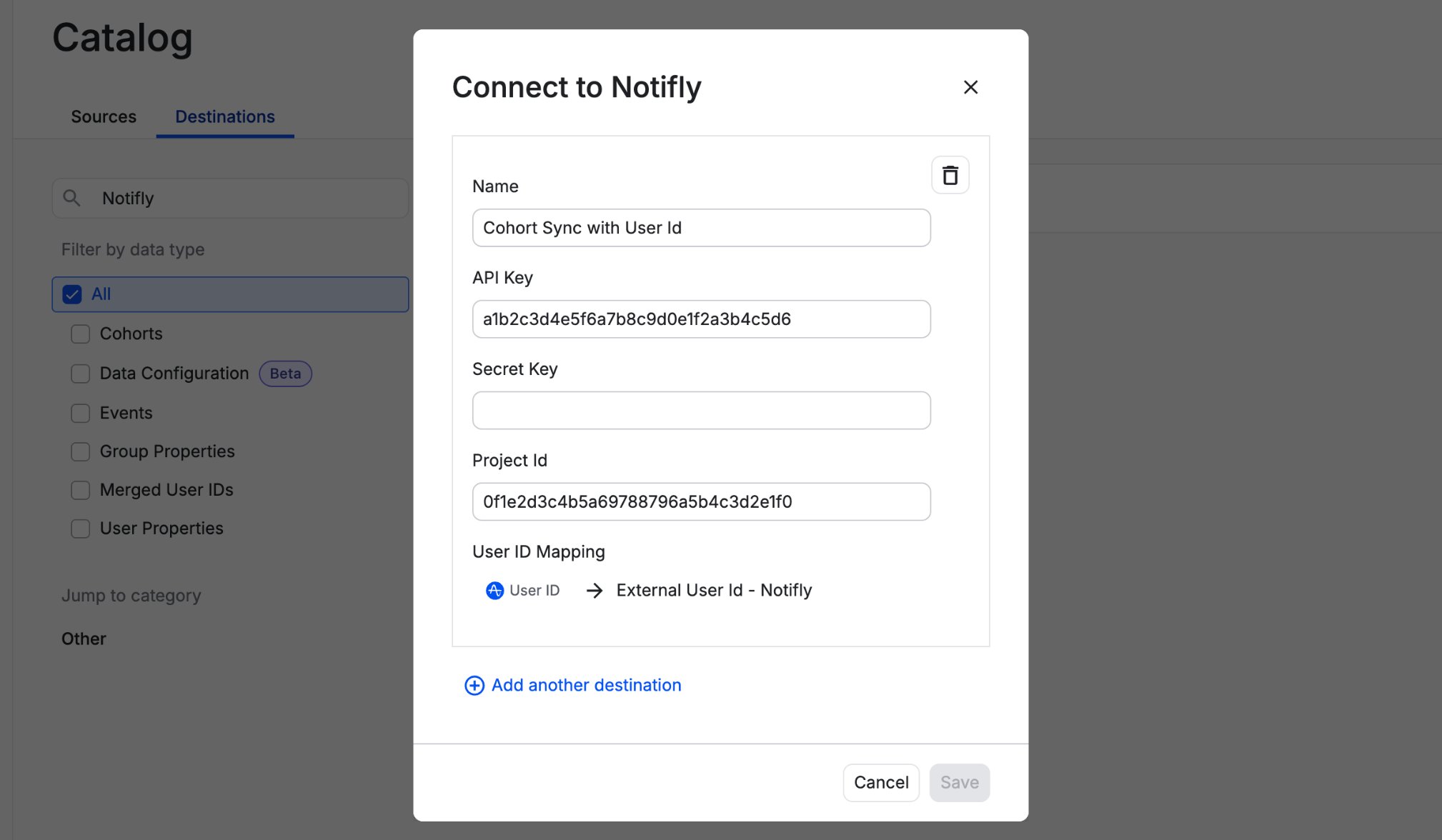
- Map the Amplitude user ID to Notifly’s
external_user_id. You can use a predefined or custom Amplitude user property as the user ID.
For each user you want to sync, confirm that the value in the selected Amplitude field matches the user’s
external_user_id in Notifly.- Click Save.
3. Send the cohort
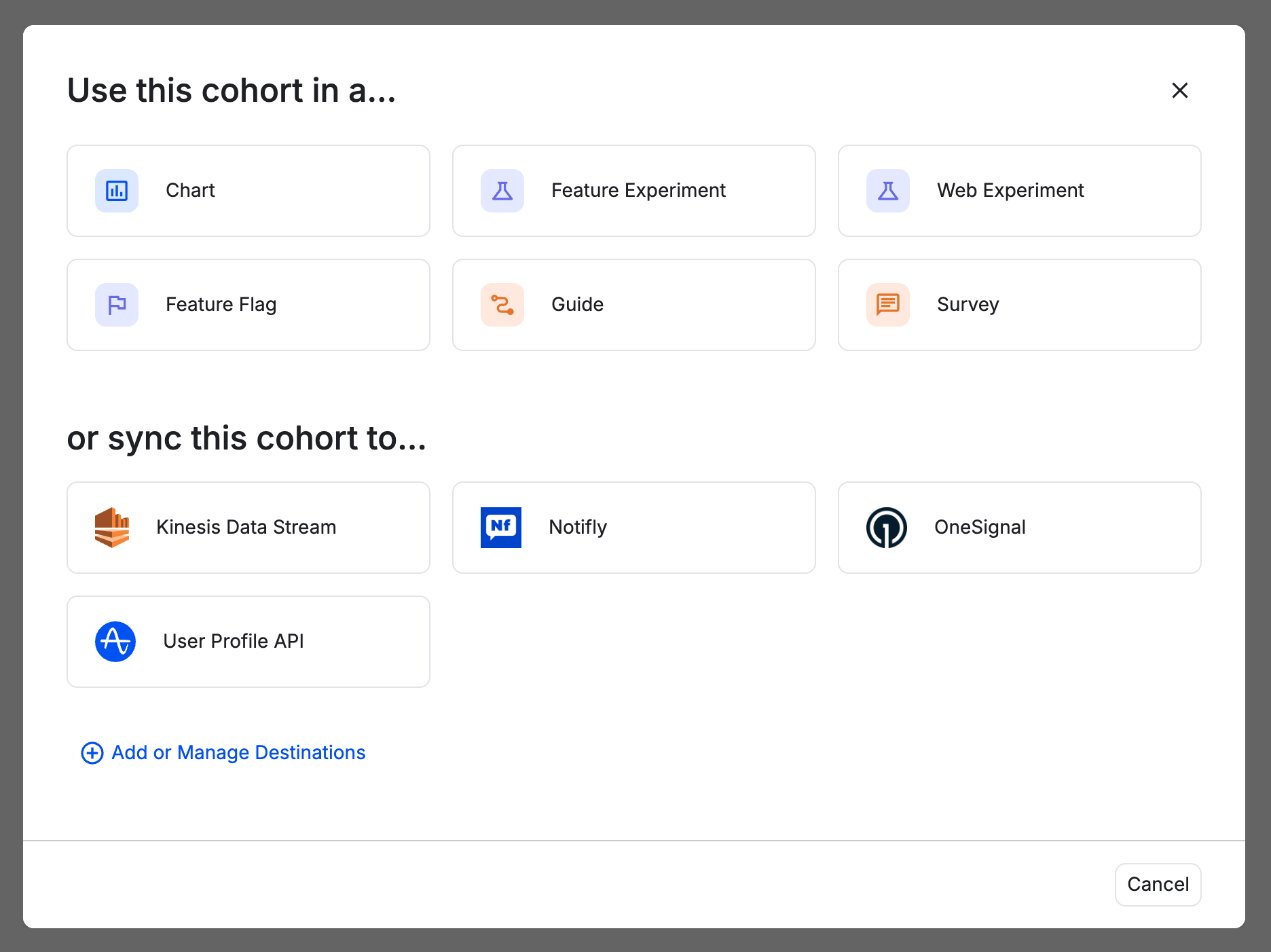
- In Amplitude, open the cohort to send to Notifly.
- Open the cohort’s sync options and select Notifly.
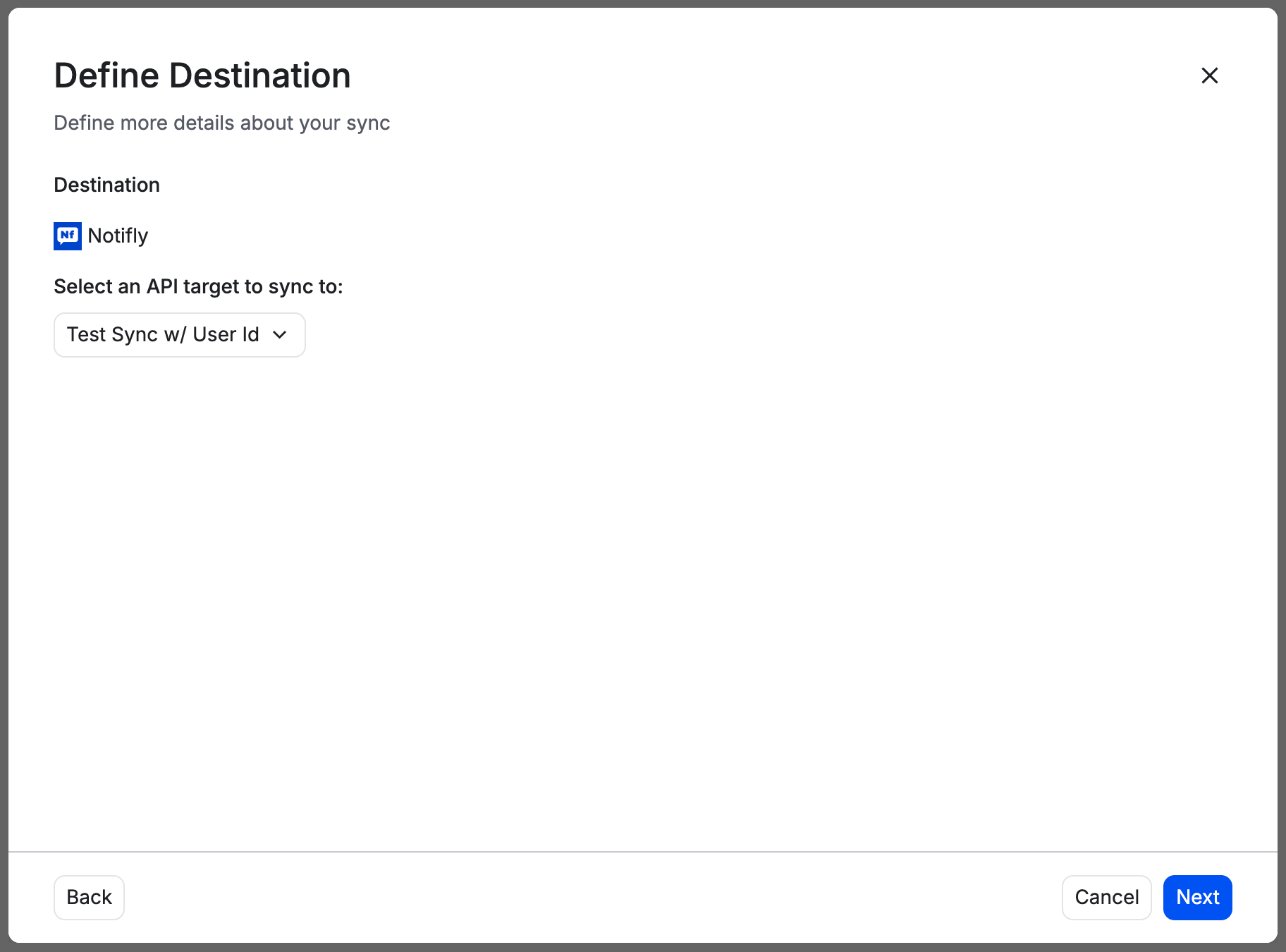
- Under Select an API target to sync to, choose the destination you created, then click Next.
- Choose a sync frequency. The options depend on your plan and destination.
- One-Time Sync runs once.
- Scheduled Sync runs hourly or daily.
- Real-Time Sync, if available, sends updates every minute.
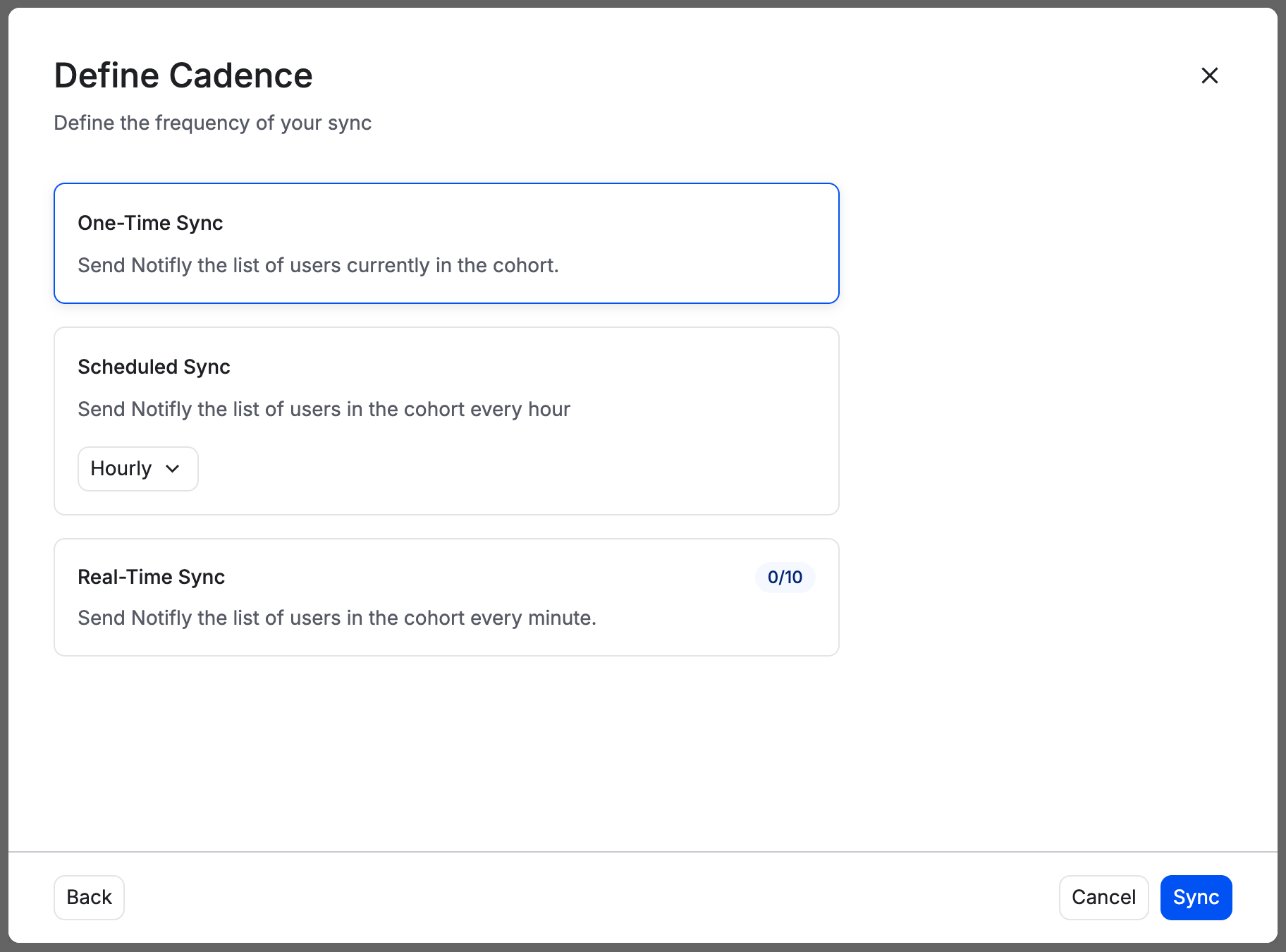
The first scheduled sync sends the full cohort. Each later sync sends only users added or removed since the previous sync.
- Click Sync.
4. Verify the cohort in Notifly
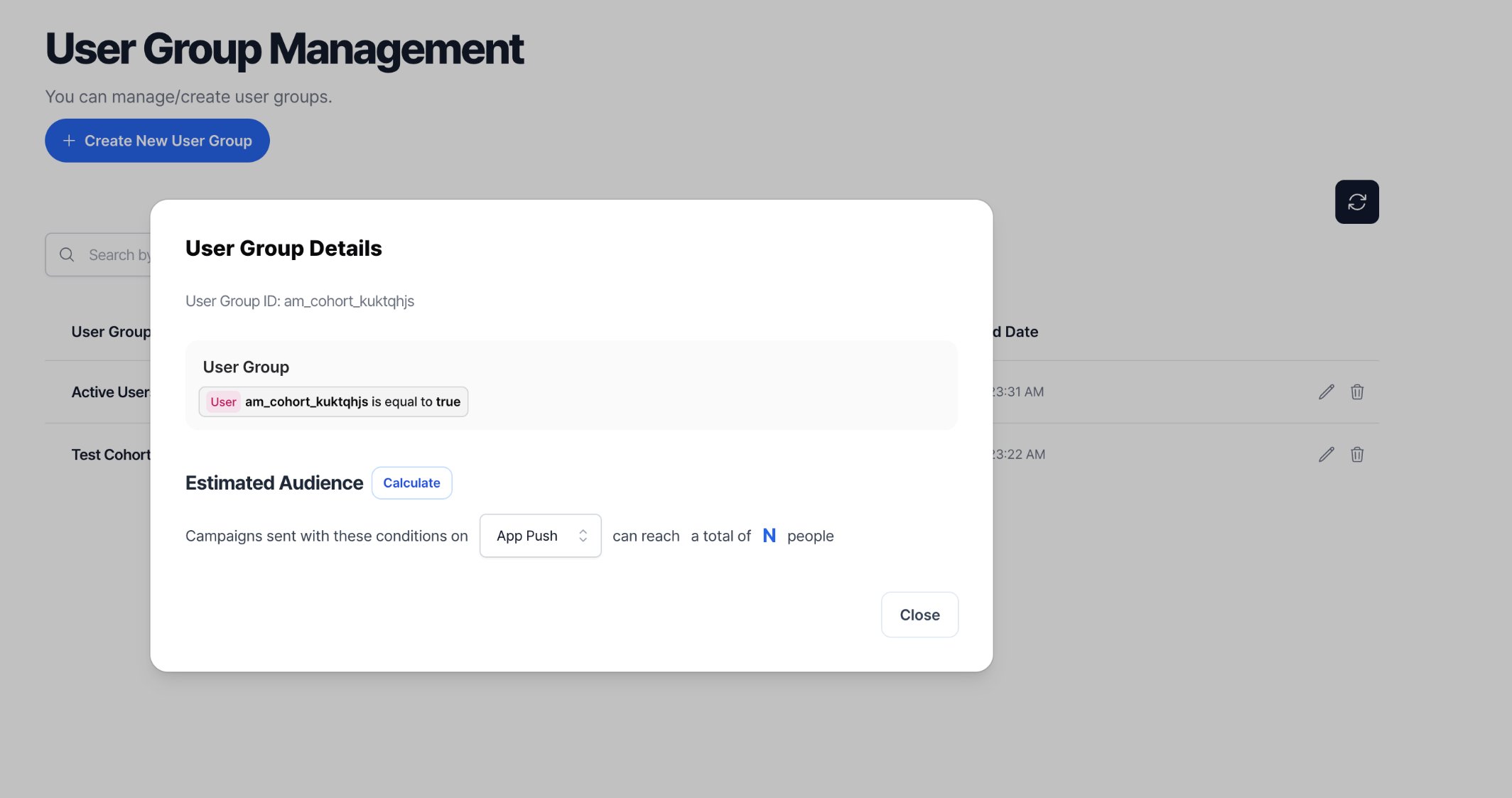
In the Notifly console, open User Management > User Group to find the synced cohort.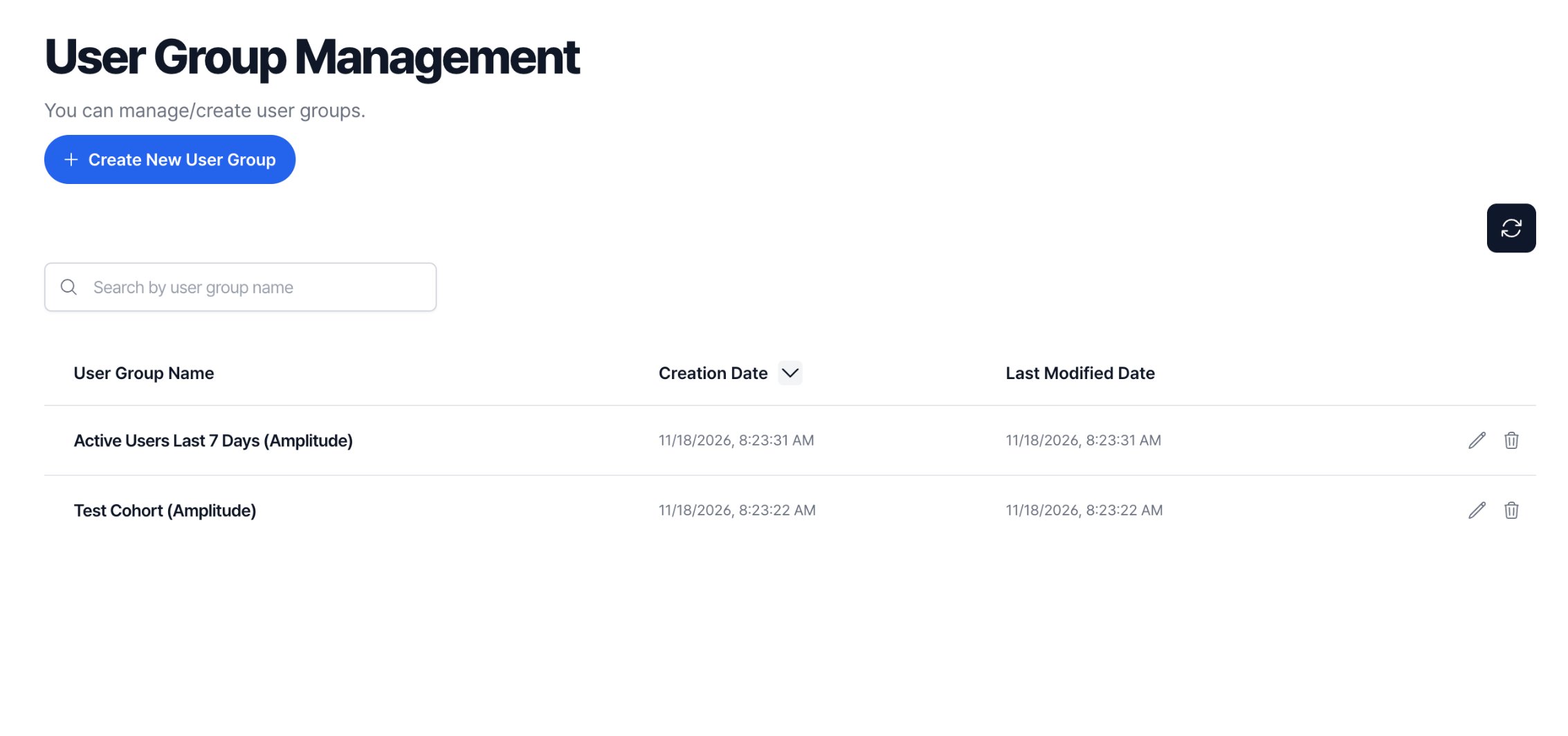
(Amplitude).
FAQ
Can I use cohort sync and event streaming together?
Can I use cohort sync and event streaming together?
Yes. You can set up and use event streaming and cohort sync independently.
Why does my user count differ from the count in Amplitude?
Why does my user count differ from the count in Amplitude?
Notifly adds only the users whose IDs match an
external_user_id in Notifly. Check that you mapped the correct field from Amplitude.How often should I sync a cohort?
How often should I sync a cohort?
- To send a cart reminder soon after someone leaves items in their cart, choose the shortest interval your Amplitude plan and destination offer.
- For campaigns that reach out to inactive users, a daily sync may be enough if your plan and destination offer it.
Can I sync multiple cohorts?
Can I sync multiple cohorts?
Yes. Each Amplitude cohort appears as a separate Notifly user group.
Can I edit a synced user group manually?
Can I edit a synced user group manually?
You can’t edit a synced user group directly in Notifly. Edit the cohort in Amplitude and sync it again.