
Use the Notifly Remote MCP URL for the custom connector. You do not need a manually registered OAuth client ID or secret.
Connect
- In Claude, open Plugins. Earlier versions show Customize > Connectors.
- Select Add > Add custom connector. Earlier versions show + Add.
- Enter these values.
If your version shows OAuth client ID and OAuth client secret, leave both blank.
- If Claude displays Continue, continue through the detected authentication settings. Use OAuth sign-in and Register automatically if an OAuth client choice appears.
- Select Add if your version displays this button.
- Select Notifly in the connector list, then select Connect if sign-in has not started.
- Sign in with your Notifly account when the sign-in page opens.
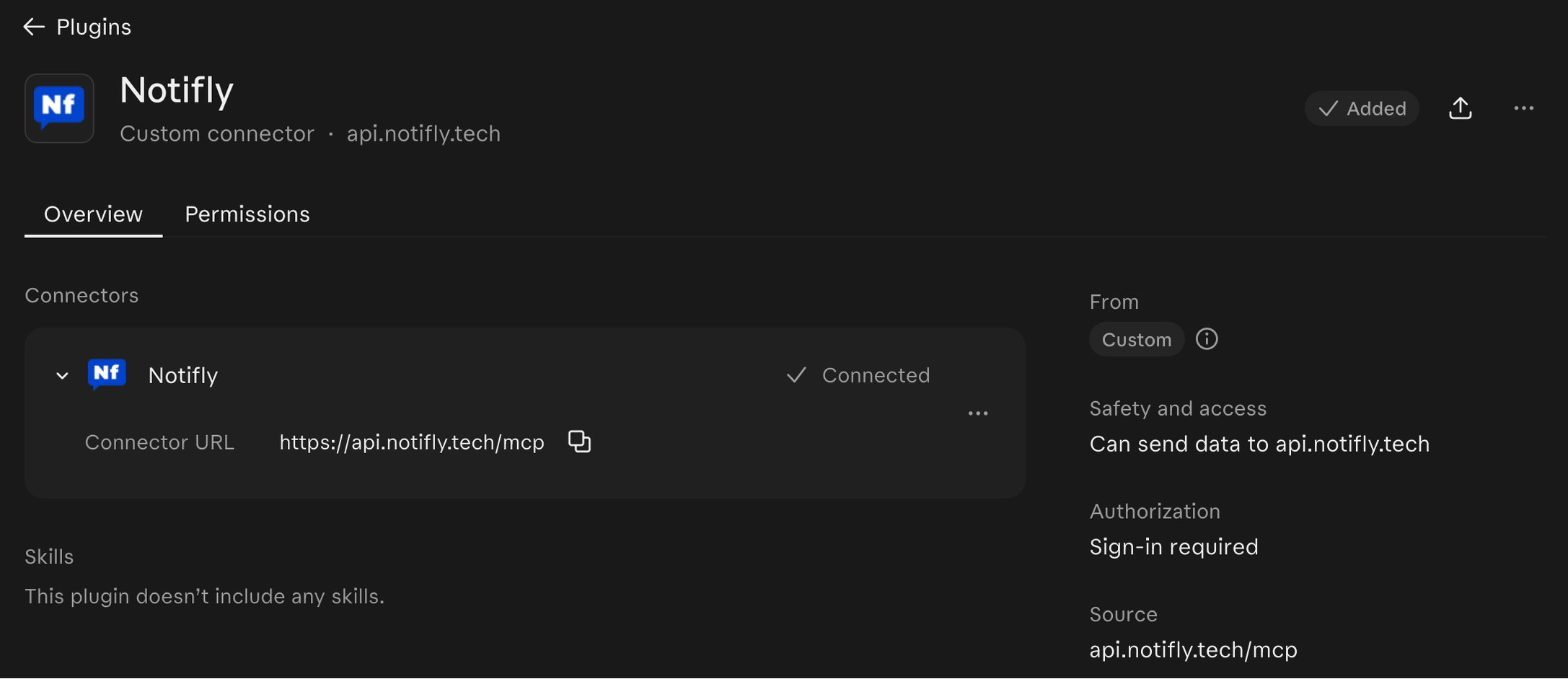
- Return to Claude and check for Connected under Overview. Open Permissions to review the available tools. Earlier versions show Disconnect and the tool list together.
OAuth authentication flow
Claude reads Notifly’s OAuth discovery metadata when it connects tohttps://api.notifly.tech/mcp. Notifly supports dynamic client registration and PKCE, so you do not need to enter an OAuth client ID or secret manually.
The authentication flow usually follows these steps.
- Claude accesses
/mcp. - Notifly tells Claude that sign-in is required.
- Claude opens the Notifly sign-in page in the browser.
- You sign in with your Notifly account.
- Claude reads the tool list and calls tools with the permissions of the connected account.
Tool permissions
Claude groups Notifly tools as Read-only tools and Write/delete tools. Check the discovered tool list when you connect. The available tools can change as the service is updated.
Set the policy for each tool group in Claude, such as Ask for approval. If your organization handles sensitive projects, keep write tools subject to approval.
Capabilities
Example prompts and responses
These examples illustrate response formats. They do not contain real account data.Find projects and campaigns
Diagnose a user’s missing message
Create an inactive user journey draft
Disconnect and reconnect
- To disconnect, open the Notifly connector and select Disconnect in its connection controls. Earlier versions use Customize > Connectors > Notifly > Disconnect.
- To switch accounts, select Disconnect, then Connect again.
- If tools are missing or OAuth fails, remove the custom connector and add it again with the same URL.